3D packaging guide
How to make a realistic packaging mockup
A believable mockup begins with the correct blank. The nicest lighting cannot hide a lid that closes through the front panel.
Make a packaging mockup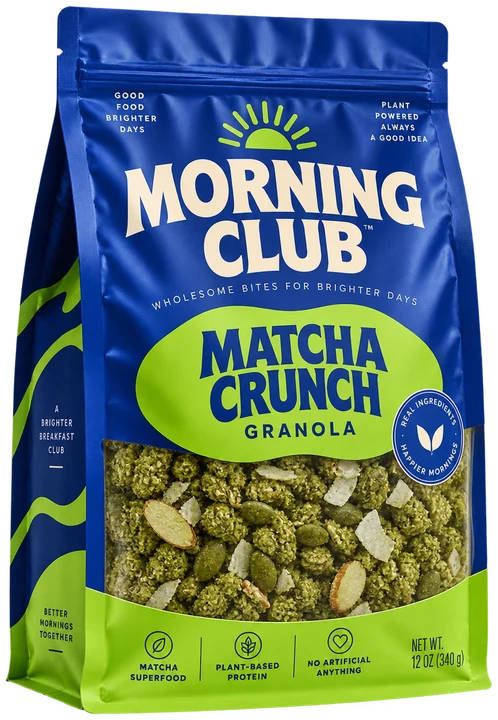 From flat to finished.
Quick answer
Choose the real package structure and dimensions, put artwork on the right panels, set the material and camera, inspect the assembled closure, then render several useful angles. Show the front, one side, and a view that explains how the package opens.
Use the actual structure
Start with the supplier’s dieline if you have one; otherwise choose the closest parametric carton, pouch, can, label, or mailer. Enter the finished size and board before placing graphics. A 3D box built from a generic rectangle may be good enough for a concept board, but it cannot show whether the finished pack closes correctly.
If the artwork already exists as PDF, SVG, or an image, attach it to the corresponding face. Check which flap ends up under the lid and where seams interrupt the graphics.
Make the surface believable
Material tells the viewer what they are looking at. A matte carton, coated label, metallic can, and flexible pouch should not have the same shine. Use a restrained highlight so small type remains readable, then check whether the colour still resembles the approved print proof.
Choose a scene that makes the product easy to judge. A soft studio background is useful for approvals; a real-life setting helps a marketing team see it in context. Keep at least one plain view for checking the design itself.
Render angles that answer questions
A single three-quarter hero shot rarely shows the complete design. Add a straight front view for typography, a side or back view for secondary copy, and an opening or top view when closure matters. If the product will sit on a shelf, render it at roughly shelf-eye height.
Before export, zoom in on edges, seams, and lids. If a design crosses a fold, confirm the two halves meet. Do not approve artwork from the mockup alone: use the flat production file for final copy and barcode checks.
Size the pack
Use finished dimensions and the intended substrate.
Apply artwork
Map every face and check top, base, and back orientation.
Set the scene
Pick material, lighting, background, and camera.
Inspect closure
Look closely at tabs, folds, seam, and lid.
Render a set
Export hero, front, and detail angles for the actual review task.
Common questions
Do I need Photoshop to make a box mockup?
No. A browser-based 3D studio can map artwork onto a sized structure and render the result. A layered Photoshop template is useful when you need to retouch a specific photograph or fit into an existing PSD workflow.
Can I make a mockup from my printer’s dieline?
Yes, if it is a PDF, DXF or SVG with legible cut and crease geometry. Import it in the editor, verify the layer mapping, set fold angles, and place your artwork on the resulting panels.
What makes a mockup look realistic?
Correct proportions and closure matter first. After that, material response, lighting, shadows, camera angle, and restrained scene styling make the pack believable.
Put it into practice.
Start with the structure, check the fold, and make the file your printer needs.
Make a packaging mockup