Mockup and print comparison
DielineMaker vs Canva for packaging design
Canva can make a packaging idea easy to show. DielineMaker helps make sure the box in the image is the box you can fold and print.
Try a packaging mockup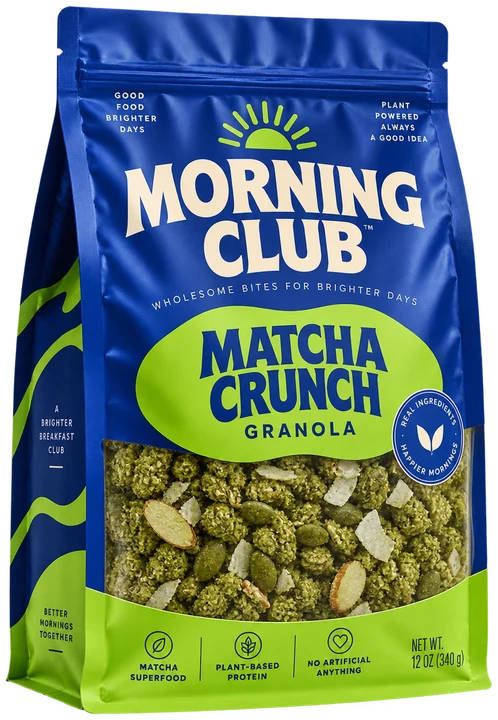 From flat to finished.
Quick answer
Choose DielineMaker when you need finished dimensions, cut and crease geometry, panel artwork, a 3D fold check and vector files for a printer. Choose Canva when the immediate result is a quick presentation, social graphic or campaign layout in a familiar design editor. You can use both: approve the structure in DielineMaker, then place a render in Canva.
Start with the output, not the interface
A packaging mockup might be a mood-board image, a client approval view, or a close approximation of a manufactured carton. DielineMaker begins with the package structure and lets artwork follow its actual panels. Canva begins with the visual composition and offers packaging templates and mockups in a general design workspace.
This comparison describes current workflows, not a controlled print test. The right choice depends on whether the next person needs a picture or a sized die.
| Question | DielineMaker | Canva |
|---|---|---|
| What is the starting point? | A sized structure or imported supplier dieline | A packaging template or mockup design |
| How do you inspect the box? | Flat cut/crease view and folded 3D pack | Check the source mockup against the intended package |
| Where does artwork live? | On the actual flat and folded panels | In a general graphic design layout |
| What goes to the printer? | Dieline PDF, Illustrator, SVG, DXF or CF2, print PDF and an XJDF/JDF job ticket, on Pro | Pair the visual with a supplier-approved die and print artwork |
Sources: Canva packaging mockups · Canva packaging templates
DielineMaker when the pack must be made
Enter the finished inside size and board or import a supplier PDF, DXF or SVG. Then put artwork on the flat panels and turn the folded pack to inspect the lid, seam and back. The same project produces vector dieline exports and a print PDF.
That route makes sense if you own the file a converter will review. A 3D preview helps catch panel mistakes; a printer-approved die and physical sample still decide production fit.
Canva when the presentation is the starting point
Canva is useful when the mockup must sit inside a pitch deck, product launch graphic or social layout and the team already designs there. It offers packaging templates and an online mockup workflow with a free starting point.
Treat the visual as one part of the handoff. Ask the package supplier for the actual cut and crease file, and make sure the approved artwork uses that sized dieline. If the design changes on the mockup, apply the same change to the production art.
Sources: Canva packaging mockups · Canva packaging templates
When using both is sensible
Approve the dimensions, dieline and artwork on the actual panels in DielineMaker. Export a useful three-quarter render, then put it in Canva with launch copy, a price card or the wider campaign layout. Keep the approved print PDF and supplier die separate from the social graphic.
If you only need a first visual, try DielineMaker’s free sample mockup preview: rotate the package, change its background and download a PNG. It uses sample artwork until you open the structure in the editor. Free editor exports carry a watermark; eligible paid plans can clear it.
A practical decision test
Take one finished product and ask what the reviewer will need to sign off. For a campaign layout, arrange the package image in Canva. For die geometry, panel artwork, fold closure and files for a converter, try DielineMaker. If both outputs matter, make the production-proof image first and place it into the campaign composition.
No mockup image replaces a physical sample. If the lid or contents must fit closely, request one before the run.
Mock up the same product
Use the actual size and the right shape where available.
Inspect more than the front
Look for a back-panel view, lid, seam and opening direction.
Check the file
Confirm resolution, watermark, use rights and whether a die is included.
Handoff
Align the final visual with supplier-approved artwork and structure.
Common questions
Is DielineMaker or Canva better for a packaging mockup?
Choose DielineMaker when the mockup should reflect a sized, foldable structure with panel artwork. Choose Canva when the immediate job is arranging the image within a presentation or marketing layout.
Can I use Canva artwork on a DielineMaker box?
You can export suitable graphics and place them on the correct faces in DielineMaker. Check resolution, bleed, fonts and every panel against the final printer dieline before export.
Can I send either mockup image to a printer?
A mockup image is a visual proof, not the manufacturing die. Send a sized dieline and approved print artwork, then confirm the converter’s format and physical sample.
Sources and how we compare
DielineMaker publishes this guide and is one of the products discussed. Recommendations describe the jobs each tool suits. External features come from the official pages below; check current plans before buying.
- Canva packaging mockupsChecked 2026-10-06
- Canva packaging templatesChecked 2026-10-06
Put it into practice.
Start with the structure, check the fold, and make the file your printer needs.
Try a packaging mockupKeep reading
Mockup software guideBest packaging mockup software for real design work
Compare DielineMaker, Pacdora, Canva, Esko Studio, Boxshot, and a photographed sample by the kind of packaging mockup each helps you make.
Read the guide Direct comparison
DielineMaker vs Pacdora: which packaging workflow fits?
Compare DielineMaker and Pacdora for dielines, imported supplier files, mockups, AI tools, free plans, and print handoff, with honest recommendations by job.
Read the guide