Before you start
- What goes in
- A finished project and scene, optionally images or screen recordings for a multi-shot sequence.
- What comes out
- A playable video, an artwork-bearing 3D model or an offline interactive HTML viewer, depending on the chosen export.
A practical example
A short tea-carton reveal
Begin with a readable three-quarter view, move around the carton and end with the front label held on screen. Use a folding shot only for a structure that supports folding.
Step-by-step walkthrough
Start with a complete still composition
Set the scene, aspect, camera, material and artwork before adding motion. Preview the package from the angles the animation will expose, including the back and bottom.
Choose simple motion or a sequence
Use Animation for a scene motion such as Turntable, Gentle float, Rise into view or Slide across. Structure-dependent options include Fold the product and Open and close. Use Video Studio when you need multiple shots.
Edit the shots
Enable Use video sequence and select a shot in the timeline. Set Camera, Product action, Effects, Cut in and Shot length. Reorder, duplicate or remove shots with the timeline controls.
Add media if the sequence needs it
Upload screenshots or recordings in the supported formats. Select Media in shot, choose the target panel and Media fit. For recordings, set Source start, Playback speed and Loop recording.
Preview the whole sequence
Play from the start and scrub through the timeline. Check transitions, media crops, text, product visibility and the ending. Review the chosen colour grade, grain, glow and cinematic effects at a restrained level.
Choose export settings and inspect playback
In Download, select the video motion or use the saved sequence. Set supported resolution, frame rate and codec. Export a short test first and open it in the player or destination where it will be used.
Options at a glance
| Control or choice | What it changes | How to use it well |
|---|---|---|
| Animation / Duration / Movement distance / Timing | The scene’s motion, length, movement scale and easing. | Keep the product readable and avoid motion so large that it leaves the output frame. |
| Camera / Product / Effects | Per-shot camera movement, product behaviour and additional effects. | Use a simple camera move when the goal is to show packaging information clearly. |
| Cut in / Transition length / Shot length | How each shot starts and how long it remains. | Leave enough still time to read the label. Long transitions can consume a short shot. |
| Media fit | Fill panel (crop edges) or Show entire image. | Choose containment for a full screenshot and filling for an intentionally cropped visual. |
| Source start / Playback speed / Loop recording | Which part of a recording plays and how it fills the shot. | Without looping, the last source frame is held when the recording ends. |
| Resolution / FPS / Codec | Output pixel size, frame rate and encoding. Available choices depend on the device and encoder. | Begin with a supported 1080p, 30 fps export and Auto codec; verify the actual file extension and playback. |
| GLB / USDZ | Current 3D model and artwork. GLB targets general 3D/web tools; USDZ targets compatible Apple AR and presentation workflows. | Open the model in the receiving viewer and check scale, orientation and texture appearance. |
| Interactive HTML | An offline 3D viewer with artwork and fold views. | Use when a recipient needs to inspect the model interactively without rebuilding the project. |
See what changes
These explanatory diagrams isolate the effect of a setting. They are not app screenshots or manufacturing proofs. Compare them with the annotated captures and the editable GROVE tea practice project.
A flat design and a camera view reveal different problems
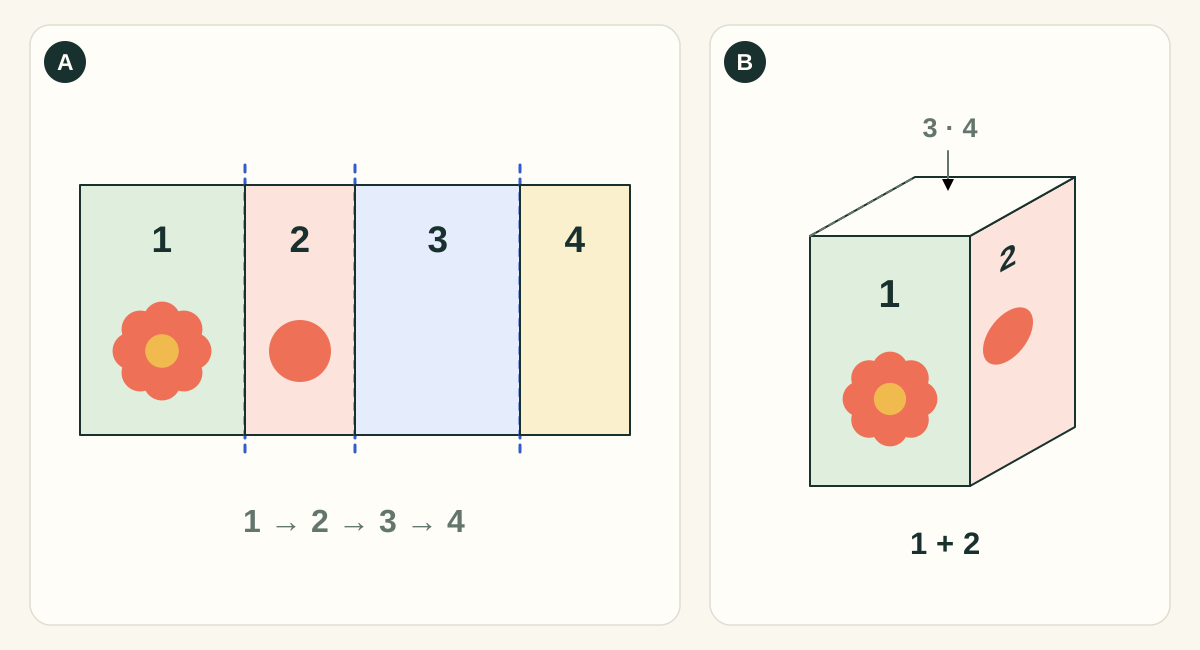
This simplified four-wall carton isolates panel mapping. It omits closure flaps and glue tabs. Numbered panels are identifiers, not an instruction that every template uses this panel order.
- AFlat view: inspect every panel and boundary
- Check panel assignment, text orientation, bleed, safety and alignment while all artwork is visible. The hidden back of a good-looking hero render may still be blank or contain an unfinished design.
- BFolded view: inspect relationships and presentation
- Rotate the carton to check how artwork meets at corners, whether the intended face points toward the camera, and how closures read. Lighting and camera angle change the appearance without changing the print artwork.
What to checkApprove the flat artwork PDF and the structural dieline as well as the mockup. A rendered image is useful for presentation; it does not replace a manufactured sample or demonstrate fit, fold strength or colour accuracy.
Detailed control reference
Find the control, understand its effect, and choose it for the job you are making. Available controls depend on the selected structure, object, workspace and output.
Scenes → Animation
Scene animation and its available choices
Still image keeps the composition static. The ordinary selector offers Turntable, Gentle float, Rise into view and Slide across; multi-product layouts add Product wave and Staggered entrance. Fold the product and Open and close appear only for suitable single structures.
- When it helps most
- Use a turntable to show all sides, gentle motion for a looping hero, a fold to teach construction, and a multi-item entrance to introduce a range.
- Impact and trade-offs
- A preset may retain its specialised motion even when it is outside the ordinary selector list. Check the actual structure’s supported poses. Fast or large motion can clip the product or make printed words unreadable.
Scenes → Animation, when motion is active
Duration, Movement distance and Timing
Duration controls scene motion length from 0.5–30 seconds. Movement distance scales motion from 25–200%. Original motion preserves its timing; Ease in and out applies smoother acceleration/deceleration.
- When it helps most
- Use longer duration and moderate distance for a readable product walkthrough. Shorter, stronger motion can work for a short promotional entrance.
- Impact and trade-offs
- Distance changes the movement envelope, so recheck framing at the beginning, middle and end. Duration does not fix an overly busy composition. Motion length in a Video Studio sequence or export template can come from that separate source instead.
Scenes → Video Studio
Use video sequence, shots and ordering
Enables the project’s multi-shot sequence. Add/duplicate creates another shot; move earlier/later changes order; remove deletes the selected shot while keeping the sequence valid.
- When it helps most
- Build a tutorial sequence with an establishing view, a detail view and a final held product view. Duplicate when only one aspect of a shot should change.
- Impact and trade-offs
- The selected shot owns camera/action/effects and duration. The selected text overlay has its own timing. Ensure Download → Motion is using Your sequence when you want these edits exported.
Video Studio → selected shot → Camera
Camera move: reveal and detail choices
Controls the camera independently of the product action. Reveal choices bring attention to the whole pack; Detail choices inspect the surface closely.
- Hero reveal
- Starts close at an angle and settles into the full hero view.
- Hero cam
- Low, centred and a slow, steady push.
- Hero settle
- Eases into a clean, composed final angle.
- Crane up
- Rises from table height to the product.
- Crane down
- Descends from above into a low angle.
- Overhead descent
- Comes down from a high angle to the hero view.
- Low-angle push
- A heroic low push toward the pack.
- Detail sweep
- Moves across the print up close.
- Macro glide
- Slides across the surface, close enough to read the print.
- When it helps most
- Use an establishing reveal before a close detail so viewers understand where they are looking. Hold long enough for the intended wording to be read.
- Impact and trade-offs
- A close camera cannot add detail missing from the artwork texture. Preview the complete move for clipping and sharpness rather than checking only the selected timeline frame.
Video Studio → selected shot → Camera
Camera move: orbit and zoom choices
Orbit/arc moves change the viewing angle around the pack. Zoom-family moves change proximity or perspective during the shot.
- Cinematic orbit
- Glides round the product, moving in at the middle.
- Gentle orbit
- A small, calm turn around the pack.
- Arc left
- Swings round the product to the left.
- Arc right
- Swings round the product to the right.
- Bullet time
- A fast arc that nearly freezes on the hero angle mid-shot.
- Whip orbit
- A fast swing from one side to the other.
- Push in
- Moves gently closer.
- Pull back
- Moves gently away.
- Crash zoom in
- Holds wide, then snaps in tight.
- Crash zoom out
- Holds tight, then snaps out wide.
- Yo-yo zoom
- Two punches in and out, on the beat.
- Dolly zoom
- Vertigo: the set warps while the product holds its size.
- When it helps most
- Use a gentle orbit for showing front and side; a push-in for a detail; a pull-back for revealing a range. Strong moves suit short emphasis moments.
- Impact and trade-offs
- Large swings can show an unfinished back face. Crash/yo-yo/dolly moves are presentation effects and can distract from an instructional demonstration.
Video Studio → selected shot → Camera
Camera move: calm and energy choices
Calm choices keep the subject stable or move it slowly in frame. Energy choices add more deliberate movement, tilt or shake.
- Robo arm
- Motion-control snaps and holds.
- FPV dive
- A drone dive from high and wide that pulls up on the pack.
- Handheld
- Phone-in-hand realism with a natural shake.
- Dutch drift
- A tilted, drifting frame.
- Hold steady
- The camera stays still.
- Float
- A slow, floating sway.
- Rise
- Lifts slightly.
- Pan left
- Slides left.
- Pan right
- Slides right.
- When it helps most
- Use Hold steady while an annotation or product label needs reading. Use energetic motion sparingly for promotional reveals.
- Impact and trade-offs
- A busy camera combined with a busy product action can make it difficult to judge the packaging. Compare the same shot with Hold steady when diagnosing motion confusion.
Video Studio → selected shot → Product
Product action
Animates the product while the shot’s camera remains independently configured. The catalogue contains turns, entrances, folds/openings, loops and group motions appropriate to the scene system.
- Drop
- Falls from above with diminishing landing bounces. Reserve extra frame height and use for a deliberate entrance.
- Pop in
- Scales and turns into view with a small bounce. Suits a short product introduction, not a static label-reading moment.
- Rise & turn
- Stands from a lying pose and performs a presenting turn. Check the floor and framing through the full rise.
- Spin entrance
- Approaches while turning and growing to final size. Useful for a promotional entrance with a stable final hold.
- Swoop & land
- Arrives from above/right with rotation and a landing squash. This is stylised movement rather than an impact test.
- Slide in
- Moves in laterally and settles. Useful for introducing one product beside a fixed caption.
- Floating fall
- Drifts down with slow rotation and settles softly. Useful for a gentle introduction.
- Spiral rise
- Circles into view from small to full size. Use sufficient frame space for the entrance path.
- Slam & punch
- Drops, compresses on impact and punches toward the lens. Keep it for emphasis; it does not represent board compression performance.
- Crash zoom
- The product rapidly grows toward the viewer and settles back to hero size. Recheck maximum bounds and label readability.
- Barrel roll
- Leaps and makes a complete roll before landing. Use only when rotational motion fits the campaign brief.
- Inflate
- Temporarily expands and bobs before returning. A stylised scale effect, not a pressure or flexible-material simulation.
- Squish & spring
- Compresses, springs upward and turns before landing. Use for playful motion; it does not predict crushing strength.
- High flip
- Makes a high end-over-end flip with a small twist. Check the complete flight for cropping.
- Float
- Hovers with a gentle vertical sway and a small turn. Useful for a calm promotional loop with clear silhouette.
- Levitate
- Floats above the floor with tilt and a full turn. Shows multiple sides in a continuous presentation.
- Bounce loop
- Repeats hops with quarter-turns and squash/stretch. A playful loop that needs room above the package.
- Zero gravity
- Drifts in multiple axes while rotating. Keep additional scene items clear of its moving envelope.
- Studio slide
- Slides in, pauses near centre and leaves to the other side. Useful for a conveyor-like loop.
- Heartbeat
- Two short size pulses followed by rest. A graphic emphasis loop, not a change to physical dimensions.
- Jelly wobble
- Adds continuous wobble and squash/stretch. Keep this separate from a technical geometry demonstration.
- Rock & tease
- Rocks from edge to edge. Useful as a subtle teaser while preserving a mostly stable front view.
- Vanish & return
- Shrinks/spins away and returns. A repeating visual transition that temporarily hides the product.
- Turntable
- Rotates the pack through a full showcase turn. Use to inspect all designed sides; review the back as carefully as the front.
- Showcase tumble
- Hovers and turns while leaning toward the camera. Useful for showing top/side detail, with all faces finished.
- Flip to back
- Hops to show the back, pauses, then turns home. Useful for comparing front and back without a separate cut.
- Slow-motion hero turn
- Turns with a slow near-hold around the reveal. Useful for a readable three-quarter hero moment.
- Time freeze
- Tosses upward, slows markedly in the air and completes the fall. Use for a stylised dramatic reveal.
- Fold up
- Progresses from flat blank to folded model. Use to explain panel mapping; it is a model animation rather than a physical folding simulation.
- Unboxing
- Animates an unboxing presentation. Use a structure with the required opening/parts and check the revealed inside artwork.
- Fold & spin in
- Combines folding, turning and growth into an entrance. Use a plain fold when the teaching goal is specifically construction.
- Lid open & close
- Opens and closes the supported lid/structure. Useful for interior printing and an unboxing concept.
- Lid peek
- Partly opens a supported lid and closes it again. Useful for a brief teaser of inside artwork.
- Exploded view
- Separates supported parts, holds and returns them. Useful for explaining a multi-part structure.
- Lid pop
- Hops and snaps the supported lid open, then holds open. Inspect both closure state and final interior view.
- Cascade
- Introduces multiple packs in sequence with a bounce. Useful for a range; inspect each item’s timing.
- Stack build
- Drops items into a stack from the bottom up. It illustrates arrangement, not a load-bearing calculation.
- Line-up wave
- Makes items in a line hop in succession. Useful for a multi-pack loop with all labels needing a clear moment.
- When it helps most
- Choose the action that communicates the intended information: show another face, open a supported lid, show flat-to-folded construction or introduce a range.
- Impact and trade-offs
- A product action is a presentation animation, including stylised squish/inflate/bounce effects. It does not simulate material strength, real crease behaviour or shipping loads. Use supported geometry and inspect each extreme of the action.
Video Studio → selected shot → Effects
Shot effects: Light
Adds a lighting or lens-style effect over the selected shot. Effects are independent of camera motion.
- Light sweep
- A glint of light travels across the pack.
- Light pulse
- Two soft pulses of light, on the beat.
- Glow
- Highlights bloom softly.
- Anamorphic flare
- A blue lens streak and ghosts, like a film lens.
- God rays
- Light beams through haze, with shafts behind the pack.
- Sparkle
- Twinkling star glints on the product.
- Prism
- A rainbow refraction drifts across the frame.
- Light leak
- Warm film light leaks drift across the frame.
- When it helps most
- Use a restrained light sweep to call attention to foil or a highlight. Keep a clean comparison frame when the viewer needs to judge the artwork.
- Impact and trade-offs
- Glow, flare and colour effects can obscure text or change perceived brand colours. Effects do not change the stored print artwork or create actual foil on the material.
Video Studio → selected shot → Effects
Shot effects: Energy, Film & lens and Style
Adds transient motion/film/stylised treatments; multiple effects can be selected up to the editor’s limit.
- Flash
- A white flash at the start of the shot.
- Chroma punch
- A burst of lens fringing and brightness on the cut.
- Shockwave
- An impact ring ripples out from the pack.
- Speed lines
- Comic action lines rush in from the edges.
- Beat zoom
- Short pushes on the beat (120 BPM).
- Whip blur
- Motion blur whips the shot in and out.
- Zoom blur
- A radial blur bursts from the centre on the cut.
- Glitch
- Digital slice jumps and an RGB split.
- Silhouette reveal
- Starts in shadow and brightens into the reveal.
- Focus pull
- Focus racks from the background onto the pack.
- Speed ramp
- The camera rushes, slows to near-still mid-shot, then rushes again.
- Film burn
- The edges overexpose to orange and white as the shot ends.
- Iris in
- Opens from black through a circle, like an old film.
- VHS
- Tracking lines, scanlines and chroma bleed.
- Neon edges
- Glowing outlines over a darkened frame.
- Halftone
- Comic-book print dots.
- Bokeh orbs
- Soft out-of-focus lights drift behind the pack.
- Confetti
- Falling confetti for launches and sales.
- When it helps most
- Use for deliberate campaign styling. For teaching a control, choose the least effect needed so the before/after remains clear.
- Impact and trade-offs
- Stacked effects can conceal useful details and increase render work. Flashing or abrupt transitions also change the viewing experience; preview at the final frame rate.
Video Studio → a shot after the first → Cut in
Cut in and Transition length
Controls how the previous shot changes into the selected shot. Transition length appears for a non-hard-cut choice and is limited to 1.5 seconds or half the shot duration, whichever is lower.
- Hard cut
- An instant cut to the new shot.
- Glide
- The camera glides on from the last shot; screen media crossfades.
- Glide · slide left
- Glides on; screen media slides left.
- Glide · slide up
- Glides on; screen media slides up.
- Flash
- Cuts through a white flash.
- Light burn
- Burns out to warm light and back.
- Light wipe
- A wall of light wipes across.
- Dip to black
- Fades through black.
- Whip pan
- The camera whips sideways through a blur.
- Whip up
- The camera whips upward through a blur.
- Zoom punch
- Punches through the frame with a zoom blur.
- Spin
- The frame spins through the cut.
- Impact shake
- A hard shake and fringe on the cut.
- Glitch
- Digital slices and RGB split hide the cut.
- Pixelate
- Dissolves through big pixels.
- Blinds
- Bars close and open.
- Iris
- Closes to a circle and opens again.
- Ink
- Ink bleeds over the frame and drains away.
- Defocus
- Blurs out and racks back in. Calm and premium.
- When it helps most
- Use a hard cut when clearly comparing two states, Glide for continuous camera feel, or a restrained fade/dip to separate topics.
- Impact and trade-offs
- Transition time can consume much of a short shot’s useful reading period. Inspect the boundary between both shots and any screen media, since camera and media transitions have related but distinct behaviour.
Video Studio → selected shot
Shot length and effect intensity
Shot length sets its timeline duration; the control respects the sequence duration limit. Subtle, Normal and Bold intensity choices scale the selected treatment.
- When it helps most
- Allow time for the specific visual task: reading a front label takes longer than recognising a pack silhouette. Begin with Subtle when teaching.
- Impact and trade-offs
- Longer shots increase frames to render; stronger effects can move content outside the frame. Timing should be judged with overlays and transitions present, not only on an isolated static shot.
Video Studio → look controls
Look, Colour grade, Film grain, Glow and Letterbox
A look preset coordinates grading and film-style settings. Colour grade changes the colour treatment; Film grain adds texture; Glow blooms highlights; Letterbox adds cinematic bars where enabled.
- When it helps most
- Use Natural for showing artwork clearly. Apply a creative look for a marketing mood only when that altered appearance is intended.
- Impact and trade-offs
- Grades such as Teal & orange, Golden hour, Cool chrome, Vivid pop, Dreamy, Soft film, Vintage, Bleach bypass, Cyberpunk, Duotone and Noir can substantially change perceived colours. A graded video is not suitable evidence of a press colour match.
Video Studio → media import and selected shot
Add screenshots/recordings and Media in shot
Imports supported images or recordings and chooses either that media or the Current design for a shot. Media appears on chooses the target panel; Automatic uses the main artwork panel.
- When it helps most
- Useful for presenting a design preview, software recording on a supported screen-like surface, or an image sequence within a product animation.
- Impact and trade-offs
- An image/recording becomes shot media, not automatically permanent production artwork. Inspect which panel is targeted. If media is missing, select a present asset before exporting.
Video Studio → selected recording
Source start, Playback speed and Loop recording
Source start chooses the first source second. Playback speed controls how quickly source time advances. Loop repeats when the recording ends; otherwise its last frame is held.
- When it helps most
- Trim away setup time with Source start; slow down a demonstration; loop a short ambient recording only if repetition is appropriate.
- Impact and trade-offs
- At 2× speed a 4-second shot consumes 8 seconds of source. If fewer seconds remain and Loop is off, the final frame holds. Do not diagnose that expected hold as an encoder failure.
- Worked example
- A 6-second source starting at 2 s has 4 seconds remaining. At 1× it fills a 4-second shot; at 2× it ends after 2 seconds of the shot unless looping.
Video Studio → media settings
Media fit: Fill panel or Show entire image
Fill panel uses Cover and crops overflow. Show entire image uses Contain and preserves all source content.
- When it helps most
- Use Show entire image for a screenshot where every control is important; Fill panel for a decorative photo that may crop.
- Impact and trade-offs
- A wide recording on a tall panel can lose its side controls with Fill. Contain can leave margins. Check legibility at exported resolution, not only in the media source file.
Video Studio → Text overlay editor
Text overlay: content, From, For, Position and Size
Adds timeline text separate from the artwork. From is the start second; For is its duration, bounded by the sequence. Top/Centre/Bottom and Small/Medium/Large set placement and scale.
- When it helps most
- Use short chapter labels, a product name or an explanation of the shown option. Time the words to the actual demonstration.
- Impact and trade-offs
- Overlay text does not print on the package. Check safe framing in the final aspect and allow enough time to read it; text that looks good on a desktop preview may be small on a phone.
Video Studio → Text overlay editor
Text animation and Text backplate
Fade changes text visibility smoothly; Rise moves it into place; Typewriter reveals it progressively. Backplate adds contrast behind the words.
- When it helps most
- Use Fade/backplate for clear instruction over a busy scene. Use Typewriter only when its reveal time fits the message and shot.
- Impact and trade-offs
- A long message with Typewriter may leave little time to read the completed sentence. A large backplate can cover the pack detail the words describe. Preview their overlap throughout the timeline.
Download → Video → Motion
Export motion: Your sequence, Turntable, Fold up, Scene motion, With effects
Selects which motion source is exported. Your sequence uses Video Studio; Turntable/Fold up use simple motions; Scene motion uses the scene’s own movement; With effects uses a video template.
- When it helps most
- Choose the source you actually edited. Read the displayed source and duration before starting the render.
- Impact and trade-offs
- The export Length control is not always independent: sequence, scene and template durations are set by those sources. A sequence can take precedence until you explicitly select another motion.
Download → Video
Resolution, frame rate and codec
Resolution determines output pixel dimensions using the scene aspect. Frame rate chooses 24, 30 or 60 fps. Auto codec prefers available H.264, then HEVC or AV1 according to the browser’s encoding capability.
- When it helps most
- Use a supported resolution and a common playback format for your destination. H.264 is a practical compatibility choice where available; test the actual exported file in the intended player.
- Impact and trade-offs
- 60 fps needs twice as many rendered frames as 30 fps for the same duration. Higher resolution also increases memory/time. Disabled choices report device/browser capability, not a damaged project.
- Worked example
- A 10-second clip at 30 fps contains 300 frames; at 60 fps it contains 600. Test the complete short clip before rendering a large batch.
Download → 3D model
GLB and USDZ
GLB is binary glTF, exported in metres with +Y up. USDZ is intended for compatible Apple AR/presentation workflows.
- When it helps most
- Choose GLB for a compatible web/3D viewer or modelling tool, USDZ for AR Quick Look or an Apple-oriented presentation workflow.
- Impact and trade-offs
- Check physical scale, orientation, texture appearance and materials after opening in the destination. A 3D model download is not a cutting file or a proof that the physical product fits. Rendering capabilities differ across viewers.
Know which animation you are exporting
A saved, enabled Video Studio sequence can take precedence over the simpler motion selection when the sequence option is active. If the exported video is unexpectedly long or contains several shots, inspect that setting before changing the turntable duration.
A video export is a rendered presentation. GLB and USDZ exports represent the current model; they are not a promise that every scene animation or editing control transfers to another application.
Prepare a useful tutorial or product video
For a walkthrough, keep the controls readable, demonstrate one action at a time and show the resulting output. For a product animation, use consistent framing and enough time to understand the package. Inspect the final video for missing frames, unreadable text or cropped content before uploading it.
For embedding on a website or publishing to YouTube, use the format and dimensions accepted by that destination. Keep a descriptive title, a written sequence of steps and captions alongside the video so the lesson remains useful without sound.
A three-shot walkthrough that remains readable
Start with a stable establishing view of the whole package. Follow with a slow detail view of the setting’s visible result. Finish with a held view and a short statement of what changed. Keep the same artwork, scene and exposure across a before/after comparison unless one of those is the setting being demonstrated.
Preview the first frame, every transition, the point of maximum movement and the last frame. Read overlays aloud at the intended pace. Export a short test at the chosen aspect/resolution/codec and inspect it in the destination player before multiplying the job into a product-range batch.
- Separate on-screen teaching overlays from text printed on the package.
- Make the selected export motion source match the sequence you edited.
- Use captions or accompanying written instructions for information that would otherwise exist only in narration.
Check your work
- The complete sequence plays correctly.
- Every face exposed by motion has intentional artwork.
- Media starts and loops at the intended points.
- The exported video opens and has the expected dimensions and length.
- The 3D model is checked in its receiving application.
Troubleshooting
A codec or resolution is disabled
Use an available option shown by the capability check. Try a lower resolution or Auto codec rather than forcing an unsupported combination.
The video shows the saved sequence instead of a turntable
Check the setting that uses the project’s Video Studio sequence and disable it if you want the simpler selected motion.
The recording freezes before the shot ends
Its source may have ended. Enable Loop recording, shorten the shot or adjust source start and playback speed.