Before you start
- What goes in
- A sized and decorated package, a desired composition and the dimensions or aspect ratio of the final image.
- What comes out
- A staged 3D preview and PNG/JPEG images, with optional angle sets or separate transparent product and shadow layers.
A practical example
One tea carton, two useful compositions
Create a clean product image with generous margins for a store listing, then a colourful 4:5 composition for a social post. Keep the front label readable in both.
Try the example files
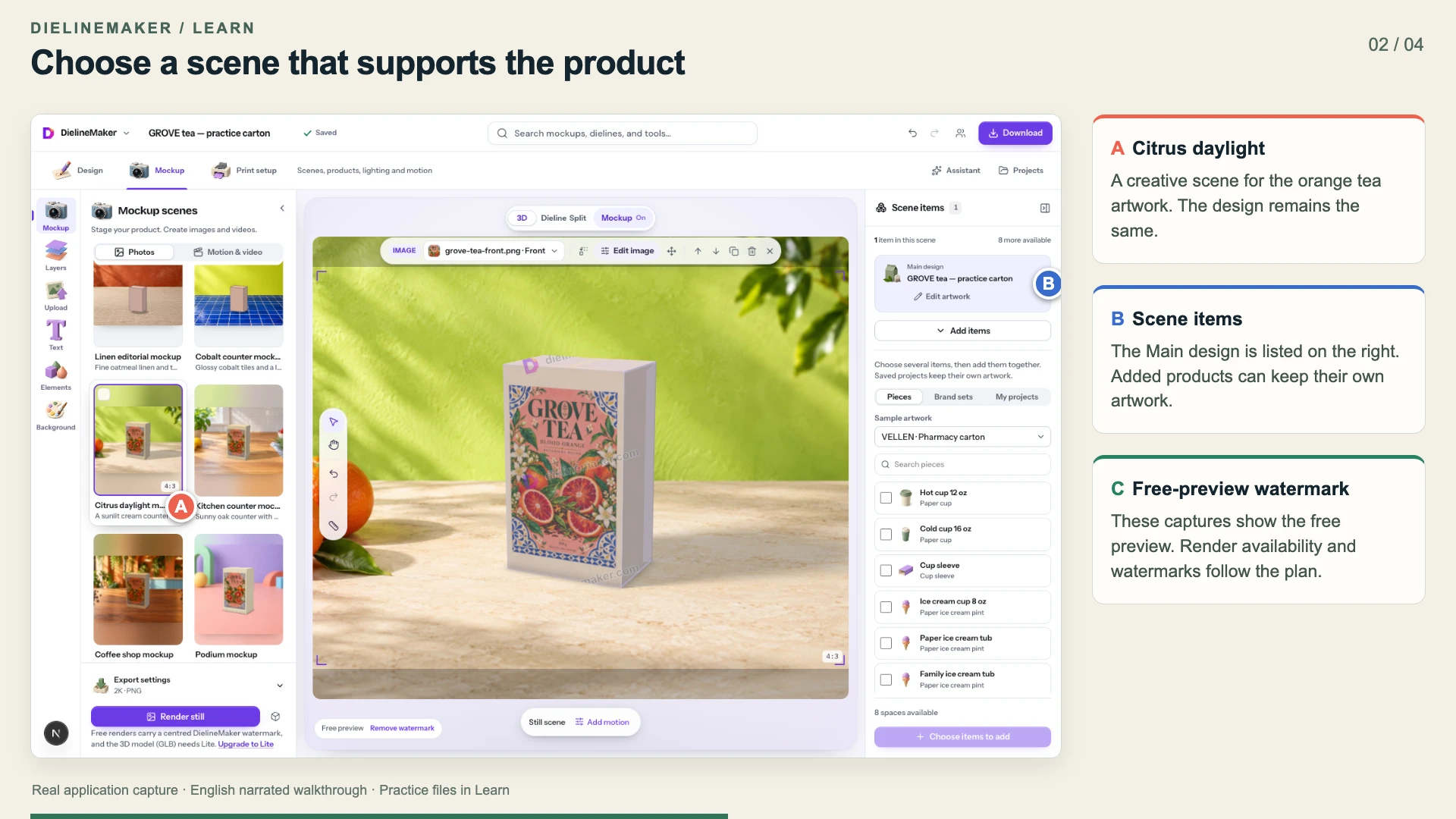
Citrus-scene mockup output1080 × 810 px PNG rendered by DielineMaker.Editable GROVE tea carton60 × 40 × 100 mm inside; Straight tuck end, SBS 350. Open this .foldline project in DielineMaker.Example settings and file detailsDimensions, material, source/output roles and file checksums. These local preview outputs are learning examples; public export availability follows your plan.Download the video transcriptChaptered plain-text narration for this walkthrough.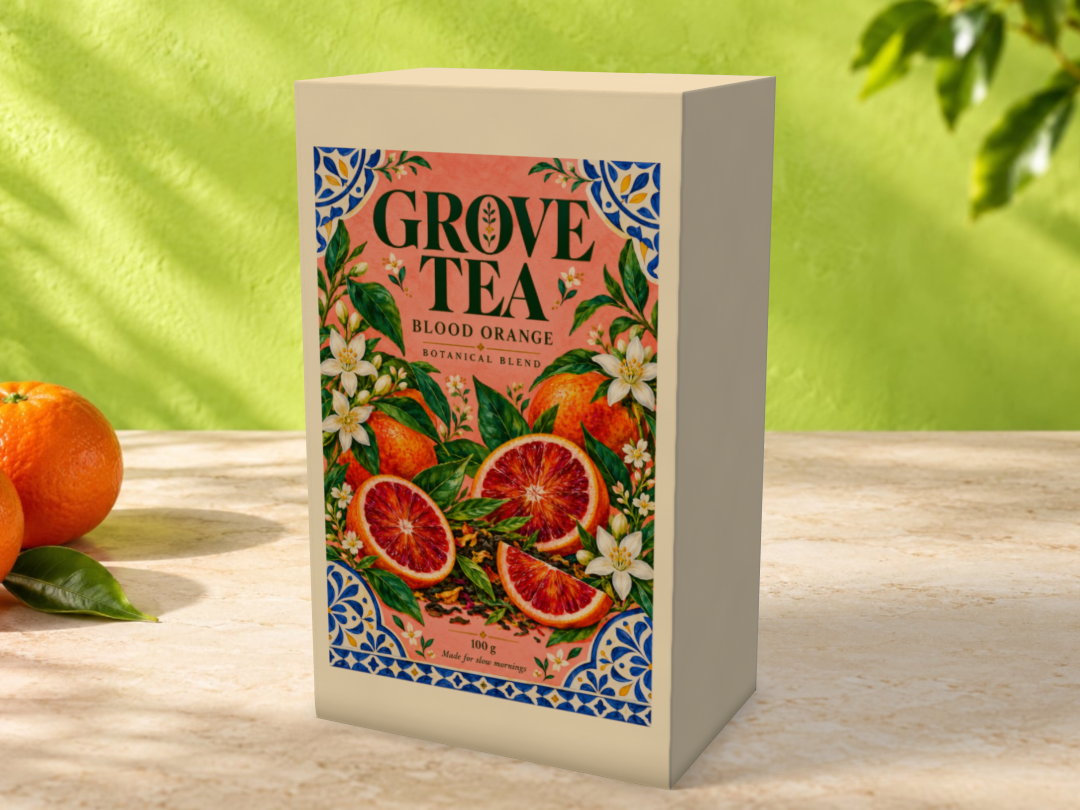
Step-by-step walkthrough
Choose a scene
Select Mockup in the simple editor or Scenes in Advanced. Browse the scene gallery and choose a starting composition that suits the package and intended output.
Frame the product
Set Aspect, Camera angle, Camera height and Space around product. Enable the thirds grid if it helps composition. Orbit the preview and use Use current view to retain a view you have chosen manually.
Set the backdrop
Choose Preset, Solid, Gradient, Floor, Photo or None. Adjust the available colours or surface. Colours from artwork can tint the backdrop using the design’s palette.
Shape the lighting
Select a lighting setup, then refine Exposure, Light direction and Ambient fill. Use Colour bounce and shadow controls to ground the package. Keep text legible and avoid blown-out highlights on glossy surfaces.
Arrange products and poses
Use the available Single, Row, Stack or Pallet arrangement controls and adjust count, rows and gap where supported. For mixed scene items, review the item list and Smart layout or In list order. Inspect the supported pose and fold controls for the main package.
Export for the destination
Choose a render preset or Custom, confirm the actual pixel dimensions and export. Open the downloaded image at full size to inspect edges, fine text, transparency and framing.
Options at a glance
| Control or choice | What it changes | How to use it well |
|---|---|---|
| Aspect and framing | The shape of the output and the camera’s view of the model. | Choose the destination aspect before fine-tuning placement so a later crop does not cut off the product. |
| Space around product / between products | Camera padding and separation in supported arrangements. | Leave room for the full silhouette, including open lids or moving parts. |
| Backdrop | A colour, gradient, surface, photo or transparent environment. | Choose None and an appropriate PNG output for a cutout; JPEG cannot carry transparency. |
| Exposure / Light direction / Ambient fill | Brightness, direction and fill in the lighting setup. | Use lighting to reveal material form without washing out the artwork. |
| Shadow / strength / softness | Contact, soft, hard or absent shadows and their appearance. | Use a shadow that fits the scene; inspect whether the package appears to rest on the surface. |
| Product pose / Fold | Supported open, closed or partly folded geometry. | Controls depend on the structure. A bottle or device does not offer a carton’s folding motion. |
| Render presets | Social square, portrait, story and landscape frames, a white-background product preset, transparent plus shadow layers and All angles ZIP. | Read the output summary. A marketplace preset does not guarantee that a listing satisfies every current marketplace rule. |
| Kits | Saved scene settings for reuse. | Reuse a kit for a consistent product range, then recheck framing for differently shaped packages. |
See what changes
These explanatory diagrams isolate the effect of a setting. They are not app screenshots or manufacturing proofs. Compare them with the annotated captures and the editable GROVE tea practice project.
A flat design and a camera view reveal different problems
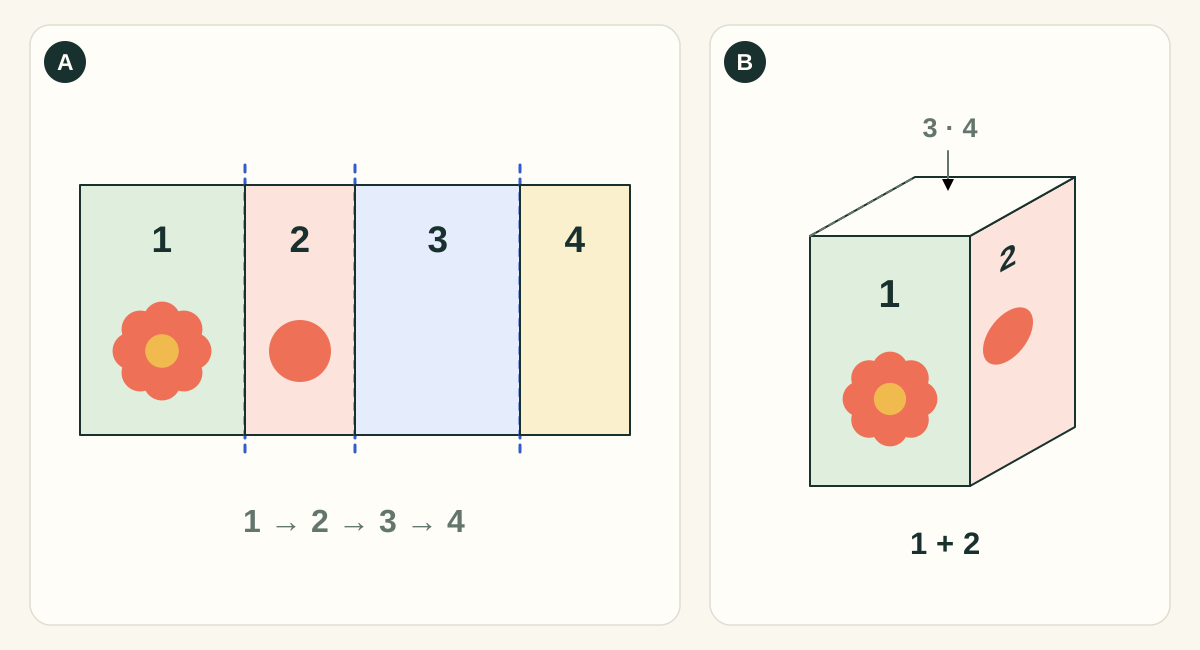
This simplified four-wall carton isolates panel mapping. It omits closure flaps and glue tabs. Numbered panels are identifiers, not an instruction that every template uses this panel order.
- AFlat view: inspect every panel and boundary
- Check panel assignment, text orientation, bleed, safety and alignment while all artwork is visible. The hidden back of a good-looking hero render may still be blank or contain an unfinished design.
- BFolded view: inspect relationships and presentation
- Rotate the carton to check how artwork meets at corners, whether the intended face points toward the camera, and how closures read. Lighting and camera angle change the appearance without changing the print artwork.
What to checkApprove the flat artwork PDF and the structural dieline as well as the mockup. A rendered image is useful for presentation; it does not replace a manufactured sample or demonstrate fit, fold strength or colour accuracy.
Detailed control reference
Find the control, understand its effect, and choose it for the job you are making. Available controls depend on the selected structure, object, workspace and output.
Mockup or Advanced → Scenes gallery
Scene preset and scene category
A preset supplies a coordinated camera, arrangement, backdrop, light, shadow and sometimes motion. Categories group studio, ecommerce, lifestyle, social, technical and motion uses.
- When it helps most
- Choose a category by the image’s purpose. Use a clear studio/ecommerce view for product identification, lifestyle for context, technical for construction, and social/motion for promotional compositions.
- Impact and trade-offs
- A preset is a starting composition. Check label visibility and the entire product silhouette after switching to a package with different proportions. Reset to preset removes custom scene changes; save a scene or kit before resetting something you want to reuse.
Scenes → Framing and layout
Aspect
Chooses the output frame’s width-to-height relationship. It changes framing, not the physical package dimensions.
- When it helps most
- Set the destination aspect before adjusting camera distance or overlay text. Square suits a square image slot; portrait suits a vertical composition; landscape suits a wide presentation.
- Impact and trade-offs
- An aspect change can crop a previously comfortable composition. Check open lids, shadows, other scene items and all frames of an animation. Read actual export pixel dimensions; a 4:5 ratio alone does not specify resolution.
Scenes → Framing; angle −180° to 180°, height 0° to 85° where available
Camera angle and Camera height
Angle moves the view around the product; height changes elevation above the floor. Photographed sets constrain the camera to the perspective of their background plate where necessary.
- When it helps most
- Use a modest three-quarter view to show two faces, a front view for reading the principal label, and a high angle for a lid or internal layout.
- Impact and trade-offs
- Higher elevation reveals top surfaces but can hide the front. These controls change the presentation view, not printed artwork orientation. A photo set and a freely orbitable studio have different constraints.
- Worked example
- Compare the same tea carton front-on and at 25° around/14° high. The side becomes visible while the front remains readable; no text layer or physical dimension changed.
Scenes → Framing; spacing display 5–150%
Space around product and Use current view
Space around product adjusts camera padding around the fitted model. Use current view adopts the angle/distance you reached by manually orbiting the preview.
- When it helps most
- Leave room for website copy, a full shadow or a moving/opening lid. Use current view after exploring an angle with the pointer.
- Impact and trade-offs
- Less padding fills more pixels but risks clipping; more padding reduces the product’s pixel size at a fixed export resolution. Inspect the exact output aspect again after capturing a manually chosen view.
Scenes → Framing
Thirds grid
Shows a composition guide on the stage to help position the subject and negative space.
- When it helps most
- Useful when balancing a product against future website copy or creating an off-centre social composition.
- Impact and trade-offs
- It is an editing aid rather than packaging artwork. Make decisions using the final image area and destination crop; do not move the printed logo just to match a scene composition grid.
Scenes → Framing, where arrangement editing is supported
Arrangement: Single, Row, Stack and Pallet
Single shows one pack. Row repeats along a line; Stack builds vertically; Pallet exposes columns and rows. Counts and physical Gap control repetition.
- When it helps most
- Use Single for a hero item, Row for repeated presentation, Stack for a quantity impression, and Pallet for a broader pack arrangement.
- Impact and trade-offs
- Repeated copies do not become independent SKU variants automatically. A dense layout can obscure faces and increase render cost. Confirm that the scene actually shows the intended product count and does not imply a tested load-bearing arrangement.
Scenes → Framing, conditional on arrangement
Space between products, Gap, Packs/Columns and Rows
Space between products scales separation in supported arrangements. Gap is an explicit physical spacing for editable arrangements. Packs/Packs high/Columns and Rows determine the repeated arrangement dimensions.
- When it helps most
- Increase spacing to separate silhouettes and shadows; reduce it to communicate a compact set. Use row/column counts to match the composition brief.
- Impact and trade-offs
- The spacing controls have different units and scopes: percentage spacing and millimetre gap are not interchangeable. Bigger gaps can force the camera to frame a larger group, reducing each pack’s apparent size.
Scenes → Background
Backdrop: Preset, Solid, Gradient, Floor, Photo and None
Chooses the visual environment behind the product. Background colour controls here affect the mockup scene, not ink on the carton.
- Preset
- Uses the selected scene’s original backdrop. Useful for restoring its intended coordinated look.
- Solid
- One scene colour. A simple choice when product edges and label contrast matter.
- Gradient
- Separate Top and Bottom colours. Keep the transition from competing with the package.
- Floor
- A surface and colour for contact/shadow context. Seamless, marble, wood, linen, kraft, concrete and terrazzo are available surface treatments.
- Photo
- A photographed set with matching perspective. Treat it as the scene background, not an uploaded print image on the package.
- None
- No opaque scene backdrop. Choose PNG/Transparent when exporting a cutout; JPG cannot preserve alpha transparency.
- When it helps most
- Use Solid for a brand backdrop, Gradient for a soft studio transition, Floor for grounding, Photo for contextual presentation and None for a compositing cutout.
- Impact and trade-offs
- Photo backgrounds have fixed source detail and perspective. A high-resolution render cannot invent detail in a lower-resolution photo. None requires a transparency-capable output setting when you want a transparent delivered image.
Scenes → Background; needs artwork
Colours from artwork
Uses the artwork palette to tint the scene’s backdrop, making the staging respond to the current design.
- When it helps most
- Useful for a coherent product-range presentation when different flavour artwork should influence the atmosphere.
- Impact and trade-offs
- A new variant can produce a different extracted colour, so it may also change the surrounding scene. Disable this or choose an explicit background when the range needs identical catalogue lighting/background colour.
Scenes → Lighting and shadow; direction −180° to 180°
Lighting rig and Light direction
The rig supplies a lighting arrangement; direction rotates the lighting relationship around the package.
- When it helps most
- Use angled light to reveal edges, foil and surface highlights. Compare material finishes under the same rig before changing artwork.
- Impact and trade-offs
- A bright specular reflection can hide small text even when the source art is dark. Rotate the light or camera to preserve readability. This changes rendered appearance and does not convert print colours.
Scenes → Lighting and shadow; 0.5–2×
Exposure
Adjusts render brightness. It affects the presentation of the entire lit product rather than changing the source artwork’s ink values.
- When it helps most
- Use to correct a scene that is too dark or too bright after choosing an appropriate lighting rig.
- Impact and trade-offs
- Too much exposure loses highlight detail; too little hides dark-side content. Do not compensate for a wrong artwork colour by changing scene exposure and then assume the print file was corrected.
- Worked example
- Keep the GROVE artwork unchanged and compare 1× with 1.5× exposure. The export image becomes brighter; the carton’s stored colour/print geometry is unchanged.
Scenes → Lighting and shadow; fill 0–200%, bounce 0–100%
Ambient fill and Colour bounce
Ambient fill brightens areas outside the main light. Colour bounce adds the environment’s colour influence; it is disabled for a transparent background.
- When it helps most
- Increase fill when the side panel is too dark to read; use a modest bounce to integrate the package into a coloured set.
- Impact and trade-offs
- Excessive fill flattens shape contrast. Strong bounce can tint apparently neutral artwork, which may be inappropriate for an image meant to show brand colours clearly. These are rendering choices, not a press proof.
Scenes → Lighting and shadow
Shadow type, strength and softness
Contact concentrates grounding near the base; Soft spreads a gentle shadow; Hard creates a more defined shadow; None removes it. Strength spans 0–150% and Softness 0.25–3×; both are disabled when Shadow is None.
- When it helps most
- Use contact/soft shadows for grounded product listings, a deliberate hard shadow for a graphic composition, and None for an output that will receive a separate shadow elsewhere.
- Impact and trade-offs
- Too much strength can merge the silhouette with the floor; too much softness can make the product appear to float. Inspect transparent output on both light and dark backgrounds if it will be composited.
Scenes → Product pose, single arrangement and supported structures
Pose: Closed, Ajar, Open and Exploded; Fold
Pose chooses a construction state the template supports. Fold previews progress through folding. Some label/sticker structures additionally expose Upper-right curl.
- When it helps most
- Use Closed for the sale appearance, Ajar/Open for contents or inner printing, Exploded for explaining separate components, and Fold for demonstrating flat-to-assembled mapping.
- Impact and trade-offs
- Unsupported states are disabled. These are presentation/model states, not a proof of real material deformation or assembly order. An open pose needs more framing room and may expose previously hidden artwork.
Scenes → scene-items list
Additional scene items, Smart layout and In list order
Adds other chosen designs to the scene, with controls to reorder/remove items. Smart layout chooses an arrangement; In list order follows the ordered row of items. Space between items adjusts separation.
- When it helps most
- Use for a mixed packaging family, such as carton plus label/container, rather than repeating one design.
- Impact and trade-offs
- Selecting an item for scene arrangement and editing its underlying artwork are distinct actions. Wait for items to load and inspect errors/retry status. Reordering can change composition and which item is most visible.
Scenes → Products after importing supported model content
Imported products: Placement, Scale and Turn
Placement chooses Inside the pack, Beside the pack or Behind the pack. Scale changes the visual model size (5–400% in the control), and Turn rotates it around its vertical axis.
- When it helps most
- Useful for showing a product beside its packaging or communicating an unboxing concept.
- Impact and trade-offs
- A visual scale adjustment is not a measured fit simulation. Use the actual product dimensions for structural sizing. Heavy imported geometry can slow preview/rendering, and a product hidden inside a closed pack may not be visible.
Scenes → adjustments and Kits
Save scene, Reset to preset and Kits
Save scene preserves the chosen scene setup for reuse; Reset returns the current scene to its preset. Kits store reusable scene styling choices that can be applied again.
- When it helps most
- Use for a repeatable product catalogue or brand look. Save a known-good setup before experimenting with a new background or light.
- Impact and trade-offs
- A saved staging setup does not replace the editable project or original artwork backup. A setup can frame a short jar and a tall carton differently; inspect each structure after applying it.
Download → Mockup image; additional render presets in Scenes
Still export: size, PNG/JPG and Transparent
Size chooses a pixel dimension class, with the actual width/height determined by aspect. PNG supports transparency; JPG is an opaque image format. Transparent is unavailable when JPG is selected.
- When it helps most
- Use PNG for cutouts and fine-edged presentation; JPG for an opaque photographic composition when suitable. Choose the actual pixel dimensions required by the destination.
- Impact and trade-offs
- Larger exports use more memory and time; 6K/8K availability depends on the device capture budget. More output pixels do not improve the detail of a low-resolution uploaded logo or background photo. Inspect the final file at 100%.
Repeated packs and mixed items are different arrangements
A row or stack can repeat the current package. Additional scene items can create a composition of different products. Check which object you are editing before changing artwork, scale or placement; a companion object and the main design may have different controls.
For an e-commerce set, a consistent camera, background and lighting setup makes products easier to compare. Save the setup and review each package’s silhouette before batching.
Inspect the exported render, not only the live preview
Live previews are optimised for interaction. The final image can use different rendering work and output dimensions. Inspect small lettering, transparent edges, shadows and reflective finishes in the downloaded file.
High resolutions consume more memory and rendering time. If an option is disabled, read its explanation and use a supported size. Large output dimensions cannot restore detail missing from a low-resolution source image.
Practice: identify which setting changes the picture
Keep one camera, one scene and the same artwork. Render a baseline. Change only Exposure, compare the label and highlights, then restore it. Change only Light direction and compare which face is brightest. Restore it and compare shadow strength. This makes the effect of each control visible without confusing it with an artwork edit.
For a product-range catalogue, choose whether the scene should stay identical or adapt to artwork colours. If identical, use explicit background/light settings and review each product’s size in frame. If adaptive, inspect every variant because the extracted palette can change contrast.
Check your work
- The label and important product features are visible.
- The full product fits the chosen aspect.
- The lighting reveals the material without obscuring text.
- Transparency is present when expected.
- The exported file has the intended dimensions.
Troubleshooting
The product is cropped in the export
Check the active aspect and render preset, then increase Space around product and review the output frame.
The exported background is not transparent
Use a transparent backdrop and PNG or the Transparent + shadow layer preset. JPEG output is opaque.
The scene contains the wrong number of products
Inspect both Arrangement and the additional scene item list. Remove unintended items and check count, rows and gap.