Before you start
- What goes in
- A valid identifier, the required barcode symbology and the printer’s sizing and reproduction requirements.
- What comes out
- A barcode as vector SVG, sized PDF or raster PNG, ready to place and verify in the final layout.
A practical example
Retail carton and outer case
Use the appropriate retail symbology for the product’s assigned GTIN, and the required case identifier for an outer carton. For a practice-only internal label, Code 128 can encode a value such as TEA-CITRUS-100; that is not a licensed retail GTIN.
Step-by-step walkthrough
Select the intended symbology
Choose EAN-13 or UPC-A for the relevant retail workflow, ITF-14 for the required case GTIN, or Code 128, Code 39 or Interleaved 2 of 5 for a system that expects them. Confirm the receiving scanner and data format first.
Enter the actual value
Read the input hint for length and allowed characters. EAN-13 accepts 12 digits to calculate the check digit or all 13 to verify it; UPC-A and ITF-14 follow their displayed lengths. Fix the source value rather than blindly accepting a suggested correction.
Set physical size
Use Magnification for retail symbols or Module width (X) where available, then set Bar height. Read the resulting physical dimensions. Preserve sufficient height and clear space for the receiving workflow.
Review print options
Keep Standard quiet zones unless you deliberately reserve the required space in the surrounding layout. Set bar width reduction only from printer guidance. Review bearer bars for ITF-14 and the checksum or extended-mode options for Code 39.
Choose colours and download
Start with dark bars on a light background. Keep human-readable digits where required. Download SVG or PDF for vector placement, or choose a suitable PNG resolution for a raster workflow.
Place and verify at final size
Add the downloaded asset to the package or create an editable code through Elements. Keep it away from folds, cuts, foil, busy graphics and curved areas that compromise scanning. Verify the finished printed symbol using the required process.
Options at a glance
| Control or choice | What it changes | How to use it well |
|---|---|---|
| EAN-13 / UPC-A / ITF-14 | Numeric retail or case symbols with defined identifier lengths and check digits. | Use the correct assigned GTIN. Drawing a valid-looking symbol does not allocate a retail identifier. |
| Code 128 | A symbol for supported printable ASCII letters, digits and symbols. | Suitable only where the receiving system expects the encoded data and symbology. |
| Code 39 / Extended mode / mod 43 | Basic Code 39 character support, optional extended characters and an optional check character. | Match the scanner’s configuration; do not enable an extra check character without knowing it is expected. |
| Interleaved 2 of 5 | Numeric data encoded in pairs. | It requires an even number of digits. Adding a leading zero changes the encoded data. |
| Magnification / Module width (X) / Bar height | Controls physical symbol dimensions. | Use the required size rather than shrinking to fit a gap in the artwork. |
| Quiet zone: Standard / Custom / None | Clear space on either side, measured in modules for a custom setting. | None removes the generated margin; it does not remove the scanner’s need for clear space. |
| Bar width reduction | Thins bars to compensate for ink spread. | Ask the printer for the value. An arbitrary correction can make a symbol worse. |
| Bearer bars | Frame, top-and-bottom bars or none for ITF-14. | Choose according to the print process and the applicable case-marking requirement. |
| Transparent background / PNG resolution | Whether the asset carries a background and how many pixels a raster export uses. | Transparency exposes the package beneath the bars. Check contrast and preserve the physical size. |
See what changes
These explanatory diagrams isolate the effect of a setting. They are not app screenshots or manufacturing proofs. Compare them with the annotated captures and the editable GROVE tea practice project.
Cut lines, crease lines, bleed and safety have separate jobs
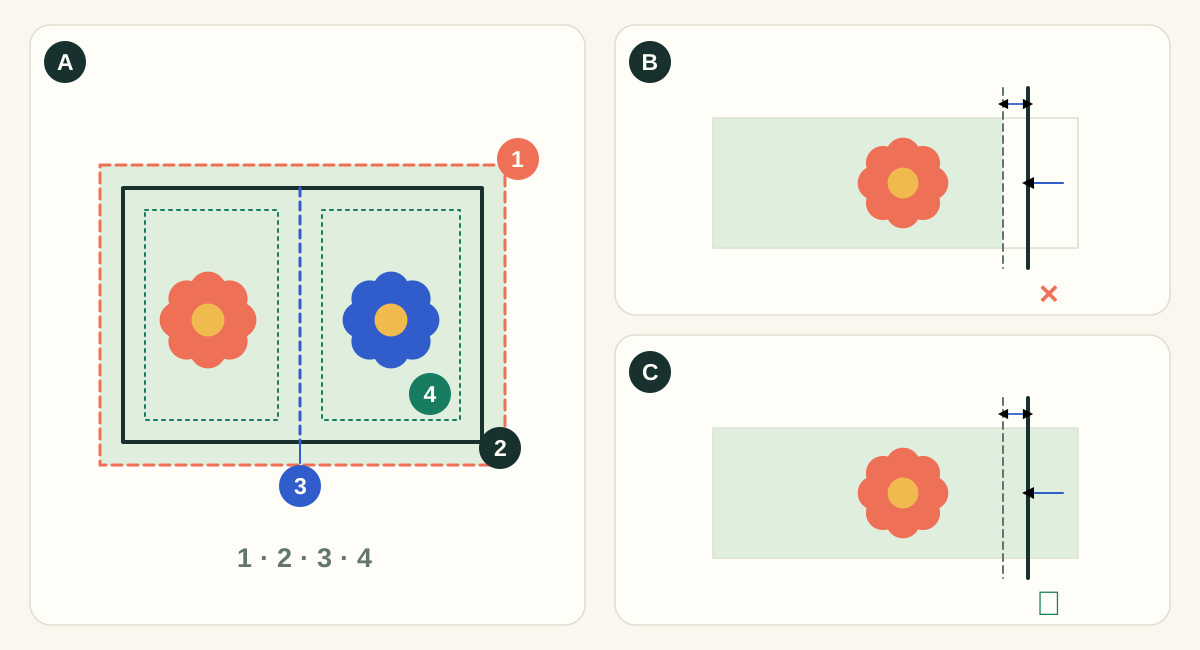
In diagram A, 1 is the bleed edge, 2 is the cut, 3 is a crease and 4 is the safety inset. A cut removes material; a crease changes how it folds. Bleed extends the printed background beyond a cut. Safety keeps important content away from a cut or fold. The shifted-cut panels exaggerate the effect to make it visible; they are not a manufacturing tolerance specification.
- ASeparate technical paths from printed artwork
- Use the structural export for cutting and creasing instructions and the artwork export for printed content. Check the requested spot names and layer conventions with the supplier. A colored line on screen does not establish the supplier’s production interpretation.
- BArtwork ends at trim: cutting movement exposes the substrate
- A background that stops exactly at the intended edge has no reserve. A small outward cut can expose an unprinted sliver. Crop marks show the intended cut; they do not create missing image content.
- CArtwork extends to bleed: the spare background is trimmed away
- An extended background covers the illustrated shift. Keep text and codes inside the safety area: extending the background does not protect content placed too close to the edge.
What to checkInspect the exported PDF around every outer cut, notch and curved corner. Check nearby folds, glue areas and supplier requirements. A generic bleed setting does not establish that each image actually covers the bleed region.
Detailed control reference
Find the control, understand its effect, and choose it for the job you are making. Available controls depend on the selected structure, object, workspace and output.
Barcode generator → symbol choice and value
Symbology and exact data value
Selects the encoding rules the receiving system expects. EAN-13, UPC-A and ITF-14 use numeric GTIN-style data with check digits; other available symbols use their own character/length rules.
- EAN-13
- Accepts 12 data digits to calculate the final check digit or all 13 to validate. Use the product’s assigned identifier.
- UPC-A
- Uses 11 data digits plus the check digit, or validates all 12. Choose only when the receiving retail workflow expects it.
- ITF-14
- Encodes a 14-digit case GTIN; the tool can calculate/validate the final digit according to its input hint. Bearer-bar options are exposed for this symbol.
- Code 128
- Supports printable ASCII data for compatible workflows. Ordinary Code 128 text is not automatically a GS1-128 element string.
- Code 39
- Uses its basic character set unless Extended is enabled; optional mod 43 changes what is encoded.
- Interleaved 2 of 5
- Numeric data is encoded in pairs, so an even digit count is required. Adding a leading zero changes the actual data.
- When it helps most
- Confirm whether the code is for retail checkout, a logistics case or an internal scanning workflow before choosing it.
- Impact and trade-offs
- A correct check digit does not allocate an identifier or prove ownership. Sample values are demonstrations. The last valid preview can remain dimmed during invalid editing, so read validation state before assuming the visible bars match the current text.
Barcode generator → Size
Magnification and Module width (X)
Retail magnification scales from the nominal module width; nonretail symbols expose Module width directly. X is the width of the narrowest base element used to build the bars and spaces.
- When it helps most
- Set the required physical size for the print/scanning process, then make space in the packaging layout for it.
- Impact and trade-offs
- Do not shrink a finished symbol non-proportionally to fit an available gap. Size, print resolution and ink spread interact. Use the recipient’s required size and verification procedure.
- Worked example
- For a 0.33 mm nominal X, 100% is 0.33 mm and 80% is 0.264 mm. A 10X clear area is 3.3 mm at 100% but 2.64 mm at 80%; clear-space requirements scale with X.
Barcode generator → Size
Bar height
Controls the vertical extent of the bars separately from their module width. Retail choices show the full-height reference and warn about truncation.
- When it helps most
- Use the required/full height where possible. Plan the layout around the symbol instead of shortening it to make room for decorative copy.
- Impact and trade-offs
- A symbol can encode valid data and still scan poorly after its bars are shortened. Height is especially important for the intended scanner geometry; verify the final printed code.
Barcode generator → text options; indicator for EAN-13
Show digits and Light-margin indicator
Shows human-readable text below the bars. The optional EAN-13 “>” indicator helps identify the edge of the right clear area and is disabled when text is off.
- When it helps most
- Keep the required human-readable information for identification and manual entry. Use the indicator as a layout aid when appropriate.
- Impact and trade-offs
- The printed digits/caption do not replace the bars or add scanner capacity. Keep the quiet zone clear even when no indicator is drawn. The indicator is a cue, not a decorative character to move into the bars.
Barcode generator → Print options; Custom 0–40 X per side
Quiet zone: Standard, Custom and None
Standard reserves the symbology’s clear-space dimensions. Custom uses the specified number of modules on each side. None removes the generated margin from the asset.
- When it helps most
- Prefer Standard unless a controlled surrounding layout deliberately provides the required clear space. Use Custom only with the correct specification.
- Impact and trade-offs
- None removes padding in the generated image, not the scanner’s need for an unprinted area. Artwork, a border or another code placed beside the symbol can invalidate the intended clear region.
- Worked example
- For EAN-13 the source implementation uses different left/right clear-space counts. A symmetrical custom setting should not be guessed from the narrower side; check the exact standard/size for the job.
Barcode generator → Print options; starts at 0
Bar width reduction
Thins the generated bars by a specified physical amount to compensate for an agreed print-growth allowance. The control limits the adjustment relative to module width.
- When it helps most
- Use only the value derived for the actual press, substrate and reproduction process.
- Impact and trade-offs
- A random reduction can make already narrow bars too thin. Increasing PNG DPI does not replace process-specific compensation. Ask the printer to verify the finished printed symbol, not only the digital pattern.
Barcode generator → Print options; ITF-14 only
Bearer bars
Frame surrounds the symbol with bearer treatment; Top & bottom uses horizontal bearers; None omits them.
- When it helps most
- Match the specified ITF-14 printing/verification workflow and the intended label or corrugated case process.
- Impact and trade-offs
- Bearer treatment changes the symbol’s total geometry and available placement area. Do not confuse a bearer frame with the quiet zone or crop it after exporting.
Barcode generator → Print options; Code 39 only
Code 39 mod 43 and Extended mode
Mod 43 adds a check character. Extended mode represents a broader character set, including lowercase, using the extended encoding convention.
- When it helps most
- Use only when the receiving scanner/software is configured for those exact options.
- Impact and trade-offs
- A scanner expecting basic Code 39 can interpret extended sequences differently. An unexpected check character may be delivered as data or rejected depending on configuration. Test both recognition and the exact decoded string.
Barcode generator → Colours
Bars, Background and Transparent background
Bars chooses the dark pattern colour; Background supplies the light region; Transparent removes that light fill and exposes the artwork/substrate underneath.
- When it helps most
- Start with dark bars on a light, uniform field. Use transparency only when the final surrounding design deliberately maintains contrast and clear space.
- Impact and trade-offs
- A colour-contrast check is not a printed barcode verification. Metallic finishes, textured stock, multicolour artwork and registration can affect scanning. Recheck the finished package, especially when a transparent code sits on a nonwhite board.
Barcode generator → Download
SVG, PDF and PNG resolution
SVG/PDF preserve vector bar geometry and physical intent; PNG rasterises the selected dimensions at the chosen DPI (the tool starts at 600).
- When it helps most
- Use vector formats in a compatible production layout. Choose adequate raster resolution when the receiving software requires a bitmap, and keep the intended physical placement size.
- Impact and trade-offs
- Resizing or resampling later can alter bar edges. Pixel count and physical size are connected: a high-DPI file placed at twice its intended width no longer has the same effective resolution or module dimensions.
Design → Elements/code layer
Editable code in the packaging editor
The editor code inspector supports its offered symbologies, Value, Bars/Background colours and a quiet-zone preview. Changing symbology may retain valid data or replace incompatible data with that type’s sample.
- When it helps most
- Use when you need to reposition or edit the code within the same project, then inspect it at the final panel size.
- Impact and trade-offs
- After changing symbology, verify the actual value again so no demonstration identifier survives. Keep ratio/quiet-zone integrity and remember that the standalone generator exposes additional print-oriented controls.
A check digit and a scan check answer different questions
Input validation checks whether the value can be encoded and whether a check digit is consistent. It does not establish ownership of a GTIN or prove the final printed symbol will scan. Use your organisation’s assigned identifiers and the receiving retailer’s or logistics system’s requirements.
Test after placement and printing, because scaling, ink spread, substrate, contrast and nearby artwork affect the result. For retail work, use the required barcode verification process rather than treating a successful phone scan as a print-quality certificate.
When to use a QR code instead
Use a QR code when the goal is to open a recipe, manual, recycling page or another supported payload. A link QR and a retail product barcode serve different purposes. Follow the QR-code guide for payload, styling, size and scan checks.
Check the data, the digital artwork and the printed result separately
First confirm the identifier and receiving symbology with the business system. Then confirm input validation and the exact decoded value, including check characters and leading zeroes. Next inspect physical dimensions, quiet zones, colours and placement in the package. Finally print using the intended process and perform the required barcode verification.
These stages catch different failures. A valid check digit cannot identify an unassigned GTIN; a phone scan cannot grade print quality; a pristine downloaded SVG cannot protect the symbol after an incorrect crop, scale or finish is applied in the final layout.
Check your work
- The receiving workflow expects this symbology and exact value.
- Check-digit corrections have been verified against the source.
- Quiet zones remain clear in the final artwork.
- The printed size and bar height are intentional.
- The finished symbol passes the required verification.
Troubleshooting
The value is rejected
Read the character and length hint for the selected symbology. Check for spaces, punctuation or a wrong check digit.
The barcode scans before placement but not on the pack
Inspect scaling, quiet zones, substrate contrast, nearby artwork, fold/curve placement and printing quality.
A transparent code has disappeared into the design
Give it a light, clear background and keep the required quiet zones free of graphics.