Before you start
- What goes in
- A finished design, the printer’s written requirements and a reviewed sheet layout where needed.
- What comes out
- The selected production or review files, with options and reports that should be inspected before handoff.
A practical example
Hand a tea carton to the printer
Send the approved print artwork, matching structural dieline and a clear revision reference. If the printer wants separate outside and inside files, no extra marks or a particular spot name, configure and verify those requirements before delivery.
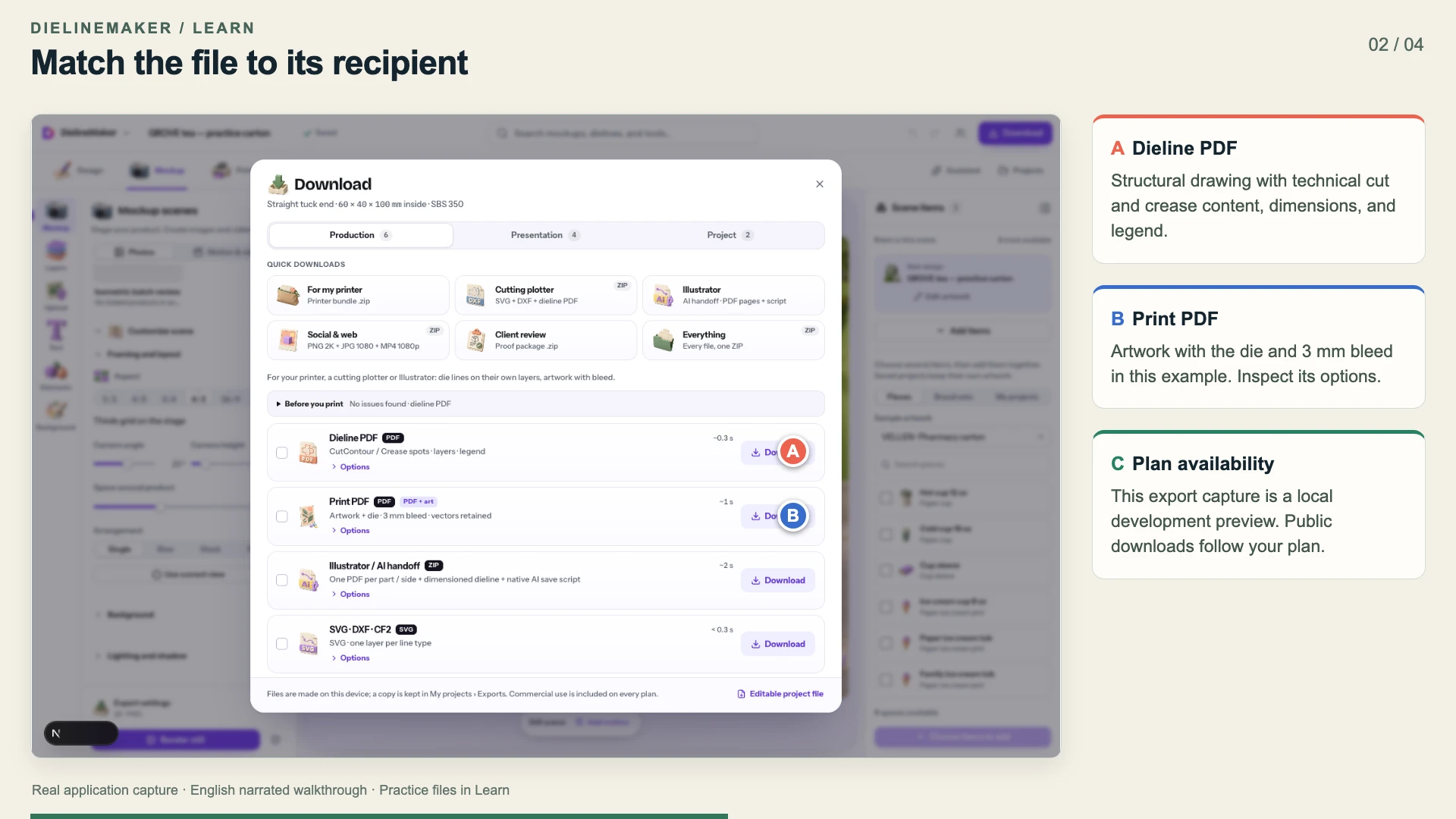
Try the example files
Structural dieline outputActual one-page app export with dimensions, legend, cut and crease content.Artwork PDF outputActual app export with 3 mm bleed. Flat trim bounds: 213.5 × 209.5 mm.Editable GROVE tea carton60 × 40 × 100 mm inside; Straight tuck end, SBS 350. Open this .foldline project in DielineMaker.Example settings and file detailsDimensions, material, source/output roles and file checksums. These local preview outputs are learning examples; public export availability follows your plan.Download the video transcriptChaptered plain-text narration for this walkthrough.Step-by-step walkthrough
Collect the receiving requirements
Confirm bleed, safe area, minimum image resolution, minimum text and line sizes, colour workflow, fonts, transparency, side separation, marks and the required PDF standard. Confirm who handles trapping and whether a supplier template is mandatory.
Review the three check groups
Open Print setup → Checks or Export in Advanced. Work through Structure, Artwork and Sheet. Use Show to locate an issue and the available fix or replacement action when appropriate. Read warning details instead of relying on a single status.
Configure production requirements
Select the appropriate Printer requirements profile and adjust it to the actual job. In Printer mode, review Cutter / RIP profile, spot colour names and the output colour condition or supplied profile.
Choose the deliverable
Open Download. Select individual outputs or a quick preset such as For my printer, Cutting plotter, Illustrator or Client review. Open the format options and read what will be included.
Export and inspect the actual files
Wait for the export receipt, inspect warnings and extract any ZIP. Open the generated PDF, vector file or bundle in the intended receiving application. Check page size, artwork, layers, spot names, side orientation and included parts.
Archive the approved revision
Keep the editable project and a proof or revision reference beside the production files. A later artwork or structural change requires a fresh check and handoff.
Options at a glance
| Control or choice | What it changes | How to use it well |
|---|---|---|
| Dieline PDF | Technical cut and fold geometry with optional Dimensions, Legend and Bleed & safe guides; Print side or Die side. | Use for reviewing structure. Choose the intended viewing side and keep technical lines distinguishable from artwork. |
| Print PDF | Artwork at physical size, with Include die and Crop marks options. | Include only the marks and technical content your printer requests. |
| SVG | Vector geometry grouped by line type, optionally with artwork, dimensions and safe area. | Useful for vector editing or a compatible cutter. Confirm physical size after opening it elsewhere. |
| DXF R12 / CF2 | Technical geometry in millimetres. DXF uses line-type layers; CF2 includes cut, crease and specialty rule types. | Confirm layer names, knife side, specialty rules and tooling expectations with the die maker. |
| Illustrator | A ZIP containing PDF pages for parts/sides, a dimensioned dieline and a script for saving native AI files in Illustrator. | Extract the ZIP and run Import to Illustrator.jsx through Illustrator’s File → Scripts menu. Inspect the imported result before production. |
| Sheet PDF | Print-sheet and sheet-die files in a ZIP, with Artwork and Knife side options. | Review every part and the actual press layout before using the sheet files. |
| Printer bundle | Print, dieline, sheet, DXF and CF2 files plus an XJDF job ticket. | A bundle is convenient, but the recipient may need only a subset. Read its contents rather than sending it without context. |
| Proof package | A sign-off PDF, available 3D views, project and manifest tied to a revision ID. | Use for review and approval. Keep the 3D view available when requesting rendered views. |
| Printer requirements | Checks for colour, fonts, transparency, sides, marks, PDF standard, trapping and template requirements. | A requirement setting describes the target. It does not prove external PDF/X certification or automatically fix every source asset. |
See what changes
These explanatory diagrams isolate the effect of a setting. They are not app screenshots or manufacturing proofs. Compare them with the annotated captures and the editable GROVE tea practice project.
Cut lines, crease lines, bleed and safety have separate jobs
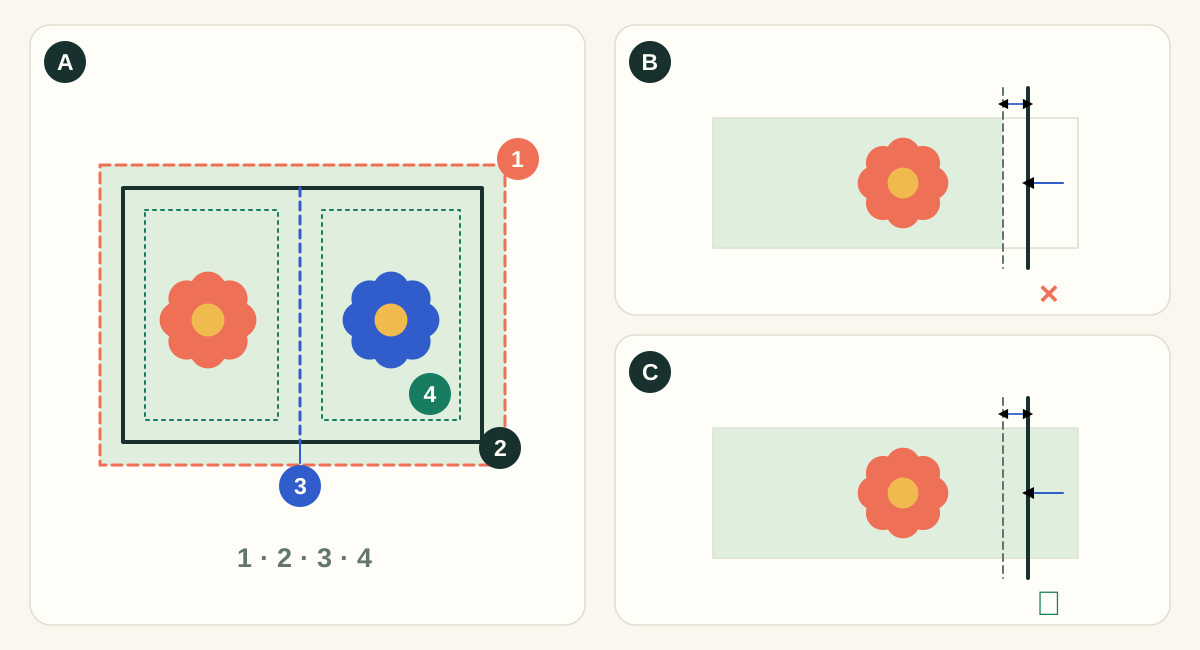
In diagram A, 1 is the bleed edge, 2 is the cut, 3 is a crease and 4 is the safety inset. A cut removes material; a crease changes how it folds. Bleed extends the printed background beyond a cut. Safety keeps important content away from a cut or fold. The shifted-cut panels exaggerate the effect to make it visible; they are not a manufacturing tolerance specification.
- ASeparate technical paths from printed artwork
- Use the structural export for cutting and creasing instructions and the artwork export for printed content. Check the requested spot names and layer conventions with the supplier. A colored line on screen does not establish the supplier’s production interpretation.
- BArtwork ends at trim: cutting movement exposes the substrate
- A background that stops exactly at the intended edge has no reserve. A small outward cut can expose an unprinted sliver. Crop marks show the intended cut; they do not create missing image content.
- CArtwork extends to bleed: the spare background is trimmed away
- An extended background covers the illustrated shift. Keep text and codes inside the safety area: extending the background does not protect content placed too close to the edge.
What to checkInspect the exported PDF around every outer cut, notch and curved corner. Check nearby folds, glue areas and supplier requirements. A generic bleed setting does not establish that each image actually covers the bleed region.
A flat design and a camera view reveal different problems
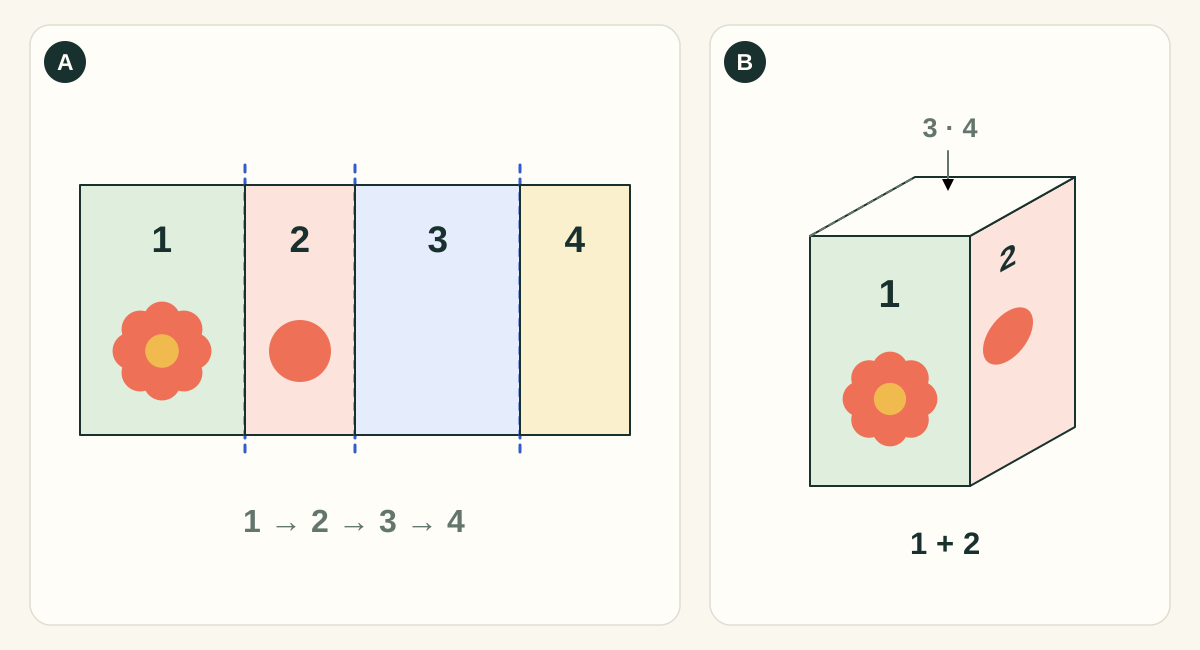
This simplified four-wall carton isolates panel mapping. It omits closure flaps and glue tabs. Numbered panels are identifiers, not an instruction that every template uses this panel order.
- AFlat view: inspect every panel and boundary
- Check panel assignment, text orientation, bleed, safety and alignment while all artwork is visible. The hidden back of a good-looking hero render may still be blank or contain an unfinished design.
- BFolded view: inspect relationships and presentation
- Rotate the carton to check how artwork meets at corners, whether the intended face points toward the camera, and how closures read. Lighting and camera angle change the appearance without changing the print artwork.
What to checkApprove the flat artwork PDF and the structural dieline as well as the mockup. A rendered image is useful for presentation; it does not replace a manufactured sample or demonstrate fit, fold strength or colour accuracy.
Detailed control reference
Find the control, understand its effect, and choose it for the job you are making. Available controls depend on the selected structure, object, workspace and output.
Print setup → Checks; Advanced → Export
Structure, Artwork and Sheet checks
Groups problems by their source. Structure covers the generated geometry; Artwork covers placed content and delivery requirements; Sheet covers layout/production concerns. Show locates the relevant item when available.
- When it helps most
- Work from blocking structural problems toward artwork and sheet details. Re-run after any structure, material, image-size, colour or nesting change.
- Impact and trade-offs
- A green check describes what the app checked with the available information. It cannot prove a physical fit, calibrated colour match, scanner performance or external printer acceptance. Read each warning and the final-file diagnostics.
Export → Printer requirements
Printer requirements profile
Loads a set of target thresholds and delivery instructions. Generic is a starting point; named profiles reflect the documented guide; custom requirements let you enter the receiving job’s exact specification.
- When it helps most
- Use the current product-specific requirements supplied by the printer. A named preset is useful to begin a review, then reconcile it with the actual order/template.
- Impact and trade-offs
- Selecting a profile does not itself convert colour, outline imported fonts, flatten transparency, trap artwork or certify a supplied template. A required workflow may need receiving prepress tools and approval.
Printer-supplied requirements → numeric thresholds
Minimum bleed and Safe margin
Minimum bleed is the required extension for the checks. Safe margin is a required inset; a blank/template value means the printer’s template defines it. These targets are separate from the project’s actual Bleed/Safe geometry settings.
- When it helps most
- Set both the production design and the acceptance threshold consistently. For a supplier template with its own safety contours, review those contours rather than substituting an arbitrary number.
- Impact and trade-offs
- Lowering a threshold can remove a warning without fixing the art. Raising Minimum bleed does not create missing content; change the project/artwork and inspect the exported bounds.
- Worked example
- If the job requires 5 mm bleed while the design has 3 mm, increasing the checker to 5 should expose the mismatch. Set the design to the required bleed and make the background reach it.
Printer-supplied requirements; Generic starts at 300 ppi
Minimum image ppi
Sets the effective raster-resolution threshold at the image’s placed physical size, rather than judging a file solely by its pixel count or metadata label.
- When it helps most
- Use the printer’s threshold for the job’s viewing distance, process and content. Replace low-resolution source art or reduce its placed size when the check indicates a problem.
- Impact and trade-offs
- Changing the threshold does not resample the image or add real detail. A screenshot of vector text is still a raster image. Judge fine lettering and high-contrast edges carefully.
- Worked example
- 1500 pixels across 127 mm (5 in) gives 300 ppi; the same image across 254 mm gives 150 ppi. A 4K mockup render is unrelated to the effective resolution of an asset in the print PDF.
Printer-supplied requirements; Generic starts at 8 pt and 0.25 pt
Minimum text and minimum artwork line
Sets the check thresholds for artwork text and stroke thickness. Technical die/crease rule lines have a different purpose and are not ordinary printed-artwork strokes.
- When it helps most
- Use the converter’s requirements, especially on absorbent, textured or corrugated stock and for reversed/light text.
- Impact and trade-offs
- The smallest UI-enterable value is not a printing recommendation. Raising text size may change wrapping; thickening a decorative rule may affect layout. Inspect the change at final size instead of only clearing the warning.
- Worked example
- 0.25 pt is about 0.088 mm. If the printer requires 1 pt lines, a 0.25 pt decorative border remains too fine even though it looks visible on a zoomed screen.
Printer-supplied requirements
Process colour: Printer-managed or CMYK required
Records who accepts the process-colour handling and whether CMYK is required. Output colour condition/profile settings are separate from this target.
- When it helps most
- Choose Printer-managed when that is explicitly the agreement. Choose CMYK required when the recipient specifies it, then inspect conversion/output diagnostics and the actual final file.
- Impact and trade-offs
- An RGB-looking screen preview is not proof of a CMYK separation or colour match. Setting a requirement is not a conversion switch. Confirm ICC profile, intended substrate and treatment of special/technical inks with prepress.
Printer-supplied requirements → Text
Text: embedded fonts or outlines
Records whether the recipient accepts embedded fonts or requires outlined letter shapes.
- When it helps most
- Use the requirement from the receiving printer. Preserve editable text in the project even if a particular delivery needs outlines.
- Impact and trade-offs
- Changing this requirement does not outline every font in imported PDF/SVG artwork. Check the final file and downstream preparation. Outlined lettering loses normal text editability, so retain the source and approved wording.
Printer-supplied requirements → Transparency
Transparency: allowed or flattened
Records whether live transparency is acceptable in the final workflow or whether the recipient requires flattened output.
- When it helps most
- Relevant to opacity, transparent images, blends and effects, especially when targeting a legacy production workflow.
- Impact and trade-offs
- Choosing Flattened required is a target, not proof that all imported content has been flattened. Flattening can affect edges, colour and text/vector treatment; inspect the prepared final file with the recipient’s validation process.
Printer-supplied requirements → Sides
Combined or separate outside/inside files
Controls the delivery organisation. Separate requests outside and inside print PDFs; inside files are produced where the part actually has inside artwork.
- When it helps most
- Use when the printer wants one file per side/pass, particularly on multi-part or two-sided packaging.
- Impact and trade-offs
- Count parts and sides rather than assuming exactly two files for every project. A blank inside does not imply a missing export. Check filenames, page dimensions and orientation, then pair each file with the matching approved component.
Printer-supplied requirements
Additional marks, PDF standard, trapping and printer template
Records four independent handoff constraints: whether extra marks are allowed, the requested PDF standard, who provides trapping and whether the original supplier template is mandatory.
- No additional marks
- Review crop/registration/slug options and omit unrequested marks in the actual output.
- No PDF/X / PDF/X-1a / PDF/X-4
- Choose the required target and read final diagnostics. A standard label is not a substitute for validation of fonts, colour, transparency and output intent.
- Receiving printer / Supply trapped artwork
- Assigns responsibility. When supplied trapping is required, have it prepared and verified through the agreed prepress workflow.
- Printer template required
- Preserve the actual ordered-product template and its technical colours. Independently regenerated geometry still needs explicit acceptance.
- When it helps most
- Use the receiver’s written instructions. These settings are especially important when uploading to a production portal that rejects extra marks or regenerated dielines.
- Impact and trade-offs
- The app does not generate traps. Validated PDF/X-1a requires validation outside a mere preset name; PDF/X-4 is explicitly described as structurally self-checked rather than independently certified. A generated lookalike is not a certified replacement for a mandatory supplier template.
Export in Printer audience
Cutter/RIP profile and spot-colour name overrides
Selects technical-ink conventions and lets you override names for the line kinds present in this design: Cut, Crease, Reverse crease, Perforation, Kiss cut, Cut-score and Double crease as applicable.
- When it helps most
- Use the precise names requested by the receiving RIP. Keep cut and crease operations distinguishable, and verify them in a separations/layer inspection.
- Impact and trade-offs
- Names are matched exactly by downstream systems. Reserved PDF names such as All, None, Cyan, Magenta, Yellow and Black cannot be used as arbitrary technical spot names; the UI warns. A familiar CutContour name alone does not establish Processing Steps compliance.
Download → Dieline PDF options
Dieline PDF: Dimensions, Legend, Bleed & safe, View
Dimensions adds measurement annotation; Legend explains technical line types; Bleed & safe includes guides; View selects Print side or Die side.
- When it helps most
- Use annotated output for review and a cleaner technical output if requested for tooling. Show enough context for the recipient to interpret side, units and revision.
- Impact and trade-offs
- Annotations are not cutting paths. A die-side view can mirror an asymmetric blank relative to a print-side view; inspect a known flap before sending. Turning off guides does not remove the actual production need for bleed.
Download → Print PDF options
Print PDF: Include die and Crop marks
Include die adds technical dieline content to the artwork output; Crop marks adds the relevant print marks.
- When it helps most
- Include only what the printer requested. An artwork-only file may be appropriate where the portal already has the fixed tooling template; a combined technical proof may be useful for review.
- Impact and trade-offs
- Check separations and ensure technical content is handled as intended, rather than assuming it will never print. Crop marks consume area and may conflict with a no-extra-marks requirement. Inspect actual PDF page size, not just the editor view.
Download → Vector format
SVG, DXF R12 and CF2
SVG can include artwork, dimensions and safe guides. DXF R12 exports technical geometry in millimetres under line-type layers. CF2 carries technical cut/crease and specialty-rule geometry, including supported arcs.
- When it helps most
- Choose SVG for compatible vector editing, and the format explicitly requested for CAD or cutting systems. Use the intended knife side and technical conventions.
- Impact and trade-offs
- SVG rendering/import support varies, including physical-unit interpretation and artwork effects. DXF/CF2 are not a substitute for the print-artwork PDF. Confirm specialty rule types, pointage and scale in the receiver’s software.
Download → Illustrator
Illustrator ZIP and bridge
The handoff ZIP contains PDF artwork/parts and a dimensioned dieline plus an import script. Running Import to Illustrator.jsx in Illustrator saves native AI files and restores unambiguous technical spots to named layers.
- When it helps most
- Use when the receiving designer needs to continue in Illustrator. Extract the ZIP first and inspect each imported part/side before editing or manufacture.
- Impact and trade-offs
- The download itself is not a native .ai file. The optional bridge sends the currently selected part/side when connected; it does not imply every part was transferred. Confirm Save AI and the imported layer/spot mapping in Illustrator.
Download → output selection
Sheet PDF, Printer bundle and Proof package
Sheet PDF produces separate print-sheet and sheet-die files in a ZIP. Printer bundle collects production files, specification, job ticket and diagnostics. Proof package preserves a sign-off document, project, manifest and available renders under a revision ID.
- When it helps most
- Use Sheet PDF for an agreed imposed production layout, a bundle for a coordinated multi-file handoff, and a proof for review/approval.
- Impact and trade-offs
- Inspect every ZIP member and reconcile its part/side/revision. A proof is not automatically an accepted press file. The 3D view must be available for rendered proof views; export access and artwork treatment depend on the current plan.
Export in Printer audience → Press colour
Press colour (output intent) and printer ICC profile
Writes a production-PDF output intent. Named CMYK press conditions can identify a target without embedding a CMYK profile; a supplied .icc/.icm file can be loaded and its information inspected. The current control limits profile files to 16 MB.
- When it helps most
- Use the exact profile/condition agreed with the receiver and read the contract note shown for that choice. Choose None only when the colour workflow will be agreed separately.
- Impact and trade-offs
- Artwork colour is not converted by this control. Embedding an ICC profile describes the intended output condition; it does not itself convert RGB artwork to that CMYK press. Choosing a named preset clears a loaded custom profile. Have required conversion and final-file validation performed in the agreed prepress workflow.
Keep production instructions separate from printed artwork
Cuts, creases, foil, varnish and other finishing instructions have different jobs from the printed colour content. Agree the required layer and spot names with the receiving workflow. A recognisable spot name by itself is not evidence of compliance with a PDF standard.
Review any output report and the actual exported file. When a printer requires validated PDF/X, an exact ICC conversion, flattened transparency or outlined text, follow their validation procedure. A self-check in the app is useful evidence, but it is not a substitute for the recipient’s acceptance.
Use a proof for approval and production files for manufacturing
A proof records the design and revision being approved. A mockup helps people understand appearance. A production export contains the geometry and artwork for manufacture. Do not ask a printer to infer the production geometry from a rendered PNG.
Access to clean production exports and presentation outputs is plan-dependent. If a download is unavailable, inspect the account and the explanation shown in the Download panel. A disabled format can also reflect the current model, view or device capability.
Inspect the exported job in this order
Open the final files from the download, not a previous revision in another tab. First verify filenames, revision and every required part/side. Check PDF page dimensions and actual artwork scale. Then inspect cut/crease separation names, viewing/knife side and any required marks. Check fonts, raster resolution, transparency and colour using the receiving prepress workflow.
For the GROVE sample, the structural PDF and the print PDF intentionally have different jobs. Compare both against the editable .foldline project. The supplied mockup is useful for orientation and intent; it cannot substitute for measuring the exported geometry.
- Separate “warning reviewed” from “requirement met”: explain any accepted exception in the handoff.
- If a required conversion/validation was done in another application, inspect that resulting file again and keep it with the approved revision.
- A physical prototype and printer proof answer questions the on-screen preview cannot.
Check your work
- All check errors and warnings have been reviewed.
- The exact output size and side orientation are correct.
- Artwork covers bleed and important content stays safe.
- Fonts, image resolution, colour and transparency meet the job requirement.
- Every needed part and side is included.
- The recipient has the matching approved revision.
Troubleshooting
The file exported even though a warning was present
Some checks are advisory and travel with the export. Read the report and inspect the affected object before sending the file.
A PDF looks different in another application
Check fonts, transparency, colour management and viewing settings. Compare with the source and obtain a printer proof when appearance is critical.
The cutter does not recognise my lines
Confirm DXF/CF2 support, millimetre scale, layer or spot names, specialty rule types and knife side with the receiving system.
The Illustrator download is not a native AI file
It is a handoff ZIP. Run the included import script in Illustrator and save the resulting native AI files there.