Before you start
- What goes in
- A sized package and PDF, SVG, PNG or JPG artwork with enough detail for its final physical size.
- What comes out
- Editable artwork layers placed on the correct faces, visible in flat and folded previews.
A practical example
Place the GROVE tea front image
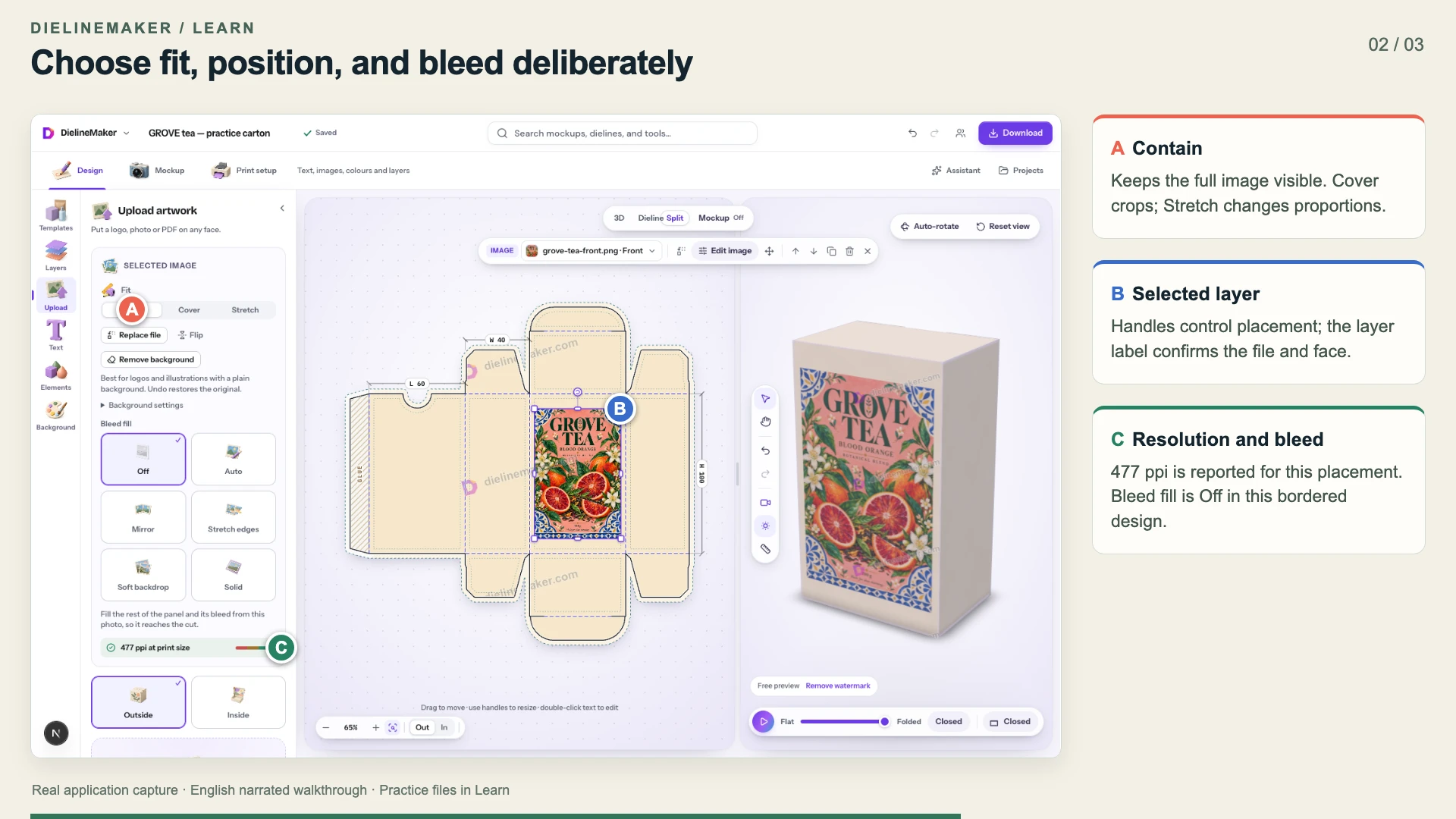
The practice project uses one PNG on the front; its lettering is part of the image, and the back is blank. For your own product range, keep the product name as a separate editable text layer and add approved information on the back so later variants are easier to maintain.
Try the example files
GROVE tea artwork input1024 × 1536 px generated practice artwork for the front panel.Editable GROVE tea carton60 × 40 × 100 mm inside; Straight tuck end, SBS 350. Open this .foldline project in DielineMaker.Artwork PDF outputActual app export with 3 mm bleed. Flat trim bounds: 213.5 × 209.5 mm.Example settings and file detailsDimensions, material, source/output roles and file checksums. These local preview outputs are learning examples; public export availability follows your plan.Download the video transcriptChaptered plain-text narration for this walkthrough.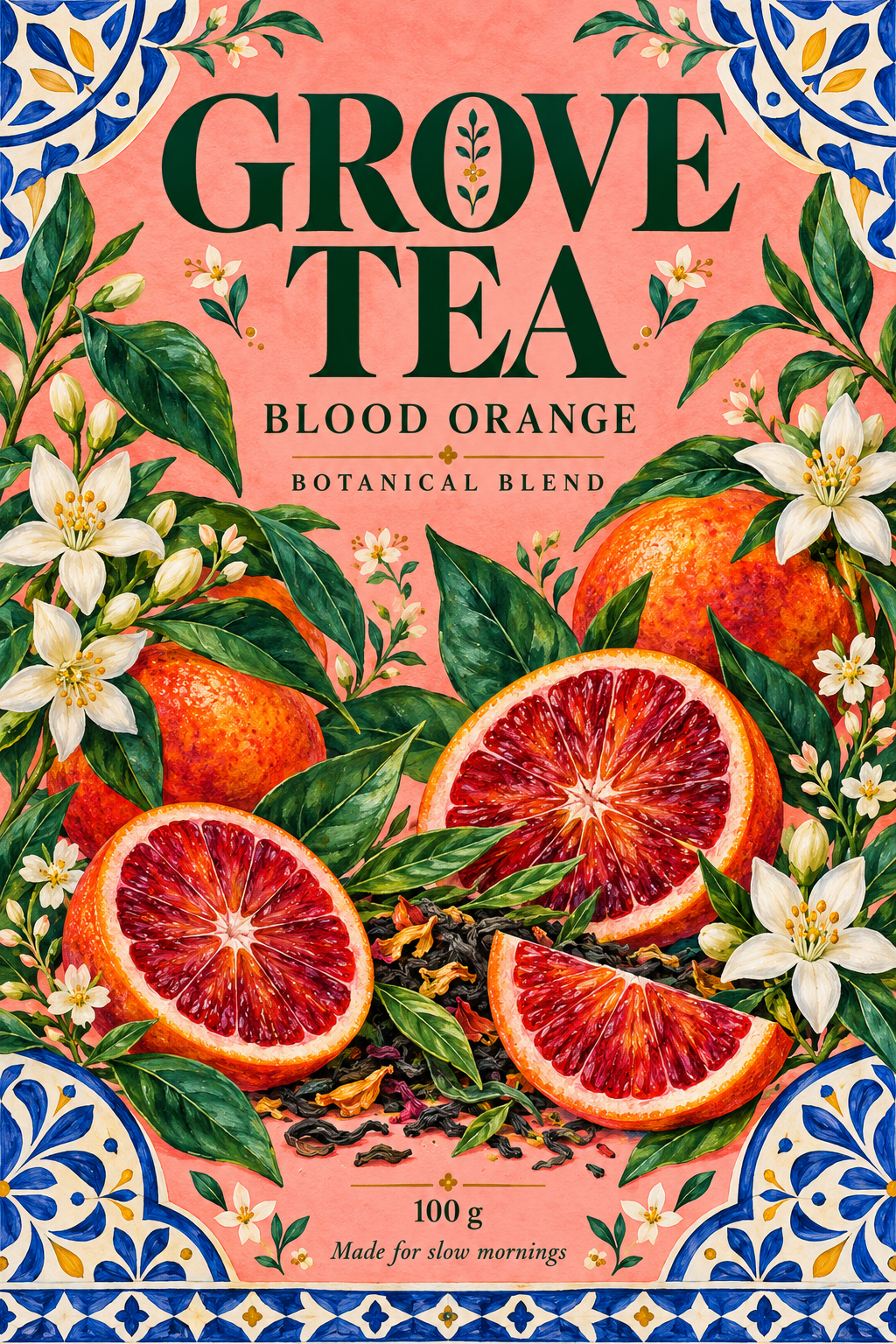
Step-by-step walkthrough
Finish structure before placing a full layout
Set size and board first. For a complete design prepared in another application, start from the matching dieline so the document and blank use the same dimensions.
Select the intended destination
Open Design → Upload. Drop artwork onto a face in 3D to place it there, or select the desired face before choosing files. Inspect the face selection when adding inside or back artwork.
Choose the appropriate fit
Select the image layer. Use Contain to see the full image, Cover to fill its rectangle while cropping overflow or Stretch when an exact full-dieline alignment requires it. Avoid stretching a logo or a photograph accidentally.
Position precisely
Use the canvas handles for a first placement and the layer geometry fields for X, Y, W, H and rotation. Lock the aspect ratio when resizing a logo or illustration proportionally.
Organise the design
Use Layers to select objects hidden behind others, change order, control visibility or lock completed elements. Use groups and matching-content editing deliberately; check whether the edit targets one instance or several copies.
Review edges and folds
Switch to 2D and inspect every cut edge and panel join. Use Bleed fill where appropriate for an image, then check its actual result. Rotate the folded package to verify that an illustration does not become upside down or disappear under a flap.
Options at a glance
| Control or choice | What it changes | How to use it well |
|---|---|---|
| Contain | Shows the whole image within its layer rectangle. | Good for a logo that must remain complete; it can leave uncovered space around the image. |
| Cover | Fills the rectangle and crops overflow. | Good for an edge-to-edge photograph; inspect the crop so important content is not cut off. |
| Stretch | Fits the source exactly to the layer dimensions. | Use only when the source aspect ratio is deliberately matched, especially for full-dieline artwork. |
| X / Y / W / H / Angle | Physical placement, dimensions and rotation relative to the current layer context. | Read the origin hint and units. Check the result on the intended panel rather than relying on the numbers alone. |
| Bleed fill | Off, Auto, Mirror, Stretch edges, Soft backdrop or Solid extend or fill around an image. | Compare the generated edge treatment at high zoom. An extension can create repeated details and is not a substitute for properly prepared artwork. |
| Visibility, lock and layer order | What is shown, what can be edited and what prints over other objects. | Hide an object to diagnose overlap; unlock it before changing its geometry. |
| Full-dieline artwork | One artwork layout aligned across the entire flat blank. | Use the matching template and inspect all panel boundaries. Recheck alignment after changing size, caliper or structure. |
See what changes
These explanatory diagrams isolate the effect of a setting. They are not app screenshots or manufacturing proofs. Compare them with the annotated captures and the editable GROVE tea practice project.
Contain, Cover and Stretch change different parts of the image
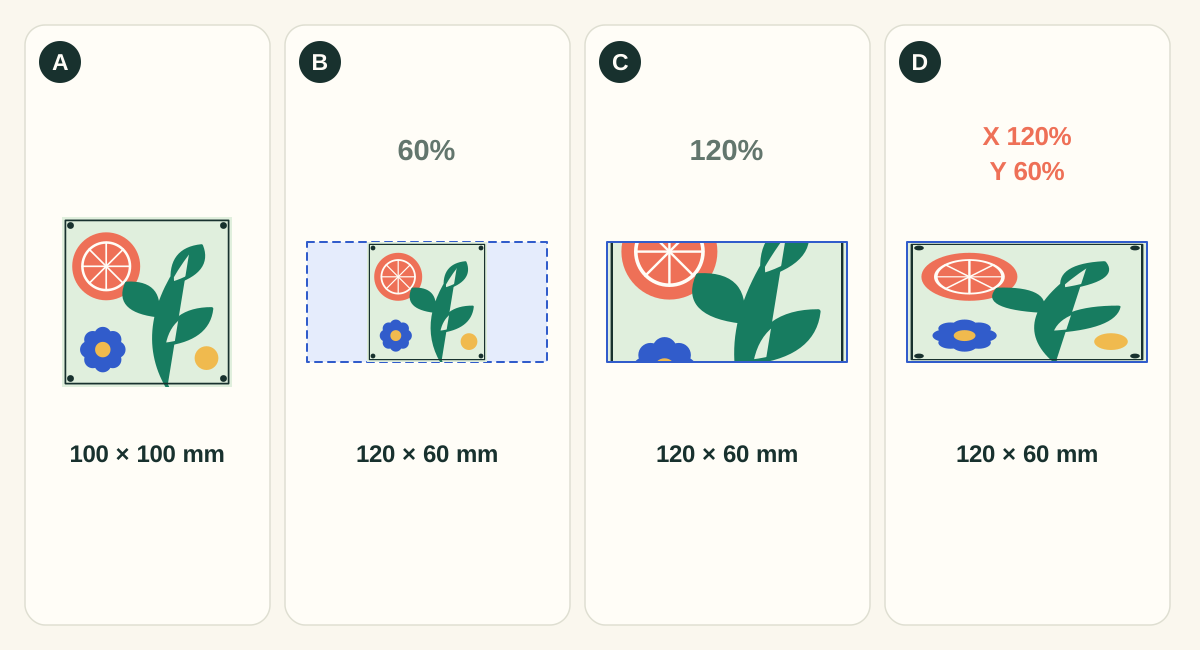
The diagram uses a 100 × 100 source and a 120 × 60 panel, with centered fitting and no extra scale, position change or rotation. The source dimensions express its square aspect ratio; they are not a claim about image resolution.
- AOriginal: establish the aspect ratio
- The complete square is the reference. Identify the logo, illustration and edges that must survive placement before choosing a fit mode.
- BContain: retain the whole image
- The square becomes 60 × 60 and leaves 30 units of space on each side. Use this for logos, badges and complete compositions. The panel fill shows through the unused area; Contain alone cannot make a square image fill a wide panel.
- CCover: fill the panel and crop the excess
- The square becomes 120 × 120, with 30 units cropped above and below. Use this for photographic backgrounds or textures that tolerate cropping. Adjust the image frame or placement, or prepare a different crop, when the important subject would be lost.
- DStretch: fill the panel by changing proportions
- The square becomes 120 × 60. This avoids gaps and cropping but widens shapes relative to their height. It can suit abstract patterns; avoid it for faces, logos, barcodes and lettering whose proportions must remain intact.
What to checkReview the whole flat panel and the folded result. Then check effective PPI at the final placed size. Increasing scale cannot add detail to the uploaded pixels.
Cut lines, crease lines, bleed and safety have separate jobs
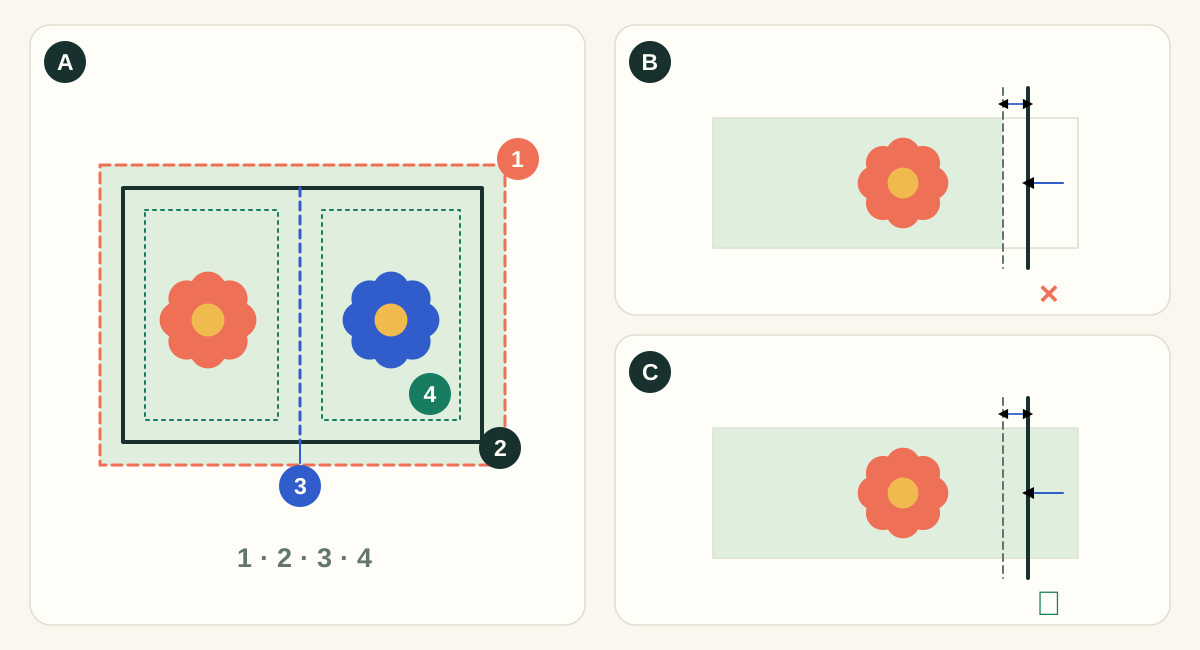
In diagram A, 1 is the bleed edge, 2 is the cut, 3 is a crease and 4 is the safety inset. A cut removes material; a crease changes how it folds. Bleed extends the printed background beyond a cut. Safety keeps important content away from a cut or fold. The shifted-cut panels exaggerate the effect to make it visible; they are not a manufacturing tolerance specification.
- ASeparate technical paths from printed artwork
- Use the structural export for cutting and creasing instructions and the artwork export for printed content. Check the requested spot names and layer conventions with the supplier. A colored line on screen does not establish the supplier’s production interpretation.
- BArtwork ends at trim: cutting movement exposes the substrate
- A background that stops exactly at the intended edge has no reserve. A small outward cut can expose an unprinted sliver. Crop marks show the intended cut; they do not create missing image content.
- CArtwork extends to bleed: the spare background is trimmed away
- An extended background covers the illustrated shift. Keep text and codes inside the safety area: extending the background does not protect content placed too close to the edge.
What to checkInspect the exported PDF around every outer cut, notch and curved corner. Check nearby folds, glue areas and supplier requirements. A generic bleed setting does not establish that each image actually covers the bleed region.
Detailed control reference
Find the control, understand its effect, and choose it for the job you are making. Available controls depend on the selected structure, object, workspace and output.
Design → Upload; selected image → Replace file
Upload and Replace file
Adds PDF, SVG or raster artwork as design assets. Replace file changes the image source while letting you continue from the existing placed layer.
- When it helps most
- Use separate assets for independent content; use a complete dieline layout only when its dimensions match the final structure. Replace is useful for swapping a flavour illustration without rebuilding the composition.
- Impact and trade-offs
- A replacement can have different proportions, transparency, resolution or margins. Recheck Fit, crop, effective resolution and alignment. Text already baked into a PNG remains pixels and cannot be edited with the Text tool.
Selected image → Fit
Contain, Cover and Stretch
Controls how the source image is fitted inside its layer rectangle. The layer’s physical dimensions and the source’s aspect ratio jointly determine the result.
- Contain
- Preserves proportions and fits the whole source. Useful for logos, labels with text and illustrations whose edge details matter.
- Cover
- Preserves proportions while filling the target. Overflow is cropped, so inspect faces and any focal subject near an edge.
- Stretch
- Matches the target width and height independently. Useful for an exactly matched full-dieline asset, but visibly distorts a mismatched source.
- When it helps most
- Choose Contain when the entire illustration or logo must remain visible. Choose Cover for intentional edge-to-edge imagery. Use Stretch only when the source and target layout are deliberately compatible.
- Impact and trade-offs
- Contain can leave space. Cover can cut off meaningful content. Stretch can distort lettering and circles. Fit alone does not guarantee bleed coverage; inspect the clipping area and actual image bounds.
- Worked example
- A 2:3 image in a 60 × 100 mm layer becomes 60 × 90 mm with Contain, leaving 10 mm of height in total. Cover scales it to about 66.7 × 100 mm, cropping about 6.7 mm of width in total. Stretch fills 60 × 100 mm with unequal axis scaling.
Selected placed layer → Position & size
X and Y position
Shows position from the panel’s top-left in its reading orientation, or from the blank’s top-left for a whole-blank context. Rotated extents are accounted for in that reading frame.
- When it helps most
- Use for a measured inset such as placing a logo 6 mm from the front panel’s left and top edges. Read the origin hint before copying coordinates from another object.
- Impact and trade-offs
- The origin can change with clipping context and panel selection. Direct movement clears the layer’s previous anchor in the current implementation; after resizing the structure, recheck the intended placement rather than assuming an earlier alignment rule still controls it.
Selected placed layer → Position & size
W, H and aspect-ratio lock
W and H set the object’s physical rectangle. Lock links the dimensions through their current ratio; the inspector initially locks images and codes.
- When it helps most
- Keep the ratio locked when sizing logos, photos and machine-readable codes. Unlock for deliberate box changes such as a wider text area or an exactly matched layout.
- Impact and trade-offs
- Doubling an image’s physical width at the same pixel count halves its effective pixels per inch along that axis. Locking the ratio prevents distortion but does not prevent excessive enlargement.
- Worked example
- A 1200-pixel-wide source placed 100 mm wide has about 305 ppi: 1200 ÷ (100/25.4). At 200 mm wide it has about 152 ppi. Evaluate the smallest source detail, not the filename.
Position & size → Rotation/Angle; selected image → Flip
Rotation and Flip
Rotation uses the panel’s upright reading frame when available, with quick 0°, 90°, 180° and 270° choices plus an angle field. Flip mirrors the image horizontally.
- When it helps most
- Rotate artwork to read correctly on a folded flap or another face. Use Flip only for imagery that can be mirrored intentionally.
- Impact and trade-offs
- Mirroring reverses embedded text and barcodes as well as artwork. A flat panel may itself be oriented differently from the finished face, so confirm in 3D. Changing the camera is not the same as rotating the printed layer.
Selected layer → Appearance & print settings
Clip to: panel, face or whole blank
Limits the area in which the layer is shown. This panel uses the selected panel; Whole face spans the applicable face; Whole blank extends across the blank to the bleed boundary.
- When it helps most
- Use panel clipping for face-specific art, face clipping where one physical face has multiple relevant panels, and whole-blank clipping for a deliberately aligned complete layout or wrap background.
- Impact and trade-offs
- A larger clipping region can reveal artwork on tabs or neighbouring panels. Bleed fill also follows this context: with whole-blank clipping it can fill the entire blank rather than only one panel. Inspect inside/outside and every exposed edge after changing it.
Selected image → Bleed fill
Bleed fill: Off and Auto
Off leaves the source without generated surrounding fill. Auto inspects the decoded image edges and chooses a mirror, stretched-edge or single-colour extension.
- When it helps most
- Use Auto to explore a plausible extension for a small source that does not cover the intended panel or bleed. Keep Off for already prepared artwork that fully covers the required area.
- Impact and trade-offs
- Auto is a choice of edge treatment, not generative reconstruction of the missing scene. Repeated or smeared details can appear. Inspect at print scale, particularly near faces, type and geometric patterns.
- Worked example
- A citrus illustration with a plain cream border may extend cleanly as one colour. A photograph with a fruit cut by the edge may show an obvious repeated fruit with Mirror; compare another mode before approving.
Selected image → Bleed fill
Bleed fill: Mirror and Stretch edges
Mirror reflects content outward from the image boundary. Stretch edges extends the outermost pixel values into the surrounding area.
- When it helps most
- Mirror often suits non-directional organic textures. Stretch edges can suit smooth edge colours or gradients that should continue without reflecting a recognisable object.
- Impact and trade-offs
- Mirror can create symmetry or duplicated lettering. Stretch edges can produce visible bands from a busy boundary. Neither restores the real scene outside the source; if the edge is important, supply larger artwork.
Selected image → Bleed fill → Soft backdrop
Bleed fill: Soft backdrop, Fill panel, Glow and Strength
Places an enlarged blurred version of the photo behind its sharp original. Fill panel expands the backdrop to cover the panel; Glow uses an approximately two-times-photo backdrop fading toward its edge colour. Strength adjusts the backdrop contribution from 0–100%.
- When it helps most
- Useful for a small hero photograph on a much larger lid, or a composition that needs coloured atmosphere around a sharp central image.
- Impact and trade-offs
- The foreground remains the source image, so backdrop fill does not improve its detail. Blur can muddy fine edge colours and does not make critical copy safe. Compare print contrast at the selected strength.
- Worked example
- Keep a sharp tea tin photograph in the centre of a gift-box lid, use Fill panel to extend its palette, then lower Strength if the enlarged background competes with the separate product text.
Selected image → Bleed fill → Solid
Bleed fill: Solid and Match the photo’s edge
Fills the surrounding region with an edge-sampled colour unless you choose an explicit Fill colour. Match the photo’s edge removes that manual colour override.
- When it helps most
- Best for product cutouts or artwork with a nearly uniform border. Choose a deliberate brand colour when a sampled edge is inappropriate.
- Impact and trade-offs
- If the source has a textured or differently coloured border, the transition can remain visible. Inspect the join and contrast against the board; a screen-matched background is not a guarantee of an invisible printed join.
Layers; selected layer → Appearance & print settings
Opacity, visibility, lock and stacking order
Opacity blends a visible layer with what is behind it. Visibility includes or excludes it from the visible design. Lock protects manipulation. Stack order decides which visible artwork covers other artwork.
- When it helps most
- Reduce opacity for a deliberate translucent design effect; hide objects to diagnose overlap; lock approved items while arranging neighbours; reorder a logo above a background.
- Impact and trade-offs
- Hidden or transparent text can be easy to overlook. A locked object can still obscure another object. Transparency requirements are checked at export, so an attractive 50% opacity effect may need downstream handling for a printer requiring flattened artwork.
Selected shape inspector
Shapes: type, Fill, Stroke, Stroke width and Corner radius
Choose Rectangle, Ellipse, Line, Badge, Star or Arch. Fill colours the interior; Stroke colours the edge; Stroke width sets its physical thickness. Corner radius is available for Rectangle/Arch and is bounded by half the shorter dimension.
- When it helps most
- Use a filled rectangle for a label panel, an ellipse or badge for a product claim, and lines for simple dividers. Use a separate shape when it needs its own finish or batch colour mapping.
- Impact and trade-offs
- A zero/absent stroke does not print a visible outline. Extremely fine artwork lines may fall below the printer’s minimum. Technical cut/crease rules are separate geometry; drawing a decorative red line does not create a cutting path.
Selected pattern inspector
Patterns: type, Colour, Background, Scale and Rotation
Pattern selects the motif; Colour is the pattern ink; Background can be coloured or absent. Scale changes motif size in millimetres and Rotation changes its angle. Choosing a different pattern can reset scale to that pattern’s preset.
- When it helps most
- Use for a consistent all-over treatment or flavour variation. A transparent background lets lower layers show through; a solid background gives a controlled contrast field.
- Impact and trade-offs
- Smaller motifs create finer detail that may be harder to reproduce. Pattern rotation and clipping affect how the design meets at folds. Review seams and avoid confusing fine patterns behind codes or small copy.
Selected fill or Background controls
Solid, Linear and Radial backgrounds
Solid uses one colour. Linear transitions between From and To along an angle. Radial transitions around a centre. Gradient controls appear only when a gradient is selected.
- When it helps most
- Use a solid fill for dependable brand contrast; a linear gradient to guide the eye; radial for a focal glow under a central product mark.
- Impact and trade-offs
- A gradient is printed artwork, unlike a scene backdrop which only appears behind a mockup. Review banding in the exported file and avoid positioning tiny text where the gradient reduces contrast.
Selected raster image; Background settings; tolerance 0–80, initially 24
Remove background and Background tolerance
Removes a plain background from the selected raster artwork. Higher tolerance removes more similar colours; Undo restores the previous image.
- When it helps most
- Useful for a logo or illustration on a largely uniform field. Begin conservatively, inspect fine edges, and Undo before trying a different tolerance.
- Impact and trade-offs
- Increasing tolerance can erase wanted pale artwork as well as its background. It is not a universal photographic subject-segmentation tool. Inspect on a contrasting background and preserve the original asset; the action is disabled for a locked layer.
Compatible Colour fields → Spot colour
Spot colour: Ink name and preview colour
A valid Ink name makes the object print on its own named plate. The colour picker/hex value then controls its screen preview while retaining that plate name. Clearing the name returns to an ordinary colour.
- When it helps most
- Use an agreed named ink for a brand/production requirement and keep the name exactly consistent with prepress.
- Impact and trade-offs
- The on-screen hex preview is not the ink formula or a measured colour proof. Names are limited to the supported characters/length; All, None and process-colour names are reserved. A technical cut spot and a decorative brand spot have different roles.
Choose inputs that survive the intended output
PDF and SVG are useful for artwork containing vector shapes and text. PNG is useful for transparent images; JPG suits opaque photography. A preview on screen cannot prove that the source will remain sharp at the printed size. Review the artwork checks for the actual placement.
Keep original files. A small image enlarged to cover a large panel loses effective resolution, even if its filename says “high resolution”. Check text and image detail at the final size before approving a print PDF.
Backgrounds, patterns and ready-made designs
Background offers colours, gradients, patterns and ready-made designs. Solid, linear and radial fills give different results; gradients also expose colour and angle settings. Pattern wraps are useful for a continuous visual treatment, but logos, barcodes and important text should still be placed where folds and cuts will not obscure them.
Use Elements for available photos, stickers and codes. Review every imported or sample element in the context of your package, and replace demonstration product text with your own content before production.
Diagnose a missing or cropped object in a reliable order
First select the correct outside/inside side and part. Find the object by name in Layers and check visibility and stacking. Then inspect Clip to: an image can exist outside the part of the panel that is allowed to show. Next inspect Fit, physical size and position. Finally check opacity and whether another layer covers it.
For full-dieline artwork, compare a distinctive corner or score intersection in several distant places. If one corner aligns but the other does not, suspect scale or aspect ratio rather than translating the image repeatedly. If alignment was correct before a material change, restore or regenerate against the final structure.
- Keep an unmodified source file and a project copy before destructive replacement/removal.
- Check tiny text and image detail in the actual exported PDF at a useful zoom as well as at final printed size.
- For a clean repeatable range, separate imagery, changing wording and colour layers before building SKU mappings.
Check your work
- Each asset is on the correct face and side.
- Logos retain their proportions.
- Artwork covers the required bleed without unintended white edges.
- Critical content stays away from cuts and folds.
- Layer order, visibility and groups match the intended output.
Troubleshooting
My image is cropped
Check Cover. Switch to Contain if the entire source should be visible, or adjust the crop and layer size.
The logo is distorted
Restore its aspect ratio and use Contain or proportional sizing. Stretch changes the source proportions.
The object cannot be selected or moved
Find it in Layers, check whether it is locked and inspect the current face, side and group selection.
Artwork no longer lines up with the dieline
Check whether the structure, dimensions or board changed after upload. Re-export the correct template and align to the revised blank.