Before you start
- What goes in
- A chosen structure, the supplier’s material specification and any required surface or spot finishes.
- What comes out
- A material-aware structure, a rendered surface and finish information associated with your design.
A practical example
A matte carton with a foil wordmark
Choose a suitable carton board, apply a matte surface and use a special finish on the logo layer. The mockup communicates the intended look; the printer still needs the correct finish separations and process specification.
Try the example files
Editable GROVE tea carton60 × 40 × 100 mm inside; Straight tuck end, SBS 350. Open this .foldline project in DielineMaker.Structural dieline outputActual one-page app export with dimensions, legend, cut and crease content.Example settings and file detailsDimensions, material, source/output roles and file checksums. These local preview outputs are learning examples; public export availability follows your plan.Download the video transcriptChaptered plain-text narration for this walkthrough.Step-by-step walkthrough
Choose an appropriate family
Open Print setup → Material. Review the available board families and swatches for the structure. Read the material note before selecting a stock; corrugated, solid carton, rigid board, paper and film are not interchangeable constructions.
Check thickness
Confirm Caliper against the measured stock or the converter’s specification. Changing it can rebuild every panel. If using a converter profile, check whether its measured caliper is driving Auto.
Choose the overall surface
Compare Matte, Satin, Gloss, Soft-touch and Uncoated in the Surface controls. Rotate the package under the lights to judge highlights; a head-on view can hide a finish difference.
Apply selective finishes to the intended objects
Select the artwork layer and use its finish controls. Review Special finishes in this design to see what is present. Keep the intended finish area separate from unrelated artwork so the handoff is clear.
Check the inside
Choose Printed when the inside needs artwork, then place and inspect inside layers. To return to Unprinted, remove inside artwork first if the control indicates existing layers.
Options at a glance
| Control or choice | What it changes | How to use it well |
|---|---|---|
| Board | Material family, base colour and default caliper. | Choose by production requirements; a brown colour alone does not make a material suitable for shipping. |
| Caliper | Thickness used to compensate the structure. | Measure or obtain the value from your supplier; paper weight and thickness are different quantities. |
| Matte / Satin / Gloss | Different overall surface responses to light. | Use side lighting to compare. Screen rendering is a presentation of intent, not a colour or coating proof. |
| Soft-touch / Uncoated | Alternative overall surface appearances. | Confirm the real material sample because texture and tactile feel cannot be judged on screen. |
| Special finishes | Selective finish assignments on artwork objects. | Inspect the finish summary and exported separation names with the printer. |
| Inside: Unprinted / Printed | Whether interior artwork is part of the project. | Check the inside separately in the flat view and export the side files requested by your printer. |
See what changes
These explanatory diagrams isolate the effect of a setting. They are not app screenshots or manufacturing proofs. Compare them with the annotated captures and the editable GROVE tea practice project.
The same internal space needs a different blank when board thickness changes
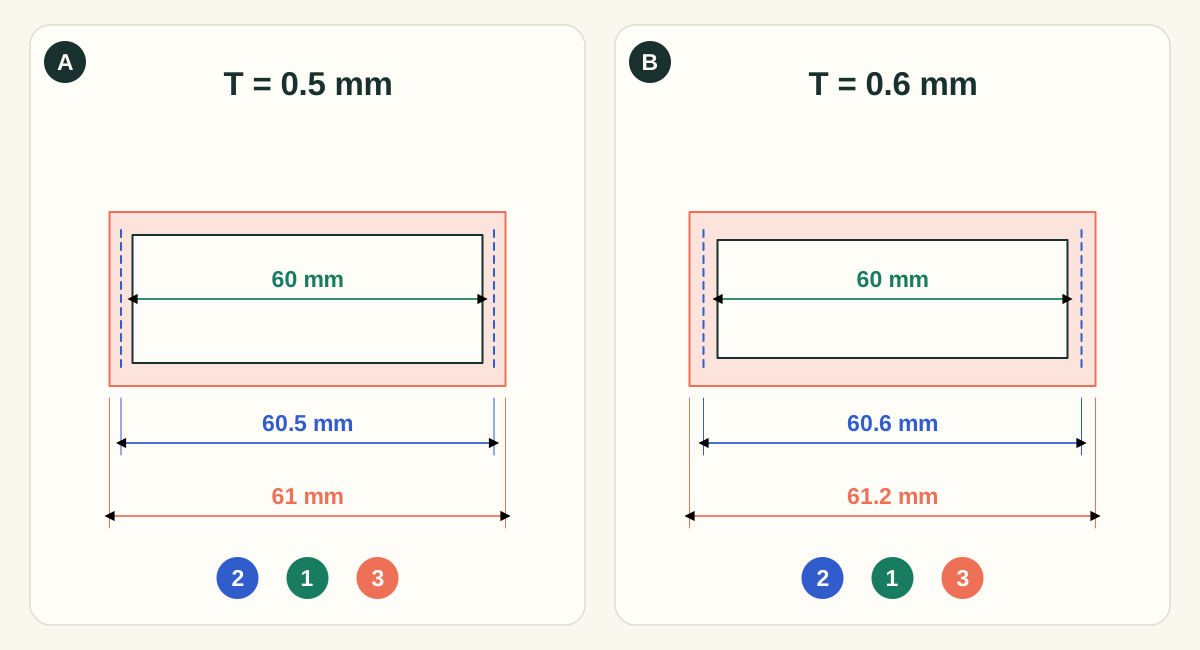
This is the straight tuck end example, showing one dimension at an inside length of 60 mm. Green 1 is inside; blue 2 is manufacturing; coral 3 is outside. The generic profile adds one caliper for the manufacturing estimate and two for the outside estimate. Other structures have different allowances; the app uses style-aware conversion and measured builder geometry where available. Board thickness is exaggerated in the drawing.
- A0.5 mm caliper: keep 60 mm inside
- The illustrative manufacturing length is 60.5 mm and the outside length 61 mm. Choose Inside when the product cavity is the requirement. Allow clearance for insertion, liners and the actual product tolerance.
- B0.6 mm caliper: more material around the same cavity
- The estimates increase to 60.6 mm manufacturing and 61.2 mm outside. A thicker stock can change panels, folds, closure fit and blank area even when the entered inside size stays 60 mm.
What to checkUse the supplier’s measured caliper, inspect the regenerated dieline and check a cut-and-fold prototype. GSM is mass per area and cannot uniquely determine thickness. Do not apply this simple arithmetic to every catalog style.
Detailed control reference
Find the control, understand its effect, and choose it for the job you are making. Available controls depend on the selected structure, object, workspace and output.
Material → Board; only families available for the current style are shown
Board families and stock swatches
The chosen stock supplies its material family, outside/inside appearance and a default thickness. Swatches include a note about the intended stock.
- When it helps most
- Compare carton for folded retail packs, corrugated for appropriate shipping constructions, rigid for rigid packaging, and paper/label/film where the selected construction supports them.
- Impact and trade-offs
- A darker swatch is not a structural strength rating. Selecting a board can change both appearance and caliper assumptions; confirm dimensions and nesting afterward. Thickness and grammage are different measurements.
Material → Surface
Surface: Matte, Satin, Gloss, Soft-touch, Uncoated
Changes the overall surface’s lighting response in the 3D rendering. Highlights become broader, sharper or less pronounced depending on the selected finish.
- When it helps most
- Use Matte/Uncoated to communicate a restrained surface, Satin for a moderate highlight, Gloss for stronger reflections, and Soft-touch to communicate that intended coating to the reviewer.
- Impact and trade-offs
- The screen cannot establish tactile feel, colour accuracy, scuff resistance or the production chemistry. Evaluate the same camera and lighting when comparing finishes; changing lights at the same time hides the finish’s contribution.
- Worked example
- Keep the GROVE tea art and camera fixed. Compare Matte and Gloss while rotating the light: the printed artwork is the same, while the highlights and perception of the material change.
Select a layer → Appearance & print settings → Finish
Print and foil finishes
Print is ordinary printed colour. Gold, Silver, Rose and Holo replace that layer’s ordinary printed treatment with foil and write its area to the foil mask; the rendering stamps the foil above the printed ink.
- When it helps most
- Apply foil to an isolated wordmark, line or shape whose area should be foiled. Keep ordinary label information on separate Print layers.
- Impact and trade-offs
- The entire selected layer is the finish target. Applying foil to a combined image containing both logo and background may select more area than intended. The mockup is a communication aid; final foil coverage, minimum gaps and dies require printer review.
- Worked example
- Make “GROVE” a separate text or vector layer, set only it to Gold, and keep the ingredients text on Print. Compare the finish summary before exporting.
Select a layer → Appearance & print settings → Finish
Spot UV, Emboss, Deboss and White ink
Spot UV preserves the printed layer and adds a UV mask. Emboss and Deboss preserve printing and add a shared relief-area mask. White ink preserves the coloured layer over an opaque white underbase. The per-layer choice is separate from the overall surface.
- When it helps most
- Use Spot UV for selective gloss contrast; Emboss or Deboss for a relief concept; White for specified ink on a dark/coloured substrate or another appropriate printing process.
- Impact and trade-offs
- The shared emboss mask identifies an area but does not encode raised versus recessed direction; communicate Emboss/Deboss intent separately. One selected finish does not define a complete multi-process stack. Separate intended areas into layers and agree registration, minimum feature sizes and plates with the printer. A white RGB pixel in an ordinary image is not itself an explicit white-ink specification.
Material → Board; shown for suitable kraft-coloured stock and eligible layers
Add white ink on kraft
The shortcut targets visible outside non-fill layers that currently have Print/none as their finish. It changes their finish assignment to White ink.
- When it helps most
- Use as a starting point when preparing a white-ink treatment for artwork on kraft. Inspect the list of affected layers and refine the assignment by object.
- Impact and trade-offs
- The shortcut’s eligible-layer selection matters: it does not indiscriminately whiten the whole design or include every inside/fill object. Review the appearance and exported separations; do not assume a complete printer-approved underbase/choke has been generated.
Material → Inside
Inside: Printed and Unprinted
Printed opens the Design workflow on the inside. The presence of inside layers determines whether the project has interior printing. Unprinted is unavailable while inside layers remain.
- When it helps most
- Use for a welcome message inside a mailer, inner lid artwork or another intentionally printed interior.
- Impact and trade-offs
- Inside artwork adds a second side to review and may add a production pass. Hidden/forgotten inside layers can keep the project classified as printed inside; inspect and remove unwanted layers rather than only changing the material appearance.
- Worked example
- For a one-sided tea carton, inspect the inside layer list before exporting. For an unboxing message, add an inside text object and check its reading direction with the package open.
Material → Special finishes in this design
Special finishes summary and Glint preview
The summary gathers finish assignments already present in the design. Glint helps reveal surface highlights for visual inspection.
- When it helps most
- Use before exporting to find an unintended finish on a layer or to show a client how selective foil/UV is intended to catch the light.
- Impact and trade-offs
- A pleasing glint is a rendered effect. Check the actual finish boundaries, plate names and final files separately; a summary count does not verify registration or manufacture.
Account for the substrate under your ink
The base stock affects the appearance of printed colours. A white area in an image is not automatically a separate white-ink plate. When printing on coloured or transparent material, discuss white ink and use the available layer ink controls deliberately.
Finishes, board and lighting work together in the mockup. If gloss appears flat, rotate the camera or change the lighting before changing the artwork colour.
Include material decisions in the handoff
Record the stock, measured caliper, coating and selective finishes alongside the artwork revision. A dieline generated for one caliper should not be sent as if it had been tested on a different stock. Make a physical prototype when fit or folds matter.
Check your work
- The board family suits the chosen structure.
- Caliper matches the production stock.
- Inside artwork is intentional and correctly oriented.
- Selective finishes affect only the intended objects.
Troubleshooting
Changing board moved the structure
The board’s caliper can change panel compensation. Recheck the dimensions and artwork against the rebuilt blank.
The finish is hard to see
View the package in 3D, use an angled camera and compare under a scene with visible highlights.
Unprinted inside is unavailable
Check for existing inside layers. Remove the unwanted inside artwork before switching to an unprinted interior.