Before you start
- What goes in
- Product dimensions, a structure, board caliper and the converter’s fit and production requirements.
- What comes out
- A parametric dieline, folded geometry, calculated dimension sets and a flat blank size.
A practical example
Size a tea carton around its contents
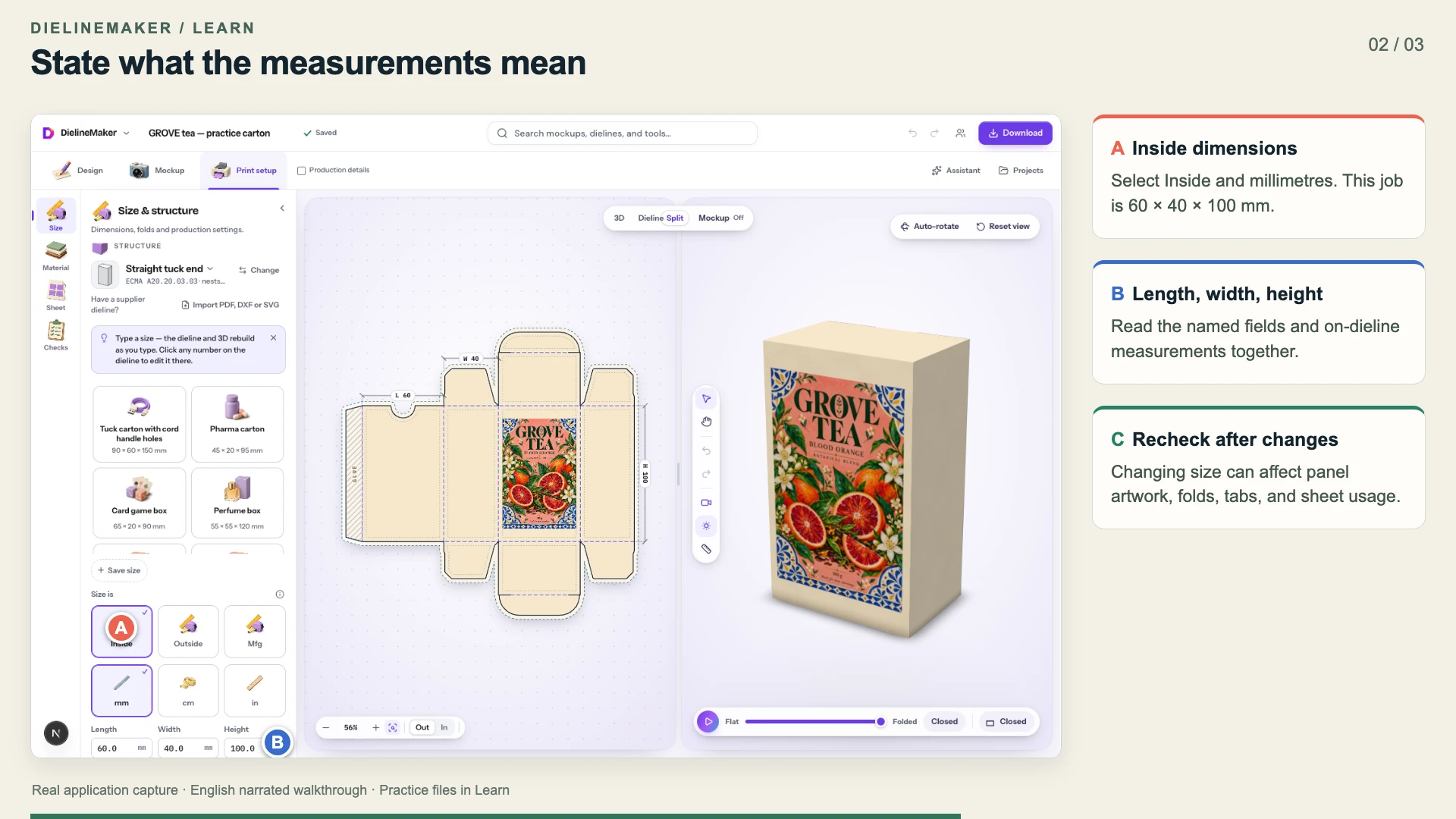
Use a 60 × 40 × 100 mm inside envelope as a training example. The outside and score-to-score measurements come from the selected structure and board; do not copy the inside values into all three dimension modes.
Try the example files
Editable GROVE tea carton60 × 40 × 100 mm inside; Straight tuck end, SBS 350. Open this .foldline project in DielineMaker.Structural dieline outputActual one-page app export with dimensions, legend, cut and crease content.Example settings and file detailsDimensions, material, source/output roles and file checksums. These local preview outputs are learning examples; public export availability follows your plan.Download the video transcriptChaptered plain-text narration for this walkthrough.Step-by-step walkthrough
Find a structural match
Search Dielines or Design → Templates by package name or available style code. Compare opening direction, closure, number of pieces and board family. A preset is a starting size, not a guarantee that your contents will fit.
Choose what your measurements mean
Open Print setup → Size (Structure in Advanced). Choose Inside for product space, Outside for the finished external envelope or Mfg for score-to-score specifications. Set mm, cm or in before entering measurements.
Enter only the dimensions the style exposes
Use the fields shown for that structure. A label, sleeve, device mockup or divider can use different reference dimensions from a conventional box. Read the field labels and the dimension diagram rather than assuming every field is length, width and height.
Confirm caliper and structural parameters
Choose the board, then inspect the resolved caliper. Keep automatically calculated parameters unless you have a reason to change a flap, tuck, clearance or glue allowance. Review structure warnings after each override.
Set production guides and inspect every part
In Production, set Bleed and Safe to the printer’s requirements and inspect Print side versus Die side. Use Panel sizes to inspect score-to-score dimensions. Multi-piece packages require checking each part, not only the largest blank.
Options at a glance
| Control or choice | What it changes | How to use it well |
|---|---|---|
| Inside | The usable product space according to the structure’s dimension model. | Begin here when you measured the product. Allow the required fit clearance rather than squeezing the contents into a nominal size. |
| Outside | The external assembled envelope, including board effects. | Use when the package must fit an outer case, shelf or shipping limit. |
| Mfg / Manufacturer’s | The score-to-score construction dimensions. | Use when a converter supplies those measurements explicitly. |
| Caliper (T) | Board thickness in the structure calculations. Auto follows the board or selected converter profile. | Use measured thickness for production. A visual colour change is different from a structural caliper change. |
| Common sizes and Auto parameters | Presets and derived structural values for the current style. | Start with them, then verify fit. Reset an override if you want it to follow the structure again. |
| Bleed / Safe | Artwork extension beyond the cut and the inset area for important content. | A guide does not add missing image content or move text for you. Inspect the artwork against both guides. |
| Print side / Die side | The side from which the flat blank is viewed. | Agree the intended side with the die maker before sending technical files. |
See what changes
These explanatory diagrams isolate the effect of a setting. They are not app screenshots or manufacturing proofs. Compare them with the annotated captures and the editable GROVE tea practice project.
The same internal space needs a different blank when board thickness changes
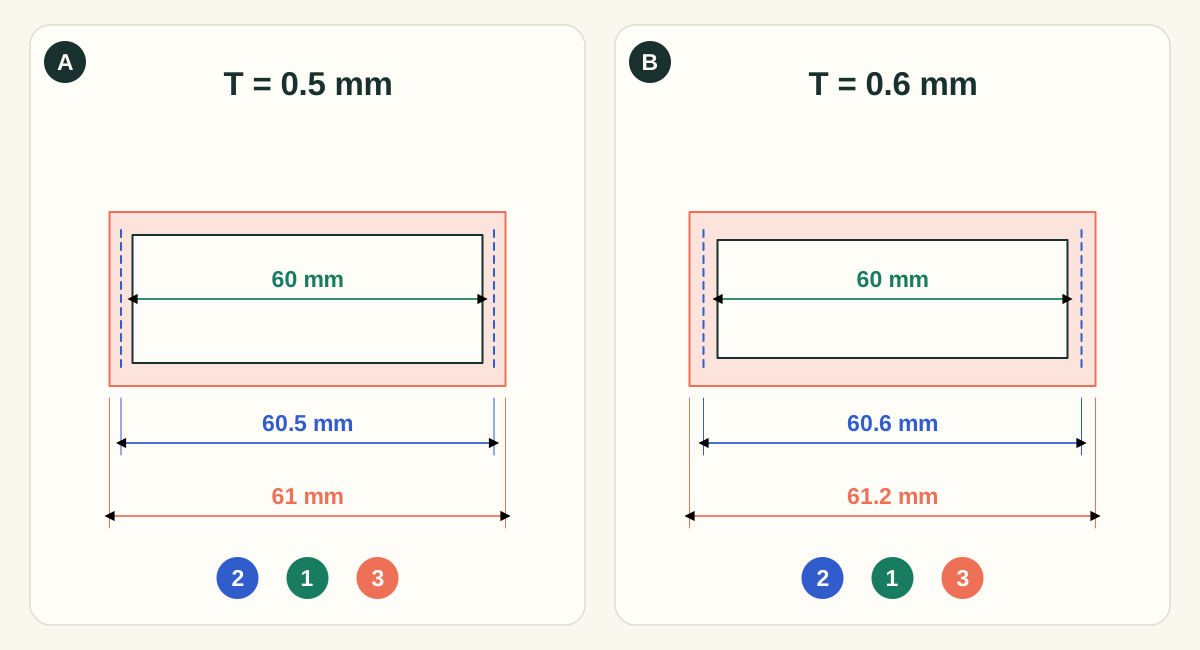
This is the straight tuck end example, showing one dimension at an inside length of 60 mm. Green 1 is inside; blue 2 is manufacturing; coral 3 is outside. The generic profile adds one caliper for the manufacturing estimate and two for the outside estimate. Other structures have different allowances; the app uses style-aware conversion and measured builder geometry where available. Board thickness is exaggerated in the drawing.
- A0.5 mm caliper: keep 60 mm inside
- The illustrative manufacturing length is 60.5 mm and the outside length 61 mm. Choose Inside when the product cavity is the requirement. Allow clearance for insertion, liners and the actual product tolerance.
- B0.6 mm caliper: more material around the same cavity
- The estimates increase to 60.6 mm manufacturing and 61.2 mm outside. A thicker stock can change panels, folds, closure fit and blank area even when the entered inside size stays 60 mm.
What to checkUse the supplier’s measured caliper, inspect the regenerated dieline and check a cut-and-fold prototype. GSM is mass per area and cannot uniquely determine thickness. Do not apply this simple arithmetic to every catalog style.
Detailed control reference
Find the control, understand its effect, and choose it for the job you are making. Available controls depend on the selected structure, object, workspace and output.
Design → Templates, or Advanced → Structure → Change
Style and common-size presets
A style chooses the parametric construction: its panels, hinge graph, closure, supported materials and adjustable fields. A common-size preset supplies a starting size for that style.
- When it helps most
- Choose by opening method and physical job before visual appearance. A lid-and-base gift box needs two parts; a sleeve needs the object it will slide over; a divider may use the containing case as its reference.
- Impact and trade-offs
- Changing style or size can change panel identities, blank bounds and available controls. Reinspect every artwork placement and all sheet parts. A preset name does not establish supplier tolerances or prove compatibility with your contents.
Print setup → Size; also in the calculator and generator
Units: mm, cm and in
Changes how physical lengths are displayed and entered. The physical design uses the same underlying dimensions; changing a unit is not a scale operation.
- When it helps most
- Use the unit on the measurement source. Millimetres work well for most dieline work; inches help when transcribing a supplier specification.
- Impact and trade-offs
- Avoid interpreting an inch measurement as a millimetre measurement. If the source says 4 in, enter 4 with in selected, or 101.6 with mm selected. Repeatedly rounding converted values can introduce small differences.
- Worked example
- 60 mm = 6 cm ≈ 2.3622 in. Switching display units should leave the same box; typing 60 after selecting in would request a very different box.
Print setup → Size → dimension mode
Inside, Outside and Mfg
Selects the meaning of your entered dimensions. The other two sets are calculated using the current structure, material and converter profile.
- Inside
- The intended product-space reference. Include the fit clearance required around the real contents; a nominal product dimension with zero allowance may be impractical.
- Outside
- The assembled external reference. Useful for shelf, transit and case fit. A fixed outer size can reduce usable inside space when board thickness increases.
- Mfg
- Manufacturing or score-to-score reference. Useful for matching a converter’s drawing. It is not automatically the finished inside or outside dimension.
- When it helps most
- Use Inside when the product must fit; Outside when a finished pack must fit a case or shelf; Mfg when the receiving drawing supplies score-to-score dimensions.
- Impact and trade-offs
- The conversion is structure-specific. Do not apply one universal “add twice the thickness” rule to lids, multi-wall structures, inserts or imported dies. The app displays the resolved sets and panel sizes so you can inspect the actual construction.
- Worked example
- For a 60 × 40 × 100 mm required cavity, enter those values in Inside. Record the calculated outside envelope separately when planning an outer shipping case.
Structure → Production or Material → Caliper; 0.05–10 mm in the editor
Caliper (T), Auto and measured caliper
Caliper supplies board thickness to the structure. Auto uses an applicable converter measured caliper before the board preset. A directly entered project caliper overrides that automatic choice.
- When it helps most
- Use the supplier’s measured stock thickness when producing a dieline. Keep Auto for exploration. Selecting a board resets a direct caliper override, even when reselecting the current board; check the resolved value afterward.
- Impact and trade-offs
- Thickness changes can rebuild scores, panels and the blank. It is not the same as grammage or a surface-finish setting. A thicker visual material may also alter artwork alignment and nesting; recheck those after the change.
- Worked example
- Enter a 0.50 mm override to use that measured thickness. Selecting a stock again clears this override and returns thickness to the applicable automatic source. Re-enter a measured override only when it is correct for that selected board.
Structure → Production → Converter
Converter profile and custom board family
Selects the plant assumptions used alongside the structure: score allowance, closure clearance, measured caliper, kerf and stated finished-size tolerance. Custom lets you record supplier-specific values and a name.
- When it helps most
- Use when matching an approved converter sample or moving a design between production processes. Set the board family correctly so applicable measured-caliper assumptions can be resolved.
- Impact and trade-offs
- Profiles are starting assumptions, not a supplier approval. A board/profile mismatch is a reason to review the setup. An imported dieline retains its original scores, so score allowance does not rebuild those imported coordinates.
Structure → Production → Converter → Custom; parametric styles only
Score allowance
Adds the specified board allowance at scores beyond the model’s half-caliper contribution. The source implementation preserves the requested dimension mode while rebuilding the dependent geometry.
- When it helps most
- Use the converter’s tested allowance when a score process needs more or less material than the standard structural assumption.
- Impact and trade-offs
- This is a geometry change, not a label on the specification. It can move artwork alignment, change the flat size and change sheet yield. It is hidden for imported dies because their scores are fixed by the file.
- Worked example
- After changing a test allowance from 0 to 0.2 mm, compare the displayed panel sizes and blank dimensions. Do not assume the whole blank changes by only 0.2 mm; several scores may contribute.
Structure → Production → Converter → Custom
Closure clearance
Records the converter’s recommended room per side for closures such as tucks, lids, sleeves and inserts. Tighter style settings can be flagged by checks.
- When it helps most
- Useful for slip fits, a lid over a base, or a sleeve around a product when the receiver specifies fit clearance.
- Impact and trade-offs
- A clearance recommendation is not an instruction to enlarge every panel indiscriminately. Check which style parameters control the actual fit and inspect the warning’s location. Test the real materials where friction or assembly matters.
Structure → Production → Converter → Custom
Knife kerf and Tolerance ±
Knife kerf describes material removed by the cutting process. Tolerance records the finished-size variation that the plant holds and appears in the specification.
- When it helps most
- Use a confirmed kerf for the intended cutter; the UI describes zero for steel-rule/knife work and cutter diameter for a router. Enter tolerance from the manufacturer when the fit brief depends on it.
- Impact and trade-offs
- These values communicate production assumptions; entering a tight tolerance does not make the cutter more accurate. Do not invent a value to clear a warning or confuse a 1 mm tolerance with 1 mm extra product space.
Structure → Parameters; fields vary by style
Automatic structural parameters and manual overrides
The style derives values such as flaps, glue tabs, tucks, clearances or openings from the main size and board. Entering an override fixes that parameter until it is reset to automatic.
- When it helps most
- Keep automatic relationships for ordinary resizing. Override only when a drawing or physical prototype calls for a specific tab, slot, overlap or closure dimension.
- Impact and trade-offs
- A value that works at one size can become invalid after shrinking the box. Watch build errors and structural warnings; a longer flap can enlarge the blank or collide with another part. Parameters not shown by the current style are not available on that construction.
- Worked example
- If you lengthen a tuck for a test fit, then halve the carton height, revisit that tuck. Reset to Auto to restore the style’s derived relationship instead of trying to repair every downstream dimension manually.
Structure → Production; Bleed 0–10 mm, Safe 0–20 mm
Bleed and Safe guides
Bleed defines artwork extension outside the cut. Safe defines an inset for critical objects. These are separate distances with different purposes.
- When it helps most
- Use printer-specified bleed for edge colour/photos and a suitable safe area for wording, logos and codes. The artwork still needs to reach the bleed boundary and important content still needs to be positioned inside the safe region.
- Impact and trade-offs
- Increasing a guide does not invent pixels or automatically move every layer. Bleed can affect export bounds and layout spacing. A safe area does not guarantee protection from every crease, glue region, closure or irregular contour.
- Worked example
- On an illustrative rectangular 60 × 100 mm face, 3 mm bleed around all four sides needs a 66 × 106 mm covered area; a 3 mm safe inset leaves a 54 × 94 mm core. Actual tabs and irregular panels need their own inspection.
Structure → Production → Print view and Panel sizes
Print side, Die side and Panel sizes
Print/Die side changes the side from which the flat structure is viewed. Panel sizes lists score-to-score measurements rather than repeating the product-space dimensions.
- When it helps most
- Use Print side to align artwork as viewed from its printed side; use the die-maker’s requested side for tooling review. Use Panel sizes when reconciling a specific score interval with a supplier drawing.
- Impact and trade-offs
- Changing a viewing side is not a substitute for exporting the correct side setting. The final dieline or sheet export has its own options; confirm them again and inspect asymmetric features such as a glue flap.
Read the reference dimensions for unusual structures
Divider and liner templates can use the containing case’s inside dimensions as their reference. An edge protector uses a length and wing spans. Labels and wrap templates describe printable surfaces, and device mockups describe artwork areas. Read the specific template’s notes before applying a box-sizing rule.
FEFCO and ECMA style references describe construction families. They do not specify your supplier’s tooling tolerances, material performance or manufacturing approval. Review the generated geometry with the receiving converter.
What to revisit after resizing
Size changes rebuild the blank and folded model. Reinspect placed artwork, image resolution at the new physical size, text wrapping, panel attachments, inside print and the sheet layout. Full-dieline artwork prepared for one blank is particularly sensitive to a structure or board change.
Practice: change the size without losing the meaning
Save a copy of the GROVE project. Write down the selected dimension mode, its three values, material, resolved caliper and blank dimensions. Change only the display unit to centimetres and confirm the physical geometry stays the same. Return to millimetres, increase the requested height by 10 mm, and compare the rebuilt blank and the label position.
Restore the original dimensions, then change only caliper. Compare the Inside/Outside/Mfg sets, panel sizes and sheet count. This demonstrates why product-space dimensions, board thickness and press yield must be reviewed together. Return to the approved material and settings before producing a final handoff.
- Expected: a unit display change preserves physical size.
- Expected: a size or caliper change can rebuild the blank and alter artwork alignment.
- Do not use these practice dimensions as a production specification without a physical fit check.
Check your work
- Units and dimension mode match the measurement source.
- The complete product and any insert have sufficient clearance.
- All parts, tabs, slots and closures appear in the flat preview.
- No unresolved build error remains.
Troubleshooting
This size cannot be built
Read the warning, undo the last change or use Reset to defaults. A very small panel, oversized flap or incompatible parameter combination can produce invalid geometry.
The outside size differs from the number entered
Check whether Inside or Mfg is selected. Board thickness and the structure convert between these dimension sets.
The flat blank will not fit the sheet
The blank includes flaps and glue areas; it is larger than the finished package. Review Sheet ranking, margins and custom sheet sizes.