Before you start
- What goes in
- A vector dieline from your supplier. The standalone checker accepts SVG or DXF; the editor importer also accepts vector PDF.
- What comes out
- An analysed flat blank and, when the geometry supports it, a panel-and-hinge structure you can fold and design in the editor.
A practical example
A supplier’s tea-carton drawing
Start with an SVG or DXF containing a closed cut boundary and separate crease lines. Confirm a known 100 mm panel against the measured preview before trusting the complete blank size.
Try the example files
Structural dieline outputActual one-page app export with dimensions, legend, cut and crease content.Example settings and file detailsDimensions, material, source/output roles and file checksums. These local preview outputs are learning examples; public export availability follows your plan.Step-by-step walkthrough
Inspect the source
Keep the original file. Identify cut, crease, dimensions, guides and printed artwork. A scan or photograph of a drawing is not vector cut-and-fold geometry.
Choose file, page and units
Use Import dieline in the editor or the standalone Dieline to 3D tool for SVG/DXF. For a PDF in the editor, choose the intended page and Visible page (CropBox) or TrimBox. Confirm the units against a known dimension.
Map line groups
Assign the source layer, colour or stroke groups to the correct line types. Ignore dimension lines and other nonstructural marks. Read diagnostics and inspect the flat preview; the app cannot safely infer every supplier’s naming convention.
Review gaps and panels
Use Close gaps up to only for small unintended discontinuities. Check the detected panels and disconnected components. Do not bridge a deliberate slot, notch or separate piece merely to make a warning disappear.
Set the folding model
Choose the root panel, set whether it lies Upright or Flat and inspect each hinge. Set its angle or use Flip fold to reverse the direction. Move the Fold slider through intermediate positions as well as fully folded.
Choose board and artwork handling
Select the board. If the imported file contains print artwork, review Use the file’s artwork and check its alignment at 1:1. Complete the import only when the flat and folded interpretations make sense.
Options at a glance
| Control or choice | What it changes | How to use it well |
|---|---|---|
| Units | How numeric coordinates are interpreted: file units or an explicit override. | Verify a known measurement. A visually plausible preview can still be the wrong physical scale. |
| PDF page / Page box | The page and visible or trim region used for a PDF import. | Choose the page containing the actual dieline, not a specification cover or mockup image. |
| Line mapping | The structural role of each source group. | Keep artwork, dimensions and legends out of the cutting geometry. |
| Close gaps up to | A tolerance for joining small gaps in imported lines. | Use the smallest appropriate tolerance and inspect the result. |
| Root panel / Upright / Flat | The fixed starting face and its initial orientation. | Choose a main panel that makes the fold easy to understand. |
| Hinge angle / Flip fold | The amount and direction a crease folds. | Reverse a fold when a flap moves through the package instead of away from it. |
| Use the file’s artwork | Imports content not assigned to die lines, excluding recognised guide-like layers. | Outline fonts in the source when exact type appearance is important and inspect the resulting artwork. |
See what changes
These explanatory diagrams isolate the effect of a setting. They are not app screenshots or manufacturing proofs. Compare them with the annotated captures and the editable GROVE tea practice project.
Cut lines, crease lines, bleed and safety have separate jobs
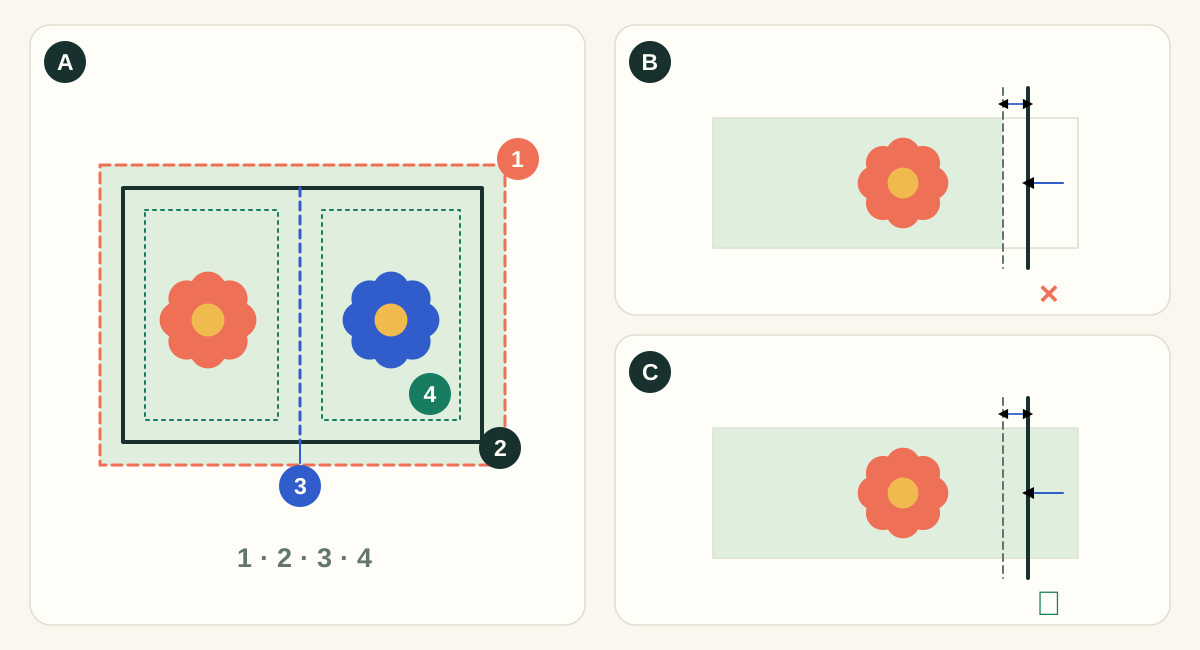
In diagram A, 1 is the bleed edge, 2 is the cut, 3 is a crease and 4 is the safety inset. A cut removes material; a crease changes how it folds. Bleed extends the printed background beyond a cut. Safety keeps important content away from a cut or fold. The shifted-cut panels exaggerate the effect to make it visible; they are not a manufacturing tolerance specification.
- ASeparate technical paths from printed artwork
- Use the structural export for cutting and creasing instructions and the artwork export for printed content. Check the requested spot names and layer conventions with the supplier. A colored line on screen does not establish the supplier’s production interpretation.
- BArtwork ends at trim: cutting movement exposes the substrate
- A background that stops exactly at the intended edge has no reserve. A small outward cut can expose an unprinted sliver. Crop marks show the intended cut; they do not create missing image content.
- CArtwork extends to bleed: the spare background is trimmed away
- An extended background covers the illustrated shift. Keep text and codes inside the safety area: extending the background does not protect content placed too close to the edge.
What to checkInspect the exported PDF around every outer cut, notch and curved corner. Check nearby folds, glue areas and supplier requirements. A generic bleed setting does not establish that each image actually covers the bleed region.
Detailed control reference
Find the control, understand its effect, and choose it for the job you are making. Available controls depend on the selected structure, object, workspace and output.
Editor → Import dieline; standalone Dieline to 3D accepts SVG/DXF
File type, PDF page and page box
The editor can interpret vector PDF, SVG or DXF. A PDF page choice identifies the drawing page, while Visible page/CropBox or TrimBox selects its reference region.
- When it helps most
- Use the vector file supplied by the converter. Select the actual structural page rather than a cover, dimension summary or rendered mockup.
- Impact and trade-offs
- A PDF can contain only an image of lines, which does not provide structural vectors. Cropping is not the same as scaling. Keep the original file and compare a known dimension before accepting the imported geometry.
Import or standalone checker → Units
Units and coordinate interpretation
As the file says uses available file-unit information. Explicit choices include millimetres, centimetres, inches, points (1/72 in), and pixel coordinates interpreted at 96/in or 72/in.
- When it helps most
- Use an override when the source omitted or misdeclared units. Confirm the intended unit with the supplier instead of choosing the value that merely looks plausible.
- Impact and trade-offs
- The same numeric coordinates become a different physical blank under another interpretation. The visual preview may still look perfectly proportioned, so shape alone cannot establish correct scale.
- Worked example
- A 100-coordinate-unit line interpreted as 96 dpi pixels is about 26.46 mm; interpreted as millimetres it is 100 mm. Compare against a labelled 100 mm panel to detect this mismatch.
Import → source line/layer/colour groups
Line mapping: cut, crease and ignored content
Assigns the structural meaning of each source group. These assignments determine boundaries, panels and hinges. Dimensions, artwork, notes and guides should remain outside the structural network.
- When it helps most
- Map the supplier’s known conventions deliberately. Inspect line groups that share a colour but have different meanings in the source drawing.
- Impact and trade-offs
- A wrong map can create spurious panels, missing boundaries or hinges where there should be a cut. A familiar colour is a visual convention, not proof of a line’s meaning. Re-run the preview after each material mapping change.
Import geometry repair
Close gaps up to
Provides a tolerance for joining small unintended breaks in the imported vector network.
- When it helps most
- Use only when an otherwise valid boundary has tiny export discontinuities. Increase gradually while inspecting the affected area and panel count.
- Impact and trade-offs
- A larger tolerance may also bridge an intentional slot, notch or disconnected piece. If the preview becomes simpler by deleting meaningful construction features, correct the source rather than accepting the repaired result.
Import → folding setup
Root panel and Upright/Flat orientation
The root is the stationary starting panel from which connected hinge transforms are evaluated. Upright/Flat changes its initial presentation orientation.
- When it helps most
- Choose a main body panel or base that makes the fold easy to read. Use the flat and folded previews together to identify it.
- Impact and trade-offs
- Changing the root affects the interpretation and presentation of the fold, not the original 2D knife geometry. A wrong root may make a plausible structure seem to tumble or open in an unintuitive direction.
Import → folding setup and per-hinge controls
Hinge angle, Flip fold and Fold slider
Hinge angle defines the fold at that connection; Flip fold reverses its direction. Fold previews intermediate progress between the flat and folded states.
- When it helps most
- Inspect each crease in a carton or mailer and reverse only the hinge that folds the wrong way. Pause at intermediate positions to understand a collision.
- Impact and trade-offs
- A final closed silhouette can hide a wrong fold path. The imported model does not establish crease tooling, fold sequence or collision-free manufacturing. Compare each panel with the supplier’s intended assembly.
Editor importer, when print artwork is available
Use the file’s artwork
Brings available artwork from the source alongside the interpreted structural geometry for the imported design.
- When it helps most
- Use when the supplier file includes an approved printed layout and you want to inspect it folded.
- Impact and trade-offs
- Technical lines or annotations may also exist in the source. Inspect the imported artwork and actual alignment at 1:1; do not assume every visible coloured line belongs in the printed design. Keep the supplier’s revision identifier with the project.
A detected fold is an interpretation of the drawing
An importer needs usable closed boundaries and meaningful crease connections. Open contours, duplicated segments, mixed scales and decorative lines can produce missing panels or incorrect hinges. Fix the source in its authoring application when the geometry is ambiguous.
Imported geometry is different from a parametric catalogue template. Do not assume it gains all the size controls of a built-in structure. Use the supplier’s approved drawing for production and verify any changes with them.
Use the checker to diagnose, then the editor to design
The standalone checker is useful for checking dimensions, line types, panels and knife length before opening the structure in the editor. The editor importer adds the page choices for PDFs, hinge editing and artwork handling. Use the workflow that matches the file you actually received.
Check your work
- A known source dimension matches the imported scale.
- Cut, crease and nonstructural content are mapped correctly.
- Every expected panel and separate part is present.
- Hinges fold in the intended direction.
- Artwork remains aligned to the imported geometry.
Troubleshooting
No useful panels are detected
Check for a raster-only source, unclosed boundaries or the wrong line mapping. Export clean vector paths from the source application.
The blank is far too large or small
Correct Units and the PDF page box, then compare a known measurement again.
A face folds through another face
Check the root, hinge direction and angle. Inspect intermediate fold positions and confirm the source crease topology.