Before you start
- What goes in
- Approved product wording, fonts available in the editor, brand colours and a sized panel.
- What comes out
- Editable type and consistent brand treatment on the selected packaging faces.
A practical example
One tea range, three flavours
Keep the brand name consistent while changing “Citrus Sunrise”, “Berry Garden” and “Mint Meadow”. Use separate text objects for the brand, variant, net quantity and supporting information so one change does not disturb the entire panel.
Step-by-step walkthrough
Pick the face and add a text object
Open Design → Text and select a text style or add text. Replace the sample wording with the approved copy and position it on the desired panel.
Set font and weight
Use the font picker and the available weight options. Compare Sans, Serif, Display, Script and Mono categories where useful. A decorative font can work for a headline but should not make small product information hard to read.
Set size and alignment
Set the point size and Left, Centre or Right alignment. Adjust the text box width and height to fit the layout. Check the final line breaks in the flat view.
Refine spacing and colour
Adjust Letter spacing and Line spacing when necessary. Apply the intended colour, uppercase or italic styling. Inspect contrast against the actual board, background and finish.
Review matching copies
Use the Text or Layers panel’s matching-content controls when the same wording appears on multiple faces. Confirm which copies will change. Use the SKU batch workflow for a table-driven range of product variants.
Options at a glance
| Control or choice | What it changes | How to use it well |
|---|---|---|
| Font and Weight | Typeface and the weights available for that font. | Use a consistent hierarchy; verify that the selected weight is actually available. |
| Size (pt) | The physical type size. | Judge it at final printed size, not only while zoomed in. Follow the printer’s minimum text requirement. |
| Align | Alignment within the text box. | Alignment does not move the text box itself; use position controls for that. |
| Box width / Box height | The text object’s layout area. | Recheck wrapping after changing the width or copying the text to a narrower face. |
| Letter spacing / Line spacing | Space between letters and between lines. | Use small adjustments; extreme spacing can reduce legibility or push text outside the safe area. |
| Uppercase / Italic / Colour | Appearance settings for the selected text. | Keep legal and product information readable against the printed substrate. |
See what changes
These explanatory diagrams isolate the effect of a setting. They are not app screenshots or manufacturing proofs. Compare them with the annotated captures and the editable GROVE tea practice project.
Cut lines, crease lines, bleed and safety have separate jobs
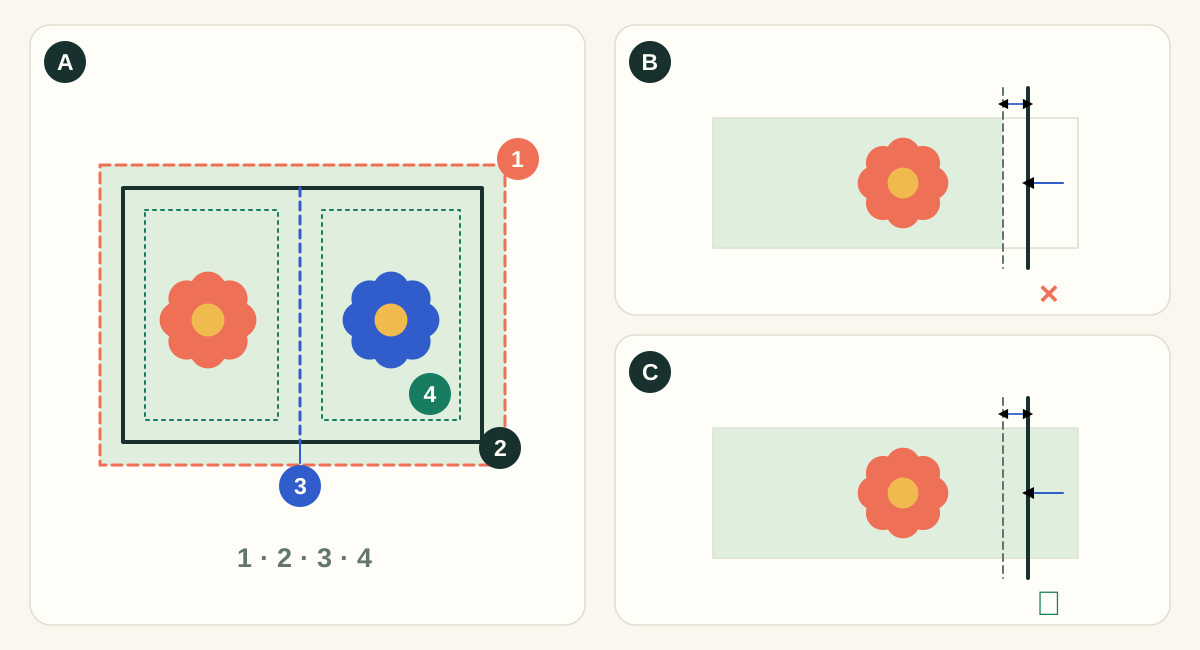
In diagram A, 1 is the bleed edge, 2 is the cut, 3 is a crease and 4 is the safety inset. A cut removes material; a crease changes how it folds. Bleed extends the printed background beyond a cut. Safety keeps important content away from a cut or fold. The shifted-cut panels exaggerate the effect to make it visible; they are not a manufacturing tolerance specification.
- ASeparate technical paths from printed artwork
- Use the structural export for cutting and creasing instructions and the artwork export for printed content. Check the requested spot names and layer conventions with the supplier. A colored line on screen does not establish the supplier’s production interpretation.
- BArtwork ends at trim: cutting movement exposes the substrate
- A background that stops exactly at the intended edge has no reserve. A small outward cut can expose an unprinted sliver. Crop marks show the intended cut; they do not create missing image content.
- CArtwork extends to bleed: the spare background is trimmed away
- An extended background covers the illustrated shift. Keep text and codes inside the safety area: extending the background does not protect content placed too close to the edge.
What to checkInspect the exported PDF around every outer cut, notch and curved corner. Check nearby folds, glue areas and supplier requirements. A generic bleed setting does not establish that each image actually covers the bleed region.
A flat design and a camera view reveal different problems
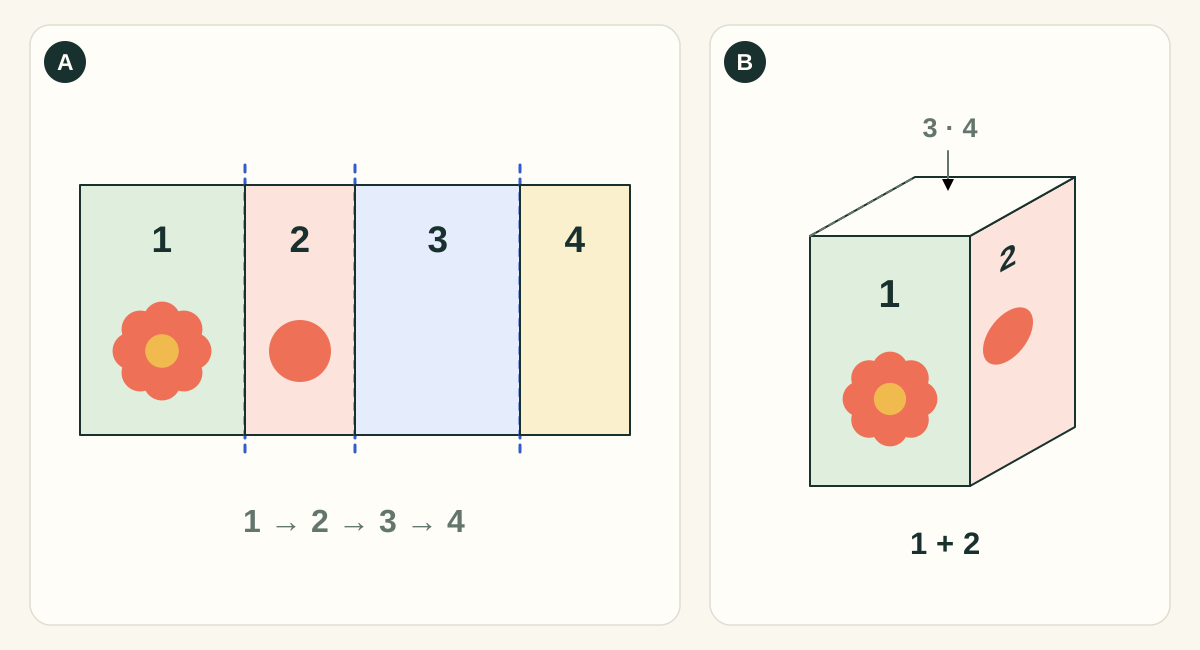
This simplified four-wall carton isolates panel mapping. It omits closure flaps and glue tabs. Numbered panels are identifiers, not an instruction that every template uses this panel order.
- AFlat view: inspect every panel and boundary
- Check panel assignment, text orientation, bleed, safety and alignment while all artwork is visible. The hidden back of a good-looking hero render may still be blank or contain an unfinished design.
- BFolded view: inspect relationships and presentation
- Rotate the carton to check how artwork meets at corners, whether the intended face points toward the camera, and how closures read. Lighting and camera angle change the appearance without changing the print artwork.
What to checkApprove the flat artwork PDF and the structural dieline as well as the mockup. A rendered image is useful for presentation; it does not replace a manufactured sample or demonstrate fit, fold strength or colour accuracy.
Detailed control reference
Find the control, understand its effect, and choose it for the job you are making. Available controls depend on the selected structure, object, workspace and output.
Design → Text and selected text layer
Editable text versus image lettering
A text layer stores editable words and typographic properties. Letters in an uploaded PNG/JPG are part of the image and cannot become editable through the font picker.
- When it helps most
- Use separate text layers for changing flavour, net quantity, ingredients and brand wording. Keep a raster illustration separate from content you will localise or vary.
- Impact and trade-offs
- A single combined image is quick to place but hard to revise and loses sharpness when enlarged. The GROVE practice PNG is deliberately a raster example; its built-in lettering is not an editable text layer.
Selected text → font picker and Weight
Font, category and Weight
Font chooses the typeface. Sans/Serif/Display/Script/Mono categories organise the picker. Weight chooses from the selected font’s available weights.
- When it helps most
- Use a display/script face for limited large copy, and a legible face for small information. Select an actual available weight when building a consistent brand hierarchy.
- Impact and trade-offs
- Changing typeface can change glyph widths, line breaks and visual density even at the same point size. Recheck every line and the printed file. Imported artwork fonts have their own handling; editing an app text layer does not outline every font in an uploaded PDF.
Selected text → Size; spacing and box controls
Size in points and Box width/height
Size sets the typography in points; Box width and height set its layout region in physical units. The text-size control permits 2–400 pt, but the production minimum comes from the job requirements.
- When it helps most
- Adjust the box when a line needs more room without changing the intended type hierarchy. Increase type size when final printed reading distance requires it.
- Impact and trade-offs
- An allowed UI value is not necessarily printable or readable. Text wraps and automatically shrinks to fit its box. Enlarging the box can restore it toward the requested size; inspect the “Shown at” fitted size. “Use fitted font size” makes that current fitted size the stored size. A larger requested size alone may not enlarge already constrained text.
- Worked example
- At an actual fitted size of 12 pt, one em is 12/72 inch ≈ 4.23 mm. A 40 mm-wide text box is a physical constraint; check whether a long flavour name stays on the intended number of lines.
Selected text → Align
Left, Centre and Right alignment
Sets how the line content sits within its text box. It changes text layout within that region rather than changing the selected face.
- When it helps most
- Left works well for paragraphs and ingredient lists, Centre for a short front-panel product name, Right for a deliberate aligned edge or compact information block.
- Impact and trade-offs
- Alignment and box position interact. Centre alignment in a box that is off-centre on the panel still looks off-centre. Compare the box bounds with the intended safe area before changing the font to compensate.
Selected text → spacing; −200 to 1000 thousandths of an em
Letter spacing
Adds or removes spacing in units relative to the current font size. A positive value spreads letters; a negative value tightens them.
- When it helps most
- Use a modest positive value for a short uppercase heading, or make small adjustments to the intended typographic rhythm. Preserve legibility before trying to force copy into a fixed space.
- Impact and trade-offs
- The same numeric setting produces more physical spacing at larger type. Tight tracking can close small counters or make neighbouring letters collide; excessive spacing makes words harder to read.
- Worked example
- 100 means 0.1 em. At an actual fitted size of 12 pt this is 1.2 pt, about 0.423 mm of extra spacing per inter-character gap. If auto-fit reduces the displayed font, the physical spacing reduces with it. It is not 100 mm or 100% of the text-box width.
Selected text → spacing; 50–400%
Line spacing
Changes the baseline spacing as a percentage relative to the type size. It controls the vertical rhythm of multiline text.
- When it helps most
- Increase it for dense paragraphs that need separation; reduce carefully for a compact two-line product name.
- Impact and trade-offs
- Too little spacing creates collisions between ascenders/descenders; too much can push the final line out of the usable region. Changing font, font size or line count requires reviewing it again.
- Worked example
- At an actual fitted size of 10 pt, 120% represents a 12 pt line-spacing measure, approximately 4.23 mm. Use the “Shown at” size when automatic fitting has reduced the requested size. Inspect the actual typeface because visible glyph height is not equal to its point size.
Selected text → styling
Uppercase, Italic and Colour
Uppercase changes the displayed casing; Italic changes the style; Colour controls the text ink. Spot-colour selection is available through compatible colour controls.
- When it helps most
- Use for a defined brand treatment. Keep essential text high-contrast against its actual printed background and substrate.
- Impact and trade-offs
- Uppercase can increase line length. Italic and decorative faces can lose legibility at small sizes. Colour shown in a browser is not a colour-managed press proof; check the final file and receiving workflow.
Text/Layers matching controls and layer name
Matching-content edits and batch-friendly layer names
Matching-content editing targets the corresponding repeated objects selected by the interface. Layer names identify objects in later editing and SKU column mapping.
- When it helps most
- Name layers by function—Brand, Flavour, Ingredients, Front illustration—rather than only their current text. Use matching edits for a repeated brand spelling across several faces.
- Impact and trade-offs
- Verify the selected scope before changing repeated content: a single-layer edit and a multi-copy edit have different reach. For a range with several independent variants, use SKU mappings and review every long-name/colour case.
Design → Brand kit in the simple workspace
Brand kit: save logo, extract palette, colours and fonts
Save selected logo keeps the selected image in the device’s kit; Extract palette derives colours. Front/Top/Side places a logo. Colour chips apply to a selected compatible text/shape/fill layer. Kit fonts apply to selected text.
- When it helps most
- Use to reuse consistent assets across nearby design sessions. Choose up to the displayed font limit and keep layers clearly named for matching edits.
- Impact and trade-offs
- The kit is kept on this device, not a substitute for a portable project or cross-device asset archive. A missing logo needs Upload again. A face the box does not have falls back to its main panel, so inspect the result. Palette extraction does not establish print ink specifications.
Keep repeated elements editable
Use a separate object for each content role: brand, product name, variant, description, quantity and supporting information. This makes selection, alignment and later variant changes more predictable than placing a screenshot of all the text.
Colour and matching-copy controls can speed up a family of designs. Before applying an edit to several objects, check that the selected group or matching content does not include a deliberately different variant.
Check the receiving printer’s text policy
The print requirements panel distinguishes embedded fonts or outlines from outlines required. Review the exported file and any warnings against that requirement. Changing the requirement is not the same as transforming every supplied asset to satisfy it.
Text embedded in uploaded artwork may need to be edited or outlined in the source application. Keep the editable original and make a separate production copy when outlining is required.
Check your work
- The wording, units and product variant are correct.
- Text is inside the safe area and clear of folds.
- No text is clipped, unintentionally wrapped or hidden.
- All intended matching copies were updated.
- The exported file meets the recipient’s font policy.
Troubleshooting
The text wraps unexpectedly
Inspect box width, font, weight, point size and letter spacing. Recheck after changing the panel size.
Several labels changed together
You may be editing matching content or a multi-selection. Undo, select a single object and repeat the edit.
Small text looks fine on screen but is flagged
Read the configured minimum text size. Zooming in makes small type look larger without changing its printed size.