Before you start
- What goes in
- A product measurement, a suitable packaging structure and optional PDF, SVG, PNG or JPG artwork.
- What comes out
- An editable project, a flat dieline, a folded preview and the export appropriate to your next step.
A practical example
A citrus tea carton
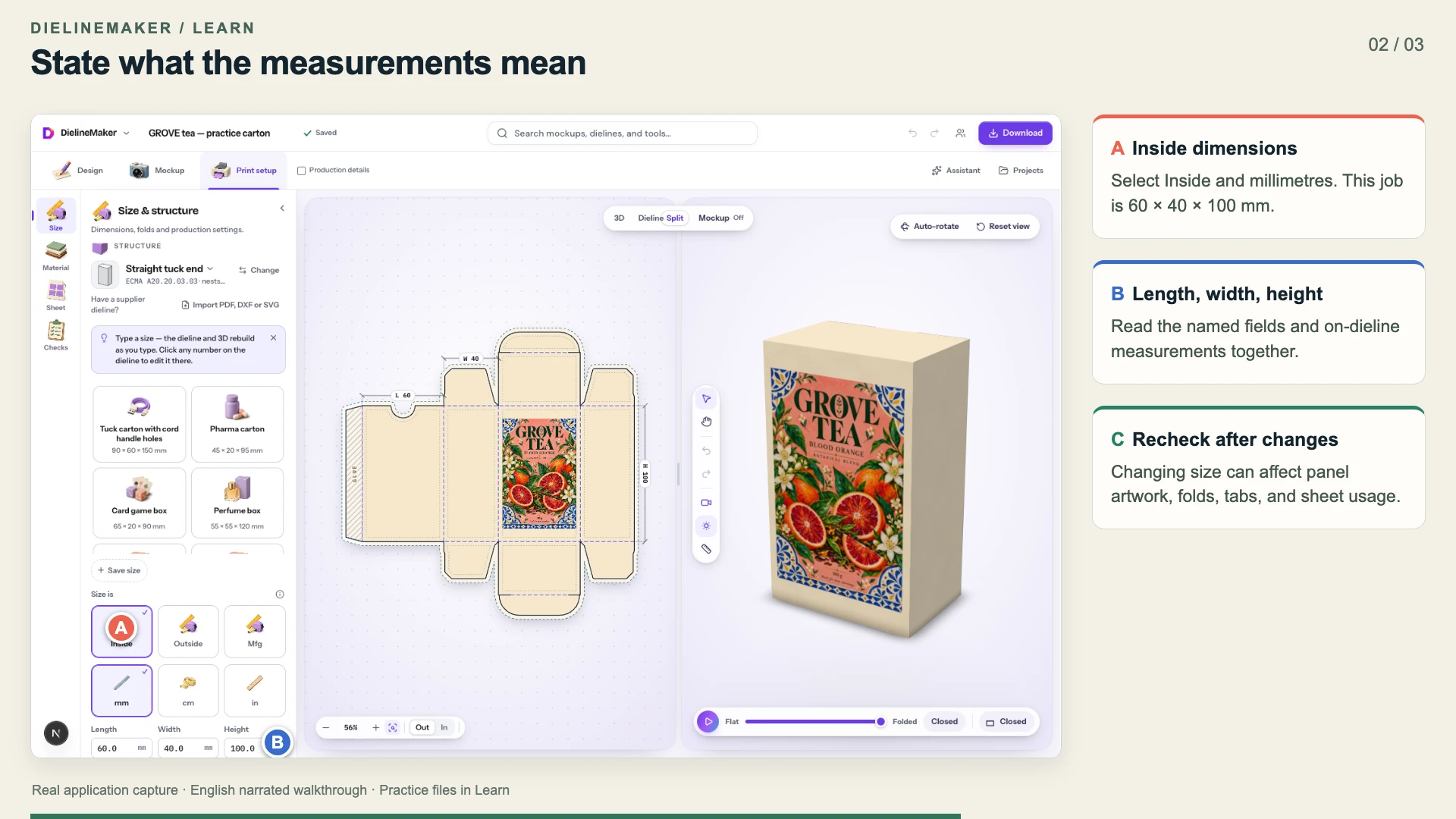
Build a colourful retail carton for a product that needs 60 × 40 × 100 mm of inside space. These are practice dimensions; measure your actual product and agree production tolerances with your supplier.
Try the example files
Editable GROVE tea carton60 × 40 × 100 mm inside; Straight tuck end, SBS 350. Open this .foldline project in DielineMaker.Structural dieline outputActual one-page app export with dimensions, legend, cut and crease content.Example settings and file detailsDimensions, material, source/output roles and file checksums. These local preview outputs are learning examples; public export availability follows your plan.Download the video transcriptChaptered plain-text narration for this walkthrough.Step-by-step walkthrough
Choose a template
Open the editor and use Design → Templates. Search for the package you need, preview a candidate and open it for editing. A folding carton, corrugated mailer and bottle label solve different jobs; choose the physical structure before styling it.
Name and size the project
Give the project a recognisable name in the top bar. Open Print setup → Size, select mm and Inside, then enter the required dimensions. Check the flat blank and the assembled shape after each change.
Set the board
In Print setup → Material, choose a compatible board and surface. Its thickness affects the structure, so settle this before lining up full-dieline artwork.
Build the design
Return to Design. Use Background for a colour or pattern, Upload for artwork and Text for the product name. Select a face before placing a logo. Use Layers to find, reorder or edit objects.
Inspect flat and folded views
Switch between 2D, 3D and split views. In 2D, inspect cut lines, fold lines, bleed and the safe area. In 3D, rotate the package and inspect every face, including the bottom, inside and flap orientation.
Make the right deliverable
Use Mockup for a presentation scene, or Print setup → Checks for production review. Open Download and read the selected format’s options. Save the editable project as well as the image or print files you need.
Options at a glance
| Control or choice | What it changes | How to use it well |
|---|---|---|
| Design | Templates, layers, uploads, text, elements and backgrounds. | Use it for the content printed on the package. |
| Mockup | Scenes, product placement, lighting and motion, with design tools still available. | Use it for marketing images and presentation videos. |
| Print setup | Size, material, sheet layout and checks. | Use it to prepare the physical package and its handoff to a printer. |
| Simple / Advanced | Two interfaces over the same open project. Advanced exposes the Structure, Design, Material, Scenes, Sheet and Export steps. | Switch when you need a different workspace. Changing interface does not require rebuilding the design. |
| 2D / 3D / split | The flat artwork, folded model or both together. | Use split view to see how a flat panel maps to the finished pack. |
See what changes
These explanatory diagrams isolate the effect of a setting. They are not app screenshots or manufacturing proofs. Compare them with the annotated captures and the editable GROVE tea practice project.
A flat design and a camera view reveal different problems
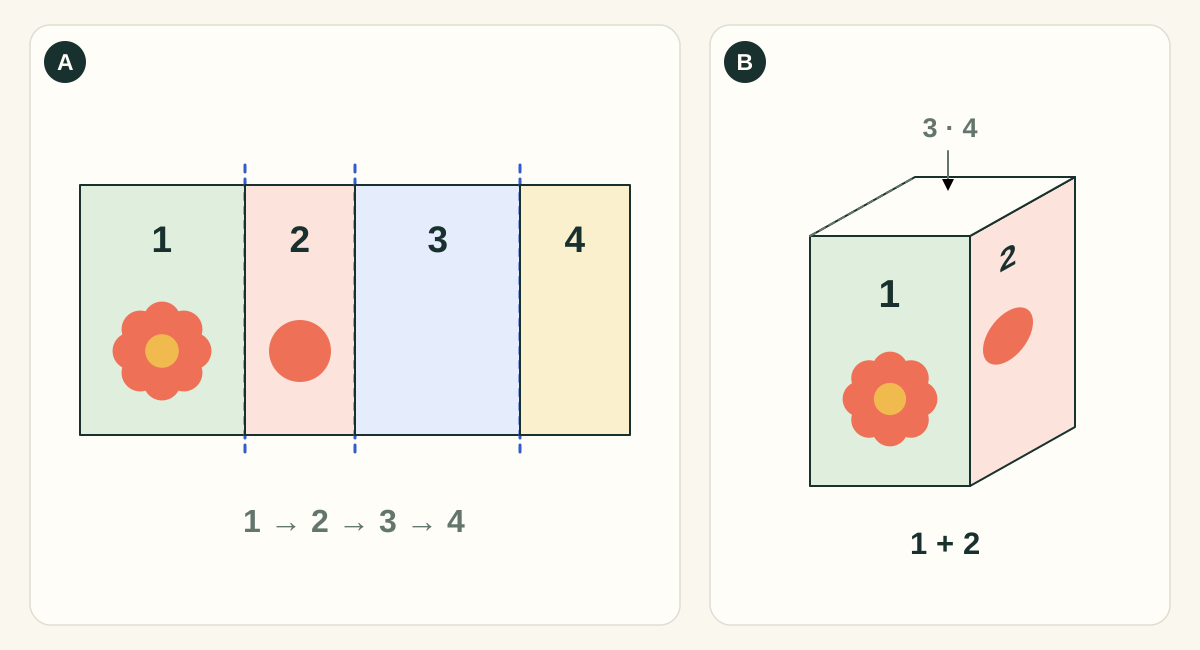
This simplified four-wall carton isolates panel mapping. It omits closure flaps and glue tabs. Numbered panels are identifiers, not an instruction that every template uses this panel order.
- AFlat view: inspect every panel and boundary
- Check panel assignment, text orientation, bleed, safety and alignment while all artwork is visible. The hidden back of a good-looking hero render may still be blank or contain an unfinished design.
- BFolded view: inspect relationships and presentation
- Rotate the carton to check how artwork meets at corners, whether the intended face points toward the camera, and how closures read. Lighting and camera angle change the appearance without changing the print artwork.
What to checkApprove the flat artwork PDF and the structural dieline as well as the mockup. A rendered image is useful for presentation; it does not replace a manufactured sample or demonstrate fit, fold strength or colour accuracy.
Detailed control reference
Find the control, understand its effect, and choose it for the job you are making. Available controls depend on the selected structure, object, workspace and output.
Editor workspace switch
Simple and Advanced workspaces
Both interfaces edit the same project. Simple groups work under Design, Mockup and Print setup. Advanced exposes Structure, Design, Material, Scenes, Sheet and Export as separate steps.
- When it helps most
- Start in Simple for one package and move into Advanced when preparing converter settings, nesting, video sequences or a product range.
- Impact and trade-offs
- The workspace changes the controls and view you see. It does not duplicate the project, approve its geometry or turn a presentation file into a production file. Saving and Undo still refer to the current project.
- Worked example
- Finish the tea carton in Simple, switch to Advanced → Sheet to compare stock sizes, then return to Simple with the same artwork.
Canvas view controls
2D, 3D and split view
2D exposes the full flat drawing, artwork edges and technical guides. 3D folds the same structure and maps artwork onto its surfaces. Split keeps the two interpretations visible together.
- When it helps most
- Use 2D for millimetre placement, bleed, text and dieline review; 3D for reading direction, closure visibility and presentation; split for learning which panel becomes which face.
- Impact and trade-offs
- A face hidden behind a flap in 3D can still contain artwork in 2D. The folded preview is a geometry/appearance inspection, not a physical test of board bending or packing fit.
- Worked example
- A back-panel paragraph that looks upright on the flat blank may face the wrong way after folding. Rotate the pack and inspect the readable face before correcting its layer rotation.
Canvas, Layers and the editor history controls
Selection, navigation and undo
Selecting a part, face or layer determines which inspector appears and where new content is placed. Navigation moves the view; editing changes the object. Undo reverses recorded project edits.
- When it helps most
- Use Layers when artwork is obscured, locked or inside a group. Select the face first when adding a logo so the new object has the intended destination.
- Impact and trade-offs
- Check the selected object’s name and kind before changing an inspector value. A scene camera change, a layer rotation and a structural fold all look like movement but have different outputs. A project backup is needed for long-term recovery; Undo is an editing convenience.
Download and Share
The four useful deliverables
The project stores editable work; the mockup communicates appearance; the proof records a review revision; production files carry sized artwork or technical geometry.
- When it helps most
- Choose by recipient: reopenable project for the designer, PNG/video for marketing, proof/share link for review, and the specified PDF/vector/sheet files for prepress.
- Impact and trade-offs
- Each output answers a different question. A high-resolution mockup does not provide a measurable cutting path. A structural dieline without artwork does not contain the brand design.
- Worked example
- For the GROVE practice pack, compare the .foldline project, mockup PNG, dieline PDF and print PDF. Reopening the project lets you edit; opening the print PDF lets you inspect actual page dimensions and separations.
A preview, a production file and a project have different jobs
A mockup image helps someone judge the appearance. A dieline describes cuts and folds. A print PDF carries artwork at production size. A project preserves the editable design and its original assets. Keep these deliverables distinct when naming and sending files.
Sign in when the editor requests it. Download availability, attribution and high-resolution options depend on the signed-in plan; the Download panel shows the current entitlement. Check Account or Pricing for the current plan rather than assuming that every visible export is included.
Build a reliable editing habit
Finish size and material first, then artwork, then mockup and print checks. If you change the structure late, recheck text, images, bleed and sheet layout. Undo is useful for an experiment; a named project and an exported project file are useful for returning to approved work.
- Start with an existing example if you want to learn the controls before importing your own files.
- Change one setting at a time and watch the flat and folded previews.
- Print and assemble a physical sample before ordering a production run. A convincing 3D view does not measure fit, adhesive performance or board strength.
Check your work
- The intended product fits the inside space.
- Every face has been inspected in both flat and folded views.
- The saved project name identifies the product and revision.
- The downloaded file is the format the recipient requested.
Troubleshooting
A tool is unavailable or the canvas is empty
Pick and open a template first. Some controls require a selected object, a supported package type or an available plan.
I cannot find Size or Checks
Select the Print setup workspace. In Advanced, use Structure or Export respectively.
The preview changed when I switched workspace
Each workspace chooses a useful view. Return to Design and select 2D, 3D or split to inspect the same project.