Before you start
- What goes in
- A product brief, measured dimensions, artwork assets and the requirements of the person receiving the output.
- What comes out
- A complete project with the specific deliverables needed for review, marketing or manufacture.
A practical example
Citrus Sunrise tea
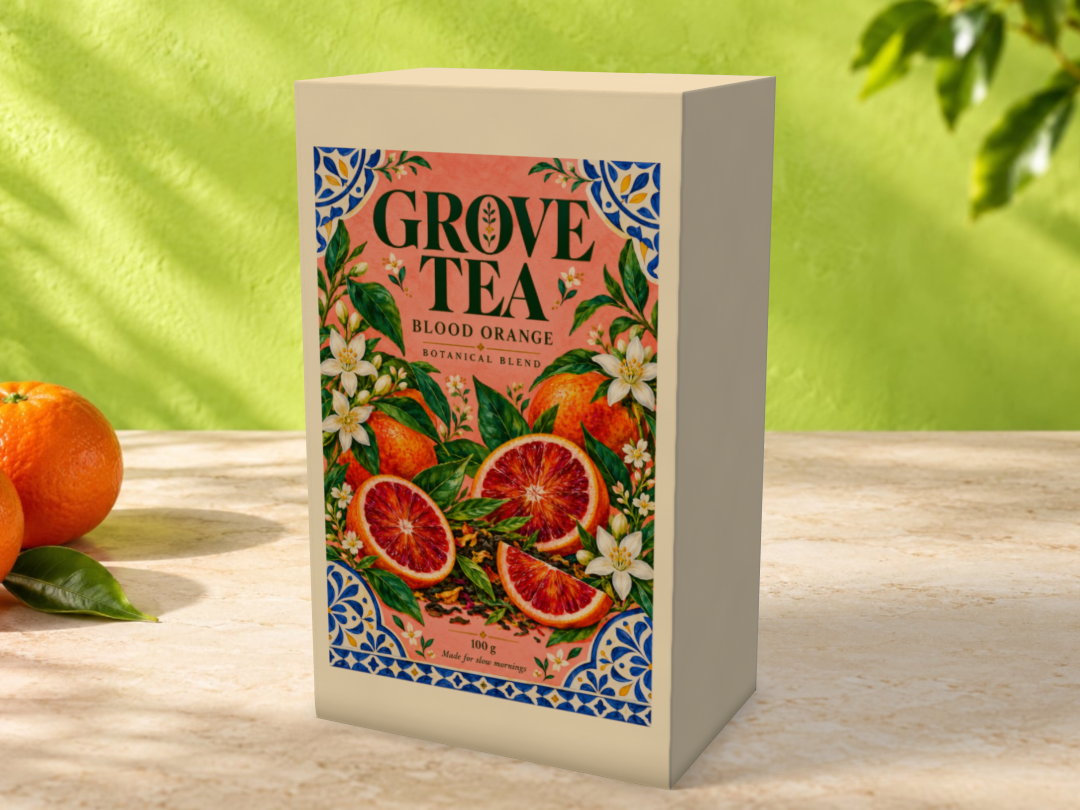
Use a vibrant fruit illustration as front artwork, editable product text, a back-panel recipe QR and a retail barcode only when you have the correct assigned identifier. Begin with practice dimensions, then replace them with the measured product specification.
Try the example files
GROVE tea artwork input1024 × 1536 px generated practice artwork for the front panel.Editable GROVE tea carton60 × 40 × 100 mm inside; Straight tuck end, SBS 350. Open this .foldline project in DielineMaker.Structural dieline outputActual one-page app export with dimensions, legend, cut and crease content.Artwork PDF outputActual app export with 3 mm bleed. Flat trim bounds: 213.5 × 209.5 mm.Citrus-scene mockup output1080 × 810 px PNG rendered by DielineMaker.Example settings and file detailsDimensions, material, source/output roles and file checksums. These local preview outputs are learning examples; public export availability follows your plan.
Step-by-step walkthrough
Decide the purpose of the job
Choose whether you need a structural sample, a brand mockup, an approval proof or a production handoff. One project can support all four, but each requires a different output and review.
Collect the real inputs
Measure the product, choose a suitable construction and obtain stock/caliper and printer requirements. Gather the approved logo, imagery, wording and identifiers.
Build in the right order
Set structure and board, then artwork and text, then codes, finishes and inside print. Review flat and folded views before staging a presentation scene.
Choose a workflow below
Use the carton, mailer, label or range recipe that matches the physical product. Follow the linked reference guides when a control needs more explanation.
Inspect and hand off
Review checks, save a project backup, create the proof or final export and inspect that actual file. Keep the approval revision with the output.
Options at a glance
| Control or choice | What it changes | How to use it well |
|---|---|---|
| Structural prototype | A physical fit and fold test from a sized dieline. | Print at actual size, assemble and measure it before committing to artwork or tooling. |
| Marketing mockup | A staged image or video showing the intended package appearance. | Use accurate artwork and clear composition; label conceptual imagery appropriately. |
| Approval proof | A fixed revision for a client or colleague to review. | Use the proof or sharing workflow and create a new revision after changes. |
| Production handoff | Artwork, geometry and job information requested by the manufacturer. | Follow the printer’s file, colour, finish and tooling requirements. |
See what changes
These explanatory diagrams isolate the effect of a setting. They are not app screenshots or manufacturing proofs. Compare them with the annotated captures and the editable GROVE tea practice project.
The same internal space needs a different blank when board thickness changes
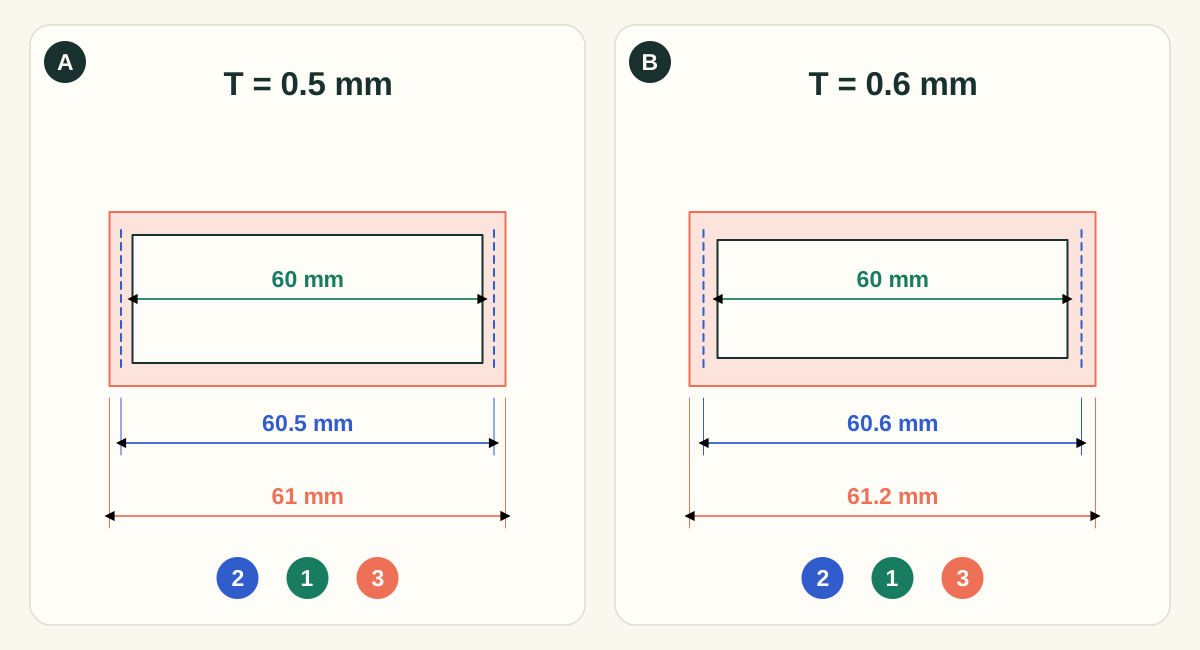
This is the straight tuck end example, showing one dimension at an inside length of 60 mm. Green 1 is inside; blue 2 is manufacturing; coral 3 is outside. The generic profile adds one caliper for the manufacturing estimate and two for the outside estimate. Other structures have different allowances; the app uses style-aware conversion and measured builder geometry where available. Board thickness is exaggerated in the drawing.
- A0.5 mm caliper: keep 60 mm inside
- The illustrative manufacturing length is 60.5 mm and the outside length 61 mm. Choose Inside when the product cavity is the requirement. Allow clearance for insertion, liners and the actual product tolerance.
- B0.6 mm caliper: more material around the same cavity
- The estimates increase to 60.6 mm manufacturing and 61.2 mm outside. A thicker stock can change panels, folds, closure fit and blank area even when the entered inside size stays 60 mm.
What to checkUse the supplier’s measured caliper, inspect the regenerated dieline and check a cut-and-fold prototype. GSM is mass per area and cannot uniquely determine thickness. Do not apply this simple arithmetic to every catalog style.
Contain, Cover and Stretch change different parts of the image
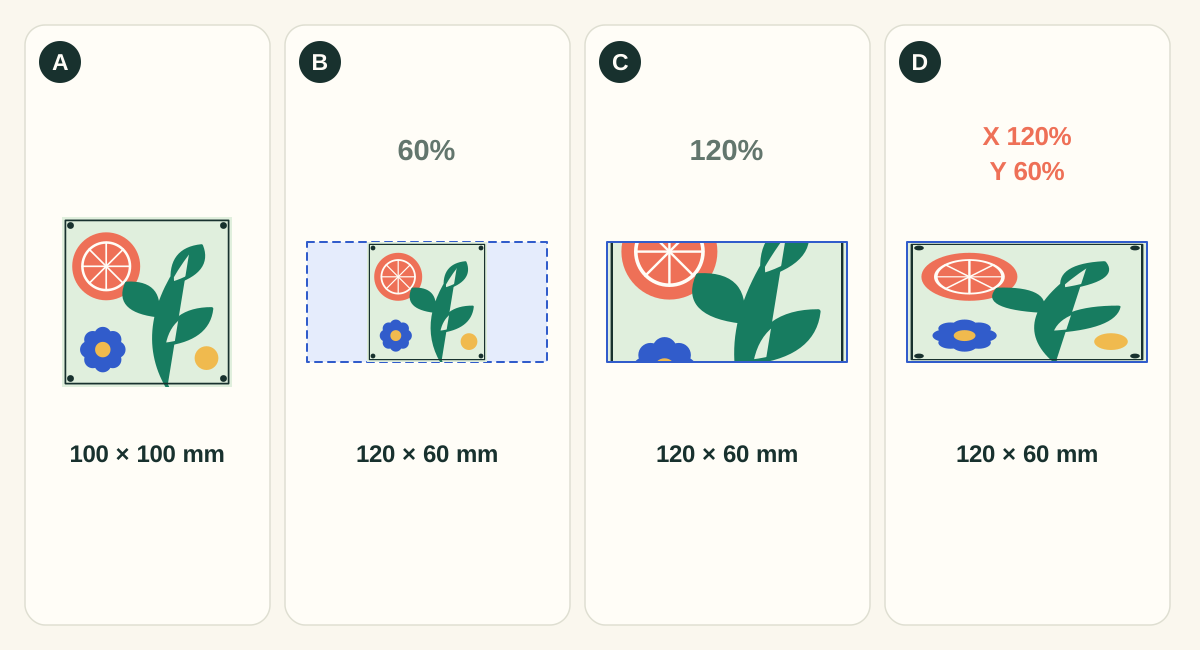
The diagram uses a 100 × 100 source and a 120 × 60 panel, with centered fitting and no extra scale, position change or rotation. The source dimensions express its square aspect ratio; they are not a claim about image resolution.
- AOriginal: establish the aspect ratio
- The complete square is the reference. Identify the logo, illustration and edges that must survive placement before choosing a fit mode.
- BContain: retain the whole image
- The square becomes 60 × 60 and leaves 30 units of space on each side. Use this for logos, badges and complete compositions. The panel fill shows through the unused area; Contain alone cannot make a square image fill a wide panel.
- CCover: fill the panel and crop the excess
- The square becomes 120 × 120, with 30 units cropped above and below. Use this for photographic backgrounds or textures that tolerate cropping. Adjust the image frame or placement, or prepare a different crop, when the important subject would be lost.
- DStretch: fill the panel by changing proportions
- The square becomes 120 × 60. This avoids gaps and cropping but widens shapes relative to their height. It can suit abstract patterns; avoid it for faces, logos, barcodes and lettering whose proportions must remain intact.
What to checkReview the whole flat panel and the folded result. Then check effective PPI at the final placed size. Increasing scale cannot add detail to the uploaded pixels.
Cut lines, crease lines, bleed and safety have separate jobs
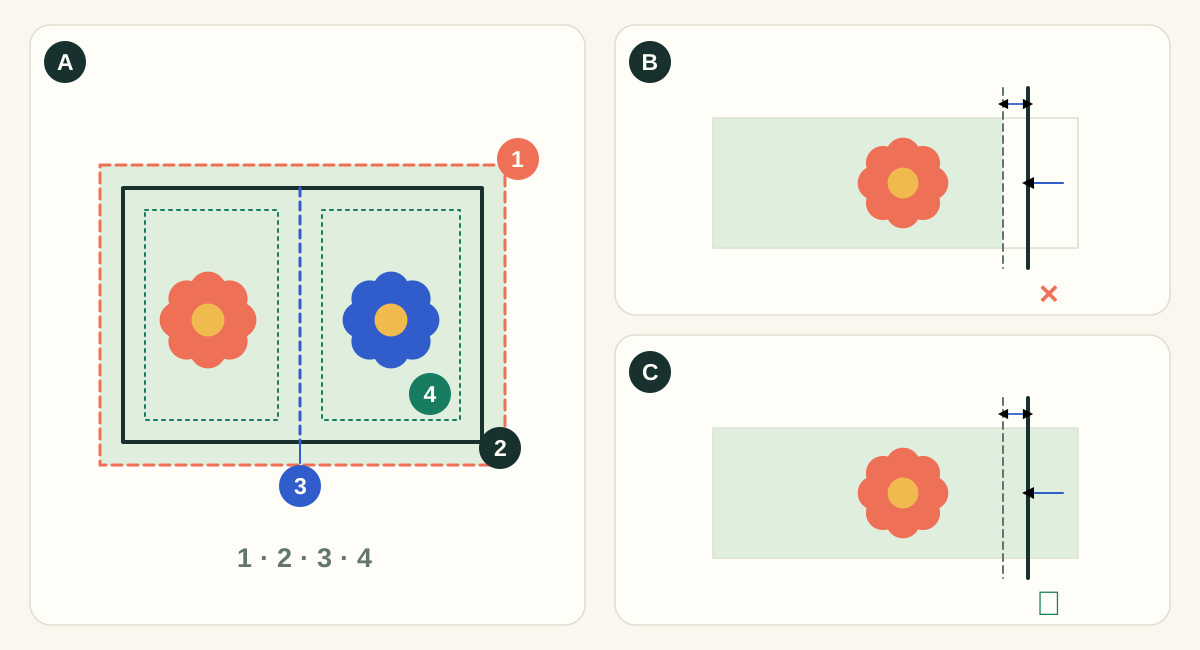
In diagram A, 1 is the bleed edge, 2 is the cut, 3 is a crease and 4 is the safety inset. A cut removes material; a crease changes how it folds. Bleed extends the printed background beyond a cut. Safety keeps important content away from a cut or fold. The shifted-cut panels exaggerate the effect to make it visible; they are not a manufacturing tolerance specification.
- ASeparate technical paths from printed artwork
- Use the structural export for cutting and creasing instructions and the artwork export for printed content. Check the requested spot names and layer conventions with the supplier. A colored line on screen does not establish the supplier’s production interpretation.
- BArtwork ends at trim: cutting movement exposes the substrate
- A background that stops exactly at the intended edge has no reserve. A small outward cut can expose an unprinted sliver. Crop marks show the intended cut; they do not create missing image content.
- CArtwork extends to bleed: the spare background is trimmed away
- An extended background covers the illustrated shift. Keep text and codes inside the safety area: extending the background does not protect content placed too close to the edge.
What to checkInspect the exported PDF around every outer cut, notch and curved corner. Check nearby folds, glue areas and supplier requirements. A generic bleed setting does not establish that each image actually covers the bleed region.
Detailed control reference
Find the control, understand its effect, and choose it for the job you are making. Available controls depend on the selected structure, object, workspace and output.
Combine the template, artwork, code and print guides
Retail carton: structure → front/back art → codes → proof
Builds a measured folding carton with separately editable changing content and reviewed production files.
- When it helps most
- Best for tea, cosmetics, small retail products and similar jobs needing a clear front identity and supporting information elsewhere.
- Impact and trade-offs
- The closure and glue areas can hide parts of the flat artwork. Keep sample raster lettering separate from later editable text and use only assigned product identifiers. Recheck the actual back and bottom in the folded view.
- Worked example
- For the 60 × 40 × 100 mm practice carton, place the existing 2:3 illustration on the front, compare Contain/Cover, add a separate back text object in your copy, then export a proof and inspect the print PDF.
Combine Structure, Material, inside Design and Sheet
Mailer: contents and insert → board → inside message → sheet plan
Starts from the complete protected contents and builds the carton around the required cavity before nesting its much larger flat blank.
- When it helps most
- Best for subscription packs, gifts and shipping concepts where internal clearance and opening experience matter.
- Impact and trade-offs
- Changing corrugated thickness or adding an insert affects the available space. A 3D open-lid scene communicates intent but cannot establish shipping protection. Verify grain, physical assembly and enough quantities of every separate component.
Choose a corresponding label/wrap/sleeve template
Label/sleeve: approved printable area → seam → final scale
Uses the specific container/artwork reference rather than applying a generic box cavity interpretation.
- When it helps most
- Best for jars, bottles, soap sleeves and related surfaces needing a wrap or seam.
- Impact and trade-offs
- The visible area can be interrupted by overlap, curvature or a join. Put required copy and codes where they remain visible and test readable/scannable placement on the actual surface. Use the supplier’s approved production area for the handoff.
Combine Layers/Brand kit, Scenes and SKU batch
Product range: approved base → mapped variants → review all outputs
Separates common brand elements from changing text, images and colours, then creates presentation outputs per mapped variant.
- When it helps most
- Best for a flavour or colour range that needs consistent catalogue imagery and short videos.
- Impact and trade-offs
- Long names, differently proportioned images and dark colours are distinct edge cases. Reconcile valid/skipped rows and output counts. Produce and approve the required manufacturing files per SKU separately; mockup batch does not imply variable-data production exports.
Retail carton: a bright tea or skincare pack
Choose the appropriate tuck or other folding-carton construction. Enter measured inside dimensions and the actual carton board. Use a 2:3 front illustration only where it fits the panel; Contain preserves the illustration, while Cover deliberately crops it.
Keep the brand and variant as editable text. Put ingredients or supporting information on a separate face, add the assigned retail barcode with its clear area and test any recipe QR. Inspect the closure and text direction in 3D. Deliver a clean product image for marketing and separately reviewed print files for manufacture.
Corrugated mailer: a subscription or gift box
Measure the full contents including inserts or protective material. Choose a mailer construction and corrugated board, then check inside space, outside footprint and the complete blank. Add the exterior design and any intended inside message as separate sides.
Inspect the lid both open and closed where supported. Check grain, sheet margins and the selected nesting. A 3D mockup helps show the unboxing concept; a physical sample is needed to test fit and closure.
Label or sleeve: a bottle, jar or soap range
Choose the template for the actual container or wrap surface. Read its dimension reference; a printable wrap and a box’s inside envelope are different measurements. Size it to the supplier’s approved artwork area.
Check the seam, overlap and printable region. Keep a code away from a tight curve or seam. Preview the design around the full container and request the correct label, sleeve or wrap production file rather than a carton cutting file.
A product range: repeat the layout, vary the content
Create a consistent base design with separate brand, flavour, colour and image layers. Make one approved composition first. For presentation assets, use SKU batch to map a CSV/TSV table to those layers and render the selected scenes.
Review long variant names, different image proportions and contrast on every colour. Reconcile skipped rows and output counts. Prepare and approve production artwork for each variant separately when the manufacturer requires it; the mockup batch is not a variable-data print workflow.
Continue with PDFImpose when the job needs PDF imposition
Export and inspect the structurally checked artwork PDF from DielineMaker first. PDFImpose can arrange PDF pages on a press sheet when that is the requested workflow. Preserve the physical artwork size and the intended bleed, and keep the matching cut/crease technical information with the job.
A PDF grid is not structural dieline nesting. Confirm placement, technical separations, knife side, grain and cutting requirements with the converter. Use DielineMaker’s Sheet workflow when you need its knowledge of the blank geometry.
Check your work
- The physical construction suits the actual product.
- Demonstration dimensions and sample wording have been replaced for production.
- Artwork, codes and text have been checked at final size.
- Marketing, review and manufacturing outputs are clearly named.
- The finished file matches the approved revision.
Troubleshooting
The design looks attractive but is not ready for print
Return to structure, bleed, safe area, resolution, fonts and printer requirements. A finished mockup is only one of the deliverables.
A sample image does not fit the panel
Use the correct fit mode or prepare a new crop. Avoid distorting artwork to fit a panel with a different aspect ratio.