Before you start
- What goes in
- Two real 210 × 297 mm A4 sheets and an 89 × 51 mm practice contact card. The Presentation folder / A4 preset, adjusted to 230 × 315 mm covers. Separate PRISM FIELD front and back SVG artwork; SBS 350 at explicit 0.50 mm caliper.
- What comes out
- An editable practice project you build in the app, checked flat and folded; separate technical and presentation exports. Supplied downloads include editable artwork, a worksheet and clearly labelled source-engine geometry.
A practical example
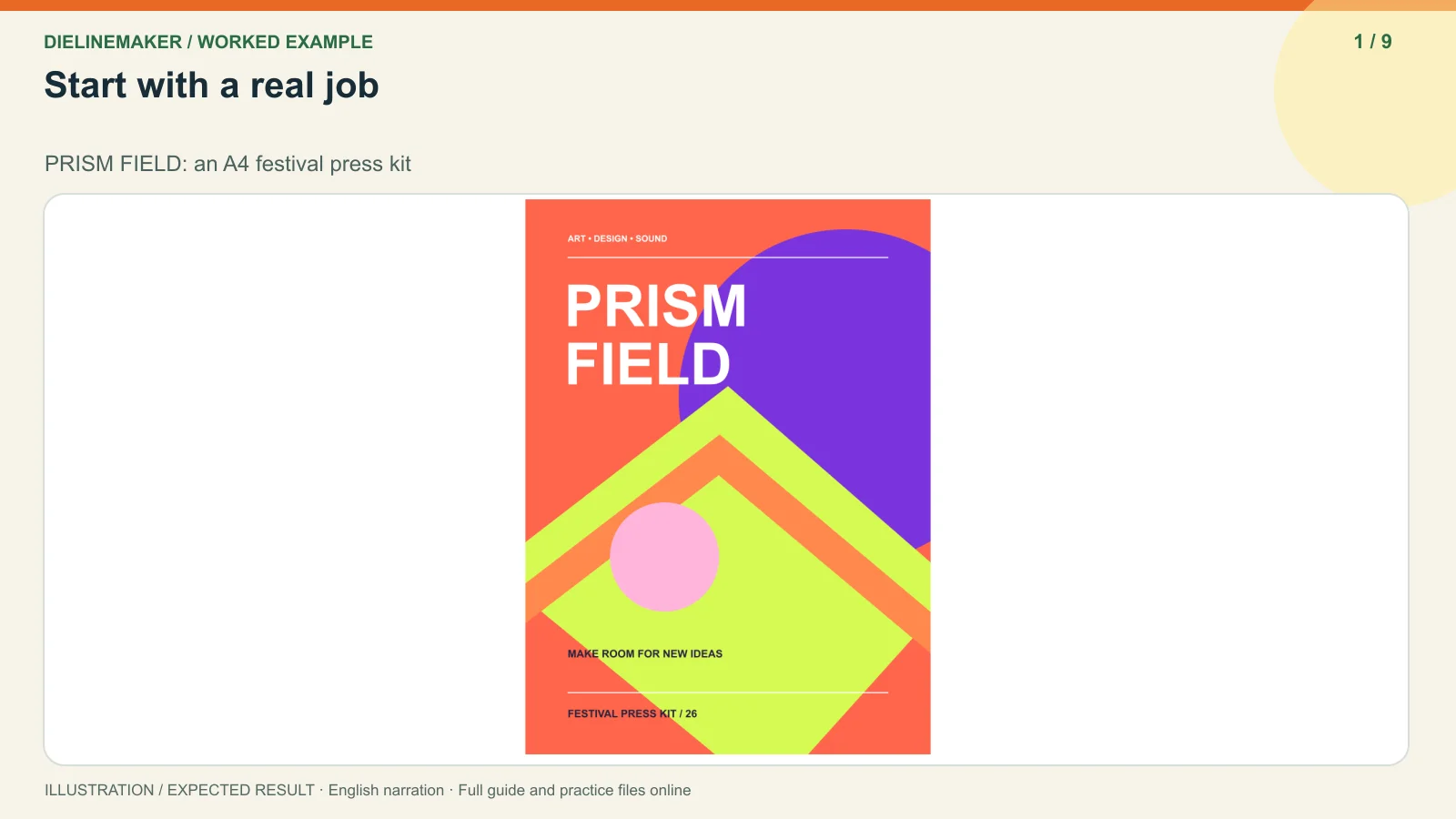
PRISM FIELD: an A4 festival press kit
Build a colourful two-pocket folder for A4 programme sheets and an 89 × 51 mm contact card. Compare the preset’s named size with the actual clearance around glued pockets, then verify a full-size folded sample.
Try the example files
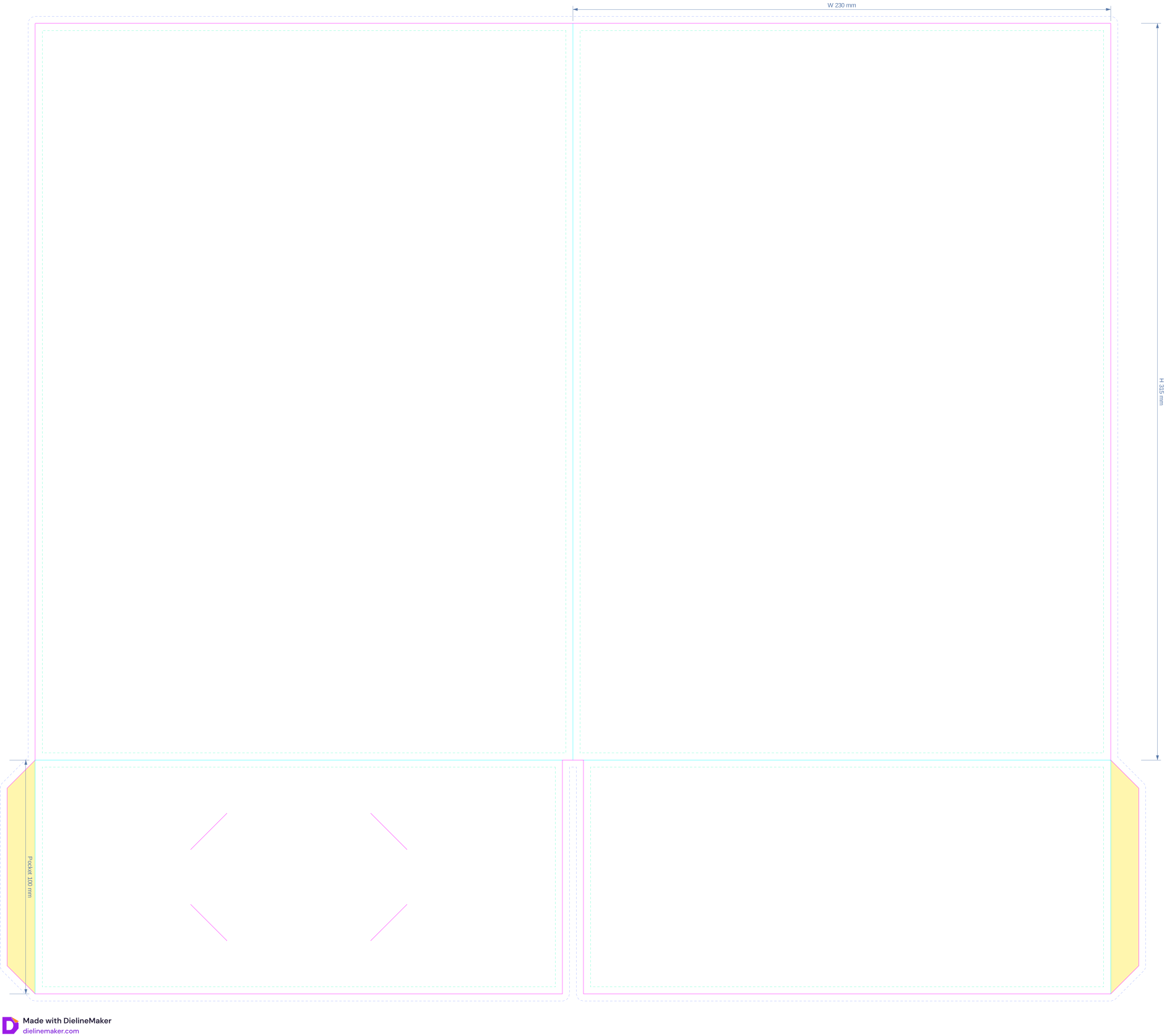
Editable front artwork (SVG)Editable creative artwork for this practice project.Editable back artwork (SVG)Editable creative artwork for this practice project.Source-engine technical output (SVG)Technical SVG generated directly with the application geometry engine; not a browser export or approved production proof.Geometry inputs and verification (JSON)Exact geometry inputs, measured bounds and source-engine verification.Annotated before-and-after diagram (SVG)Explanatory before-and-after concept diagram.Worked-example worksheet (JSON)Practice settings, steps and checks for this guide.Annotated source-engine geometry overviewEditable creative artwork for this practice project.Download this example’s transcriptChaptered English narration for this specific worked example.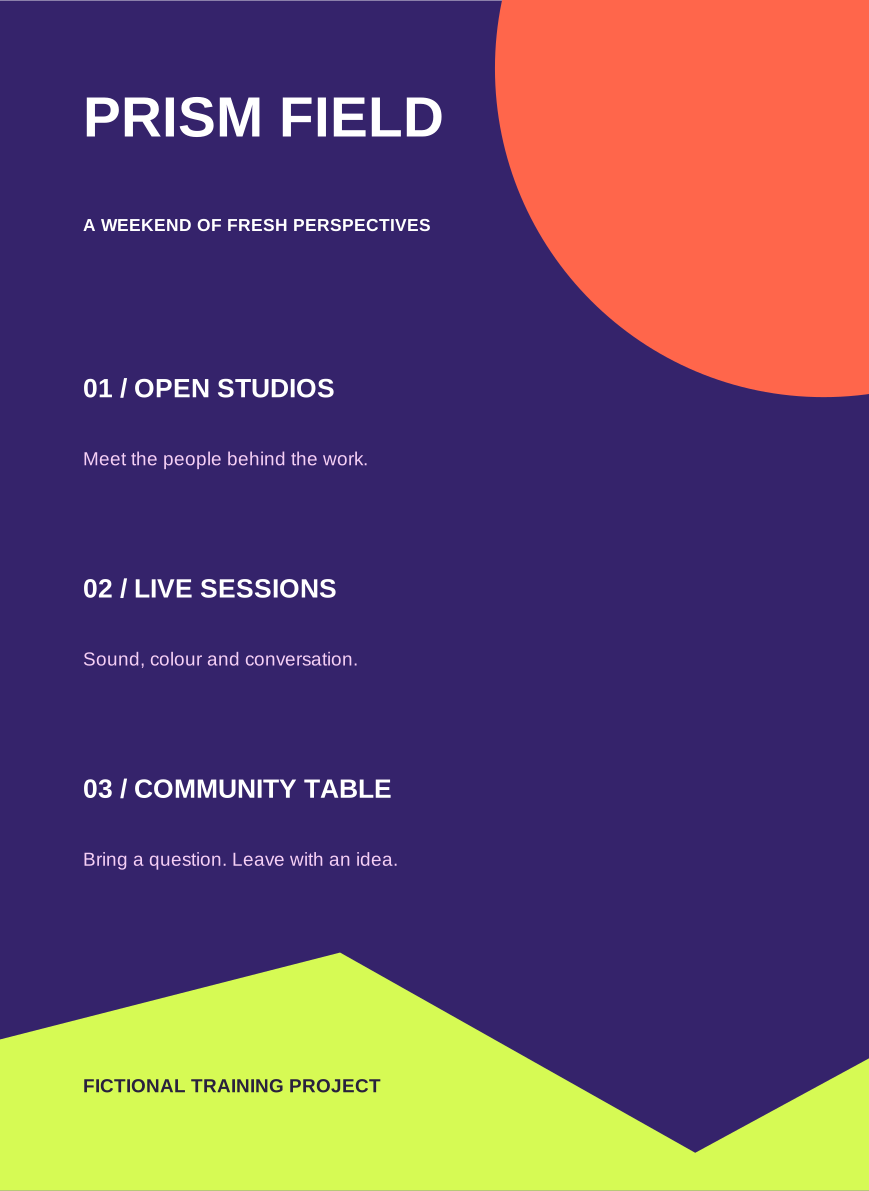
A separate exercise for this guide
PRISM FIELD: an A4 festival press kit
Build a colourful two-pocket folder for A4 programme sheets and an 89 × 51 mm contact card. Compare the preset’s named size with the actual clearance around glued pockets, then verify a full-size folded sample.

Prepare these inputs
- Two real 210 × 297 mm A4 sheets and an 89 × 51 mm practice contact card.
- The Presentation folder / A4 preset, adjusted to 230 × 315 mm covers.
- Separate PRISM FIELD front and back SVG artwork; SBS 350 at explicit 0.50 mm caliper.
Settings to try and what changes
Width × Height
230 × 315 mm
Larger than the named A4 starting preset to allow a conservative pocket/glue clearance check.
Pockets / depth / shape
Two pockets / 100 mm / Straight
Both inside covers hold separate handouts; depth is vertical coverage, not stack thickness.
Spine / gusset / glue tab
0 / 0 / 12 mm
Flat thin-kit construction; adhesive region still consumes usable pocket space.
Business card slits
On; 89 × 51 mm card
Fixed card geometry on the inside right pocket; the sample must test retention.
Cut envelope / bleed bounds
484 × 415 / 490 × 421 mm
Verified source-engine bounds at 3 mm bleed; excludes output annotations and printer margins.
Follow this specific job
Record the baseline and usable pocket space
Start with the A4 preset’s 220 × 310 mm cover, then use the exercise’s 230 × 315 mm cover. Compare the conservative pocket-width calculation before placing artwork. Follow the full eight-step walkthrough below for the editor actions.
Compare one capacity choice at a time
Keep two 100 mm straight pockets and 12 mm glue tabs. Compare zero spine with a trial 8 mm spine, then return to zero for this thin-kit example. Notice that a spine change does not add a pocket gusset.
Inspect the measured output and a paper dummy
The supplied engine output is 484 × 415 mm at the cut boundary and has no warnings. Verify a 100% folded/glued sample with 210 × 297 mm sheets and an 89 × 51 mm card before approving the job.
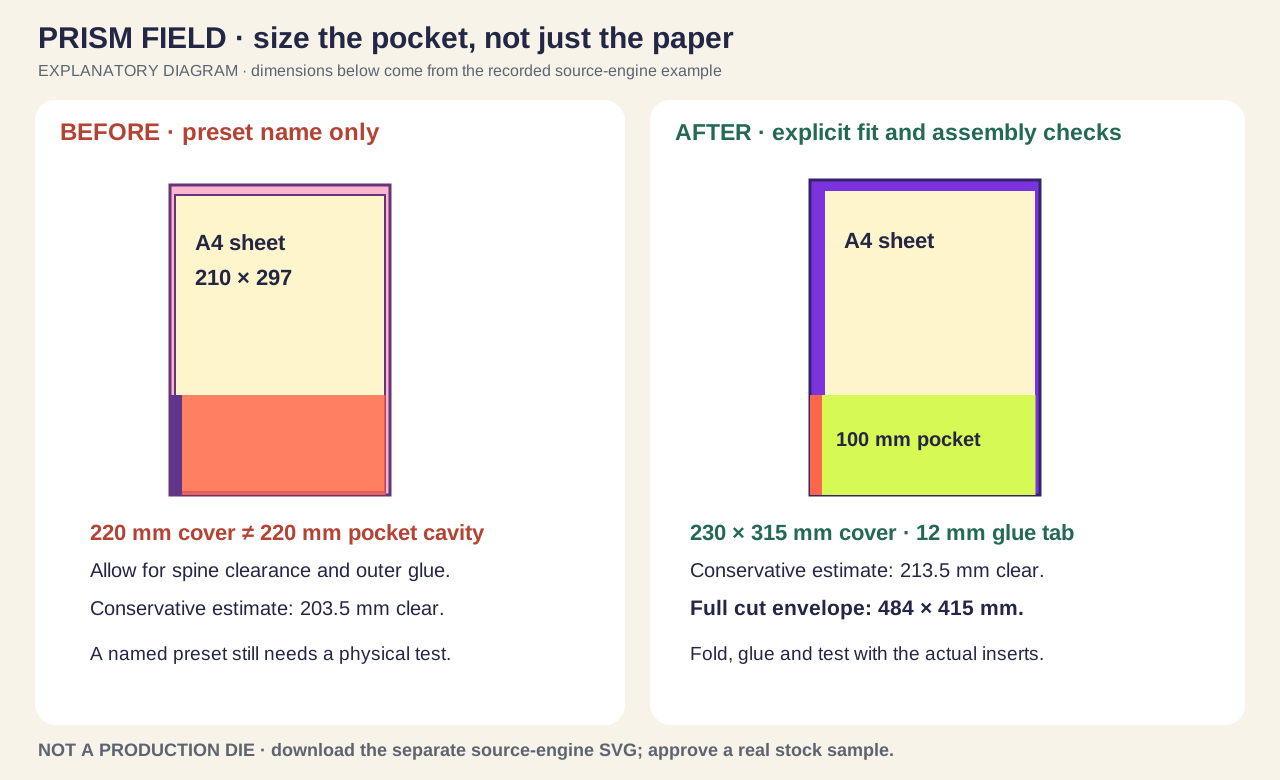
Before: identify the problem
- A4 preset name assumed to guarantee fit.
- Artwork placed on a full spread without panel checks.
After: the result to aim for
- Explicit cover, pocket and glue dimensions.
- Separate front/back artwork with a real-size fit test.
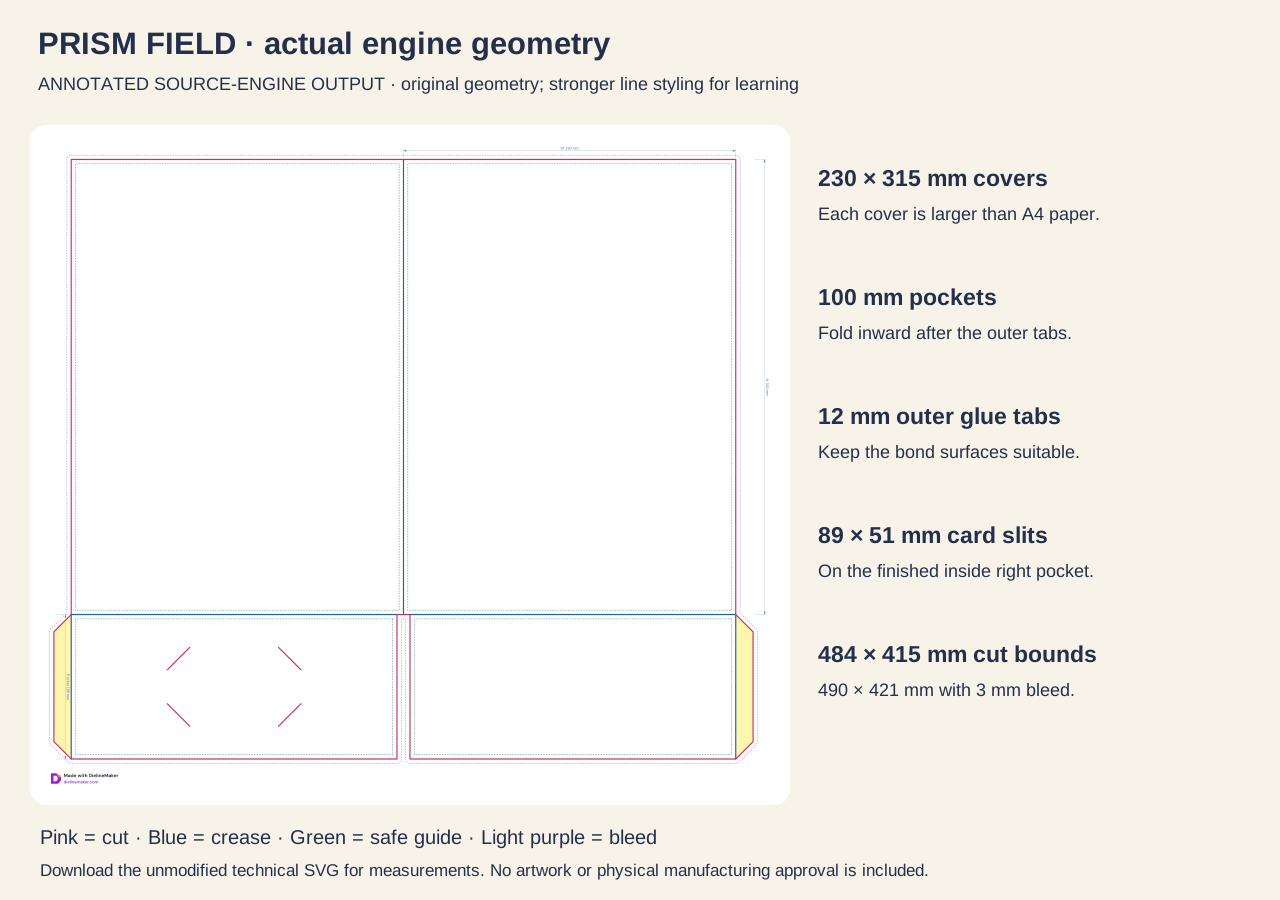
Open the annotated concept illustration
Inspect your result
- Measure A4 paper at 210 × 297 mm; do not shrink it to hide a tight pocket.
- Inside right pocket and outside-left back cover are the same assembly side.
- Tabs fold behind pockets; adhesive areas stay suitable for bonding.
- 484 × 415 mm blank is printed at actual size, not fitted to A4/A3.
- Source engine returns zero warnings; real insertion, closure and card retention still need a sample.
Files for this example
Editable front artwork (SVG)Vector artwork input, 230 × 315 mm; live text and fictional branding. Upload to the front panel; not a dieline.Editable back artwork (SVG)Distinct vector artwork input, 230 × 315 mm. Upload to the back panel and check folded orientation.Source-engine technical output (SVG)Actual source-engine geometry, without artwork; cut/crease/safe/glue guides where applicable, dimension labels and original vector watermark. Not a browser export or approved production file.Geometry inputs and verification (JSON)Recorded dimensions, parameters, material, warnings, bounds and panel orientation from the source engine.Annotated geometry overview (SVG)The source-engine paths displayed with stronger lines and explanatory labels. Use the separate unmodified technical SVG for actual-size measurement.Annotated before-and-after diagram (SVG)Explanatory illustration of measurements, orientation and checks; not an application screenshot.Worked-example worksheet (JSON)Readable settings and assembly checks, not an importable .foldline project.Fictional training project. Editable SVG artwork and annotated comparison are original explanatory illustrations. The technical SVG is a technical reference generated by DielineMaker from the recorded settings, not a browser export, artwork proof or manufacturing approval. Its vector watermark is preserved. Confirm a physical sample and supplier requirements before production.
Step-by-step walkthrough
Measure the contents before choosing the cover
For PRISM FIELD, prepare a 210 × 297 mm A4 programme, a matching contact sheet and an 89 × 51 mm practice business card. This is a thin kit, not a promised sheet-count capacity. Measure the thickest real bundle at its fold or binding and note any protruding tabs.
Open the real folder template and set the practice size
Open the linked A4 presentation-folder preset. In Print setup → Size use millimetres and set Width 230 mm and Height 315 mm. These are cover dimensions. The preset’s starting 220 × 310 mm remains useful as a comparison, but the exercise adds allowance for the folded pocket and its outer glue region.
Make the pocket construction explicit
In Print setup → Size select Two pockets, Pocket depth 100 mm, Pocket capacity gusset 0 mm, Straight pocket shape, Capacity spine 0 mm, Business card slits on and Glue tab 12 mm. Leave Cover lock and Hanging tab at None. A visible default and Auto can resolve differently: enter these exercise values explicitly.
Set the board before final artwork
Select SBS 350 and confirm 0.50 mm caliper. Use 3 mm bleed and a 3 mm safe guide for this exercise. Inspect the 2D cut, crease, slit and glue regions. The downloadable engine diagram has no printed artwork and is a geometry reference; it is not the ready-to-print festival cover.
Place the front and back as separate artwork
Upload prism-field-front.svg and prism-field-back.svg as artwork layers. Assign the first to Front cover and the second to Back cover; start with Contain. Each supplied SVG is 230 × 315 mm. Inspect the selected panel, scale and background bleed; the SVG’s physical trim size alone does not add the app’s bleed. Keep cover text away from the spine fold and outer trimming zone.
Design the pocket after checking which side becomes visible
The outside flat blank has Back cover on the left and Front cover on the right. After opening the assembled folder, the inside right pocket is attached to that back-cover panel. Check the labelled pocket and the folded view before assigning any extra pocket text. Do not identify “Right pocket” from screen position alone, and do not mirror lettering to compensate for viewing the inside.
Make a fold-and-glue dummy at actual size
Print a technical paper mock-up at 100% or tile it with an actual-size method; the 484 × 415 mm cut envelope will not fit on A4 or A3. Cut the solid cut paths, score the creases, fold the outer tabs behind their pockets, then raise the pockets inward and bond them to the marked inside regions. Add the real paper and card. Check insertion, removal, closure and slit tearing before refining artwork.
Save a recoverable job and choose the output deliberately
Save PRISM FIELD folder v01 as an editable project. Use Download for the production dieline/print format agreed with the supplier and a separate presentation image if needed. Keep technical cut/crease layers separate from artwork; use the relevant cutter profile only when its names match the supplier workflow. Open the exported file to verify dimensions and separations. A 3D image is a presentation output, not a cutting specification.
Options at a glance
| Control or choice | What it changes | How to use it well |
|---|---|---|
| Width and Height | Width is one closed cover, 120–400 mm. Height is the closed cover height, 150–450 mm. The built-in A4 preset starts at 220 × 310 mm; the 9 × 12 in preset is 229 × 305 mm. These are folder dimensions, not the size of the paper you insert. | PRISM FIELD starts from A4 and deliberately increases the cover to 230 × 315 mm. At 0.50 mm stock, the template leaves 4.5 mm at the spine side of each pocket; a conservative allowance of the full 12 mm outer tab leaves approximately 213.5 mm of usable width. Confirm this assumption with a glued sample. |
| Pockets | Chooses the retention construction; it does not merely hide an illustration. | Use Two pockets in this exercise. |
| Pocket depth | Sets the distance from the bottom pocket fold to its upper edge: 40–220 mm in the control, additionally limited to at least 20 mm below the cover height. Auto derives roughly one third of the height. | Use 100 mm on the 315 mm cover. The paper above the pocket remains readable; the pocket artwork must make sense after the upward fold. |
| Pocket capacity gusset | 0 mm folds the pocket flat. A positive value up to 25 mm adds depth strips with paired creases at the bottom and outer edge. | Keep 0 mm for the thin handout exercise. For a bulky kit, measure the real stack, select a trial gusset and spine together, and make a folded sample; do not infer sheet count from the slider. |
| Pocket shape | Changes the pocket opening profile while retaining the pocket construction. | Use Straight first; compare Curved only after saving the baseline. |
| Capacity spine | 0 mm gives a single centre fold. Above zero, up to 25 mm, a flat spine separates two cover creases. | Compare 0 and 8 mm with the same contents. Keep the two cover graphics independently attached so a wider spine does not stretch a logo across the fold. |
| Business card slits | Adds four corner slits on the right pocket for an 89 × 51 mm card when enough space is available. | Keep enabled on the 100 mm straight pocket. The source-engine example contains the slit geometry without warnings; test the physical card and avoid artwork through the slit tips. |
Detailed control reference
Find the control, understand its effect, and choose it for the job you are making. Available controls depend on the selected structure, object, workspace and output.
Print setup → Size
Width and Height
Width is one closed cover, 120–400 mm. Height is the closed cover height, 150–450 mm. The built-in A4 preset starts at 220 × 310 mm; the 9 × 12 in preset is 229 × 305 mm. These are folder dimensions, not the size of the paper you insert.
- When it helps most
- Choose from the actual handout, brochure and business card, then account for assembly clearance. A4 paper is 210 × 297 mm.
- Impact and trade-offs
- Width affects both covers and the flat sheet footprint; height affects the covers and the amount of paper visible above a pocket. A preset name does not verify the usable space after gluing.
- Worked example
- PRISM FIELD starts from A4 and deliberately increases the cover to 230 × 315 mm. At 0.50 mm stock, the template leaves 4.5 mm at the spine side of each pocket; a conservative allowance of the full 12 mm outer tab leaves approximately 213.5 mm of usable width. Confirm this assumption with a glued sample.
Print setup → Size (Presentation folder)
Pockets
Chooses the retention construction; it does not merely hide an illustration.
- Two pockets
- A pocket on each inside cover, with glue tabs at the outer edges.
- Right pocket
- One pocket on the right when the finished folder is opened; do not identify it by left/right position on the outside flat blank.
- No pockets
- A folding cover without these document-retaining pockets; loose pages need a separate retention method.
- Corner retainers (menu cover)
- Diagonal folded retainers hold separate flat menu or certificate cards. This switches to a different set of conditional controls.
- When it helps most
- Two pockets suit a press kit with a programme on one side and a contact sheet on the other. A right-only pocket suits a thin proposal.
- Impact and trade-offs
- Changing construction rebuilds the cut and fold paths. Recheck attached artwork, the available card slits and the print sheet after changing it.
- Worked example
- Use Two pockets in this exercise.
Print setup → Size (Presentation folder)
Pocket depth
Sets the distance from the bottom pocket fold to its upper edge: 40–220 mm in the control, additionally limited to at least 20 mm below the cover height. Auto derives roughly one third of the height.
- When it helps most
- A deeper pocket keeps more of a loose document behind board; a shallower one exposes more content and is easier to reach into.
- Impact and trade-offs
- Depth consumes blank height and hides the lower part of the inserted document. It is vertical coverage, not the thickness of the stack. Too little height or a curved/angled corner can prevent business-card slits from fitting.
- Worked example
- Use 100 mm on the 315 mm cover. The paper above the pocket remains readable; the pocket artwork must make sense after the upward fold.
Print setup → Size (Presentation folder)
Pocket capacity gusset
0 mm folds the pocket flat. A positive value up to 25 mm adds depth strips with paired creases at the bottom and outer edge.
- When it helps most
- Use it when a measured brochure bundle needs space behind the pocket face.
- Impact and trade-offs
- Adds panels, creases and blank area. It changes the pocket cavity independently of the cover spine. A 10 mm spine alone does not create a 10 mm pocket. Added stock thickness, crease behaviour and glue still affect usable capacity.
- Worked example
- Keep 0 mm for the thin handout exercise. For a bulky kit, measure the real stack, select a trial gusset and spine together, and make a folded sample; do not infer sheet count from the slider.
Print setup → Size (Presentation folder)
Pocket shape
Changes the pocket opening profile while retaining the pocket construction.
- Straight
- A straight top edge with consistent coverage.
- Angled corner
- An opening with an angled section; reduced full-height area near that corner.
- Curved
- A curved opening that dips below the maximum pocket depth.
- When it helps most
- Straight is simple for event packs; an angled corner helps reveal an insert; a curve can support a softer visual style.
- Impact and trade-offs
- Cut shape changes where the pocket is full-depth. Business-card slits are checked against the available uncut area. Reposition logos that approach a sloping or curved edge.
- Worked example
- Use Straight first; compare Curved only after saving the baseline.
Print setup → Size (Presentation folder)
Capacity spine
0 mm gives a single centre fold. Above zero, up to 25 mm, a flat spine separates two cover creases.
- When it helps most
- Useful for proposals, multiple brochures or booklets that prevent a flat folder closing comfortably.
- Impact and trade-offs
- Adds directly to the width between the covers and changes the closure and artwork spread. It does not change the pocket gusset or guarantee a paper-stack capacity.
- Worked example
- Compare 0 and 8 mm with the same contents. Keep the two cover graphics independently attached so a wider spine does not stretch a logo across the fold.
Print setup → Size (Presentation folder)
Business card slits
Adds four corner slits on the right pocket for an 89 × 51 mm card when enough space is available.
- When it helps most
- Keeps a named contact card with a sales or press kit without a separate glued holder.
- Impact and trade-offs
- The card size is fixed for this feature; this is not a custom card-size field. A small or shaped pocket can omit the slits and issue a warning. Do not force an 85 × 55 mm card into an assumed equivalent opening.
- Worked example
- Keep enabled on the 100 mm straight pocket. The source-engine example contains the slit geometry without warnings; test the physical card and avoid artwork through the slit tips.
Print setup → Size (Presentation folder); locate the named structure control
Glue tab
Controls the side tab on each pocket: 8–25 mm, further limited by pocket depth. The tab folds behind the pocket and bonds to the inside cover.
- When it helps most
- Choose with the converter’s adhesive, stock and gluing equipment.
- Impact and trade-offs
- A larger bond region can consume document space and blank width. Keep the intended adhesive contact surfaces compatible with the chosen ink, varnish or laminate. The setting specifies geometry, not adhesive performance.
- Worked example
- Use 12 mm. Fold these tabs inward before raising the pockets. The engine output includes inside glue-area guides; do not treat those guides as artwork.
Print setup → Size (Presentation folder); locate the named structure control
Stand-up angle
Changes the angle between the covers in the 3D presentation, 20–175 degrees. It does not change the dieline.
- When it helps most
- Use it to show a folder open enough to inspect inside pockets or partly closed for a client image.
- Impact and trade-offs
- A nicer camera pose cannot solve insufficient physical capacity. Do not add paper allowance because a render looks roomy.
- Worked example
- Use 110 degrees for the practice preview. Compare it with a more open view while confirming the downloaded cut geometry stays the same.
Print setup → Size (Presentation folder); locate the named structure control
Cover lock and Lock flap depth
An optional flap on the back wraps to the front and engages a slot or slit. Lock flap depth is 12–80 mm and matters when a lock is selected.
- None
- No closing flap or matching front slot.
- Side tongue
- One side closure tongue.
- Two side tongues
- A pair of side tongues to close the cover.
- Top tuck flap
- A top closure; cannot share that top edge with the hanging-tab feature.
- When it helps most
- Useful for a kit that should stay closed in handling, or a retail document wallet.
- Impact and trade-offs
- Changes the front cut pattern and blank envelope. Check the slot against artwork, inserts and the chosen spine. “No adhesive” refers to this cover closure; the ordinary inside pockets still use glue.
- Worked example
- Leave Cover lock = None here.
Print setup → Size (Presentation folder); locate the named structure control
Hanging tab
Adds a projecting Euro-slot tab on the back, or matching tabs on both covers for a two-ply hanging arrangement.
- None
- No added top tab.
- On the back cover
- One projecting slotted tab.
- On both covers (two-ply)
- Two tabs intended to meet when the folder closes.
- When it helps most
- Useful for retail peg display rather than an ordinary presentation pack.
- Impact and trade-offs
- Extends the blank above the cover. A top tuck flap or insufficient space between corner retainers can cause the hanging tab to be omitted with a warning. A visible slot does not certify load capacity.
- Worked example
- Leave None in the press-kit exercise; inspect the regenerated output if adapting it for retail.
Print setup → Size (Presentation folder); visible with Corner retainers
Corner retainer size and Retainer pages
Corner retainer size chooses each diagonal leg. Zero means Auto: about 15% of the shorter cover side, initially limited to 20–60 mm. Retainer pages selects both inside pages or the right page only.
- When it helps most
- Use for replaceable menu cards or certificates, rather than a bundle behind a conventional pocket.
- Impact and trade-offs
- Larger corners cover more of the insert and change the cut envelope. Keep essential certificate text clear of the diagonal coverage. These controls do not apply to the Two pockets exercise.
- Worked example
- If converting PRISM FIELD into a certificate folder, select Corner retainers and rebuild a paper insert with safe corner space before choosing the final size.
Print setup → Size (Presentation folder); leather options belong to the corner-retainer construction
Cover finish, Leather colour and Stitch colour
Cover finish selects Printed paperboard (folding blank) or Leather / faux leather (sewn). The latter is a wrapped, stitched menu-cover construction; the print outputs become front decoration and menu cards.
- Leather colour
- Dark brown, Tan, Black, Burgundy, Navy or Forest.
- Stitch colour
- Cream, Gold, Black or White.
- When it helps most
- Use the leather version when commissioning a sewn menu cover from an appropriate maker.
- Impact and trade-offs
- The leather version does not export this paperboard blank. Leather colour and stitch colour change that representation and do not provide a sewing specification or a measured leather swatch.
- Worked example
- Stay with the paperboard two-pocket construction. Do not switch to leather merely to make the board preview darker.
Print setup → Material; Size → Production; inspect in 2D
Material, caliper, bleed and safe guides
Material sets the board appearance and nominal thickness; a caliper override should match measured stock. Bleed extends printable background beyond cuts; safe guides show an inset for important content.
- When it helps most
- Caliper matters to fold offsets and pocket clearances; bleed and safety matter to trimming and readability.
- Impact and trade-offs
- GSM is mass per area, not a thickness measurement. A 3 mm safe guide is a practice starting point, not automatic approval near a slit or moving fold. Keep glue zones separate from decorative coverage.
- Worked example
- Use SBS 350 with explicit 0.50 mm caliper, 3 mm bleed and 3 mm safe guides. The engine comparison has the same settings. Its cut envelope is 484 × 415 mm; the bleed bounds are 490 × 421 mm, before dimension labels or output page margins.
A4 contents, closed size and real usable pocket space
A4 describes the inserted sheet, not the whole blank. Its 210 × 297 mm size is smaller than the closed cover, and much smaller than the open dieline. In this exercise two 230 mm covers make a 460 mm cover spread; the 12 mm outer tabs expand the cut width to 484 mm. The 315 mm cover plus 100 mm pocket gives a 415 mm cut height. All are distinct measurements.
The template intentionally stops each pocket short of the centre fold by 3 + 3 × caliper. At 0.50 mm that is 4.5 mm. The pocket also needs an outer glued region. Subtracting the full 12 mm tab as a conservative allowance gives 230 − 4.5 − 12 = 213.5 mm before assembly tolerances. The 220 mm preset would give 203.5 mm under the same conservative assumption. This is a source-derived fit check, not a measured guarantee; the adhesive footprint and the final manufactured construction determine the real cavity.
The correct response to tight paper is to measure and adjust the construction, not shrink A4 artwork and quietly call it A4. If your converter has an approved folder die, import and validate that supplier structure instead of replacing its established tolerances.
Outside, inside and pocket orientation
The front and back inputs are separate editable SVG drawings with live text and vector shapes. Their text uses a normal sans-serif fallback, so appearance can vary if edited on another computer. In the app an uploaded SVG is an artwork layer; uploading does not promise that every internal SVG object becomes a separate editable text layer. For app-native editable titles, add a Text layer and keep the illustration separate.
The supplied front uses coral, violet and lime festival graphics. The back has a programme and contact panel. Check these in both 2D and 3D. The concept illustration explains the assembly; the engine SVG shows the real cut construction without artwork. Neither is a photographed manufactured folder.
If adding pocket branding, use the folded readable result as the authority. A pocket folds 180 degrees onto the inside, and panel targeting and the app’s orientation handling matter. Do not rotate the entire cover spread to fix a pocket. Keep slit tips and adhesive regions clear of critical text, small logos and scan codes.
Why an A4 folder does not print on A4
The example’s source-generated cut envelope is 484 × 415 mm; its 3 mm bleed bounds are 490 × 421 mm. A3 is 420 × 297 mm, so this blank cannot fit at full size on A3 either. A larger sheet can still fail because of the printer’s gripper, non-printable margins, cutting marks or usable image area.
For a hand dummy, tile at actual size and verify a ruler reference after printing. Do not use Fit to page. For production, open Sheet and inspect the actual blank, bleed, gutter, grain and printable region. Agree a sheet or roll with the printer before promising a yield. The example deliberately does not promise an A2 production fit or copies per sheet.
Keep score and cut operations distinct. Cutting all dashed fold guides destroys the folder. Printing every technical guide in process ink can leave unwanted lines on the finished product. Ask for the exact required technical layer/separation names and inspect the exported file.
Adapting the same project to real jobs
A sales proposal may need a capacity spine, a pocket gusset or both. Measure the stack and compare one change at a time, recording the new blank size. A business card holder is useful only when its actual size matches the fixed slits. A certificate needs clean corners and may be better served by corner retainers than a deep pocket.
For a wedding or event pack, run the same check with the actual envelope, map and badge; an insert can be narrower than A4 but thicker at a folded edge. For a restaurant menu, choose the menu-cover construction and check replaceable cards. Leather colour is part of that sewn cover option, not a way to recolour a paperboard production file.
Before and after: what the comparison actually proves
Before: a folder selected by the word A4, with no verification of pocket glue clearance, a full spread graphic and an assumed sheet size. After: explicit 230 × 315 mm covers, separately targeted front/back inputs, two 100 mm pockets, known 484 × 415 mm cut envelope and a defined physical fit test.
The source-engine example built with no warnings at the recorded settings. That proves the selected geometry generated successfully. It does not prove paper insertion, adhesive strength, slit durability, colour reproduction or production registration. Record the result of your own folded sample before approving a print run.
Check your work
- Measure A4 paper at 210 × 297 mm; do not shrink it to hide a tight pocket.
- Inside right pocket and outside-left back cover are the same assembly side.
- Tabs fold behind pockets; adhesive areas stay suitable for bonding.
- 484 × 415 mm blank is printed at actual size, not fitted to A4/A3.
- Source engine returns zero warnings; real insertion, closure and card retention still need a sample.
- Open the actual exported file and verify scale, technical line separation and artwork orientation.
- Keep the saved editable project, supplier-approved production file and client presentation image distinct.
Troubleshooting
The A4 sheet does not enter the pocket
Measure the paper, clear pocket width and actual glued region. A4 is 210 × 297 mm, while the preset name describes a use case. Widen the cover or use a supplier-approved construction; do not scale the contents down unnoticed.
The folder closes but the pocket will not take the booklet
Capacity spine and Pocket capacity gusset are independent. A wider spine alone leaves a flat pocket. Measure the bundle, adjust the appropriate construction and test the folds and adhesive.
Business-card slits disappear
Read the warning. The fixed 89 × 51 mm card needs sufficient pocket width and height, including the reduced area under a curve or angled corner. Enlarge the pocket or disable the feature and choose a different holder.
The right pocket appears on the left in the flat view
The flat outside is Back cover | optional spine | Front cover. Inside right belongs to the back cover. Target the labelled panel and inspect the folded inside view.
The folder is smaller after printing
Turn off Fit to page. The example cut envelope is 484 × 415 mm and cannot fit A4 or A3 at full size. Use a suitable sheet or an actual-size tiled dummy and check with a ruler.
The hanging tab or paperboard blank is missing
Read conditional warnings: a top flap can exclude a hanging tab. The sewn leather menu-cover mode exports decoration/cards rather than the paperboard blank; return to the intended board construction if that was an accidental switch.